Individual plan page overview
Individual plan pages hold the order of service, teams, and more information to help your scheduled team members understand what to expect.
You can go to a plan page by selecting an upcoming date from your My Schedule page, or by choosing a plan date from the Plans page (if you have viewer permissions or higher).
Header
The plan header at the top gives an overview of the current plan and allows you to move to the next plan.
Select the left and right arrows < > below the plan title to go to the previous or next plan.
If this plan is connected to a Calendar event, select the 🗓️ calendar icon to view the corresponding event page in Calendar.
Select the 🖨️ print icon to print a plan report.
Select the Matrix button to pull up the matrix view.
Select the Actions button to print a report, save the plan as a template, copy the plan, clear the order, edit series information, view collaborators for this plan, manage service type settings, or delete the plan.
Sidebar
The sidebar on the left displays your plan's times, scheduled teams, files, notes, and connected sermon episodes. Select a section header to collapse or expand its details.
Times: View or edit this plan's service times, rehearsal times, or other times.
People with viewer permissions or higher can see all of a plan's times. Times to which you're assigned will be bolded, while times to which you're not assigned will be grayed out.
Scheduled viewers can only see times to which they're assigned.
Teams: View your scheduled team members for this plan. Any teams you belong to will be displayed first. If other teams are hidden, select Show all teams. (This section is only visible if you're on the Order tab of the plan.)
Files: View and download files uploaded to this specific plan or service type.
Notes: View any plan notes for this service.
Sermon Episode: If you've linked this plan to a sermon episode in Publishing, you can view the episode in Church Center or edit it in Publishing.
Order tab
The Order tab displays plan items, notes, plan sharing options, and rehearsal tools.
Select the share icon to open Services LIVE, enable the public view in Church Center, or share the plan.
Select the 🎵 music note icon to access rehearsal tools like the media player, Songbook PDFs, and Web Music Stand.
Select Add in the top right to add items to the order of service, such as plan items, headers, song items, and media items.
Review the plan items in the service order. Your profile icon appears to the right of any item for which you've been assigned as the leader. Select a plan item to edit its details.
Select the left and right arrow buttons < > to scroll horizontally if your item details are wider than your screen.
Select the column button in the top right (three vertical lines) to choose which plan item information to display and to adjust the plan view.
Important
The columns you choose to include are saved to your browser settings for the next time you access the plan.
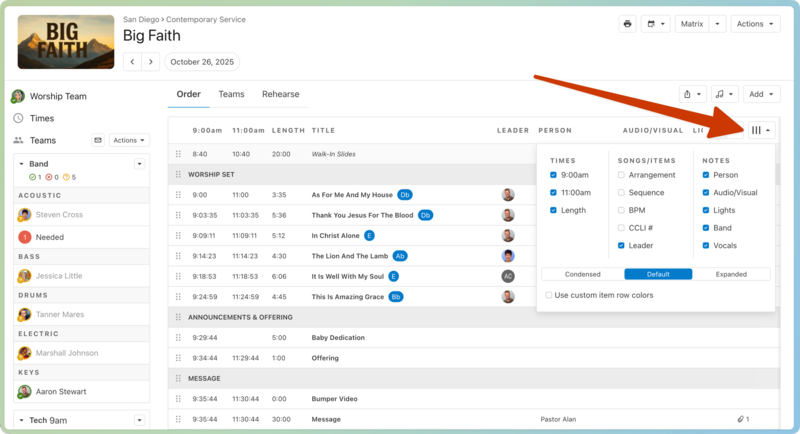
Choose which Times, Song/Item information, and Notes to display as plan columns. If you check the Leader option, each item leader or song leader's profile icon appears next to the item they're assigned to lead.
Select a view option using the tabs at the bottom. The Condensed view minimizes the white space between items to display more details on the screen. The Expanded view displays larger text and allows more white space between items.
Check Use custom item row colors to display the item row colors that have been set up in the service type settings page.
Teams tab
The Teams tab holds all the information about your scheduled team members for this plan.
Teams to which you belong will appear first (My Teams). To view all scheduled teams, select Show all teams in the Other Teams section.
Team leaders and people with editor permissions (or higher) can use the buttons at the top right to take action on all of their scheduled teams:
Select the ✉️ email icon to send a scheduling email to everyone on this plan.
Select the 💬 chat icon to start a chat with your teams on this plan.
Select the 🪄 auto-schedule icon to auto-schedule teams on this plan.
Select Team actions to take action on all teams in this plan, including:
Select the dropdown arrow next to a team's name to take an action on only that team.
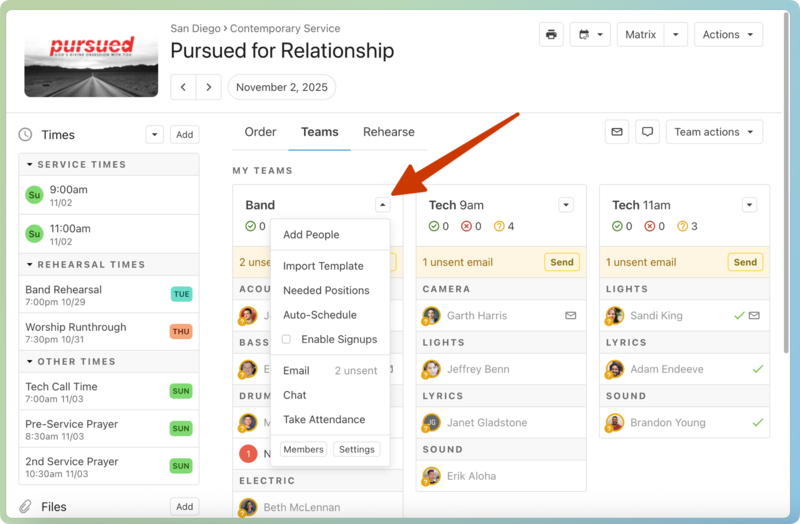
The available actions are identical to the Team actions button, except for the following:
Select Enable Signups to enable the signup sheets feature for this team on this plan.
Select Members or Settings at the bottom of the menu options to open that team's member list or settings page.
Rehearse tab
The Rehearse tab allows your rehearsal teams to access all the tools they need for rehearsal in one place.
Select a song title to view that song's details and files.
Select Media Player to open song files in the Media Player.
Select Songbook to download or print a PDF that compiles this plan's chord charts and/or lyrics.
Select Music Stand to open Web Music Stand (if your organization subscribes to the Music Stand add-on).
Header
The plan header provides an overview of the current plan and allows you to move to the next plan.
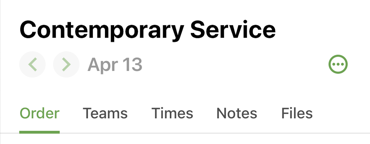
Select the left and right arrows < > to go to the previous or next plan.
Select the three-dot icon to rename the plan, print a plan report, open Services LIVE, open the plan in Music Stand or Safari, or copy the plan link.
Order tab
The Order tab displays plan items, notes, plan sharing options, and rehearsal tools.
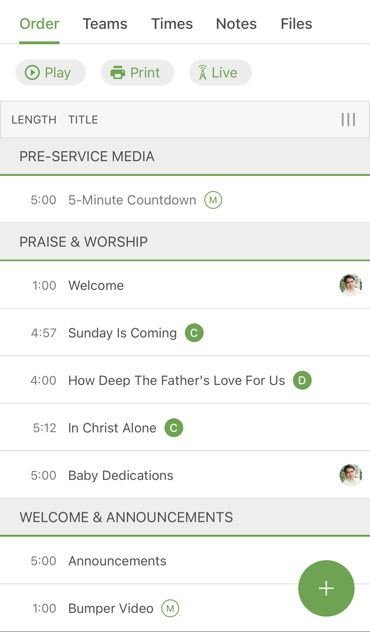
Tap Play to open the Media player.
Tap Print to print a plan report.
Tap the service time/item length column (at the top left) to toggle which information to display next to each item. You can display specific times (relative to a service time) or the item's length in minutes.
Tap the three-line icon in the top right to choose which item notes to display.
Review the plan items in the service order. Your profile icon appears next to any items for which you've been assigned as an item leader. Tap a plan item to edit it.
If you have people and plan editor permissions or higher, tap the ➕ plus sign button at the bottom right to add an item to the service order. You can drag and drop plan items to reorder them.
Tip
If you can't see all your columns, try rotating your phone to a horizontal orientation to view more of the screen.
Teams tab
The Teams tab holds all the information about your scheduled team members for this plan.
Teams you belong to are listed first in the My Teams section. To view all scheduled teams, select Show all teams in the Other Teams section.
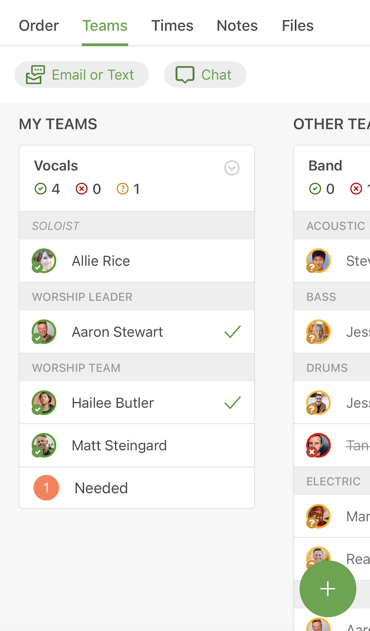
Tap the buttons on the Teams tab to take action on scheduled team members:
Select Email or Text to send a scheduling email or a group text to your team members on this plan.
Select 💬 Chat to start a chat with your team members on this plan.
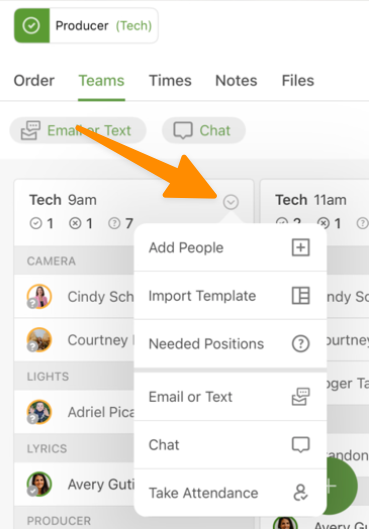
Select the ➕ plus sign button at the bottom right to take attendance, add needed positions, import a template, or add people to this plan.
Tap the arrow next to a team's name to take action on only that team.
Times tab
The Times tab holds all details related to this plan's service times, rehearsal times, and other times.
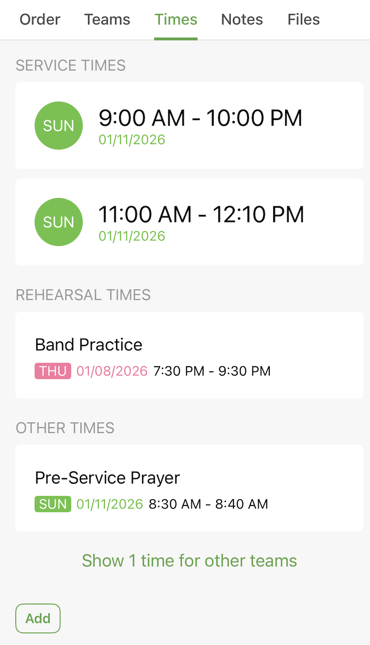
Select a time to edit its details and to adjust the assigned teams and positions.
Select Add to create a new time for this plan.
Notes tab
The Notes tab displays all the notes added to this plan.
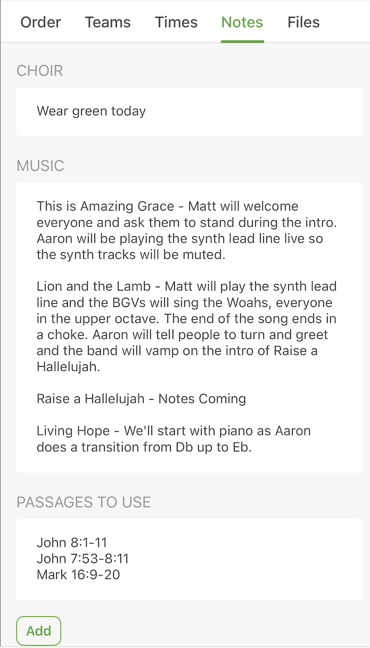
Select a note to edit its category, text, and assigned teams.
Select Add at the bottom of the page to create a new note.
Files tab
The Files tab is where you can access files attached to the service type, the plan, or specific items in the order of service.
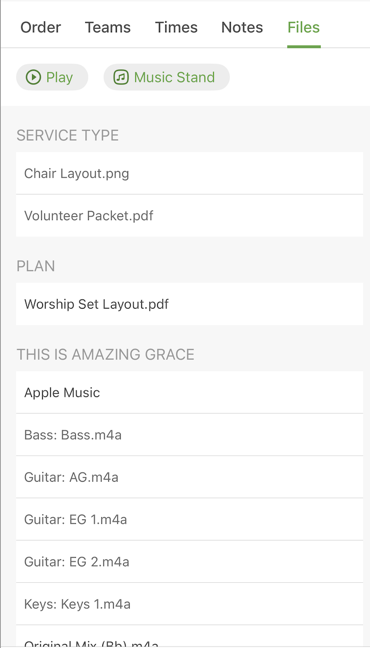
Select the Play button to open the media player.
Select the Music Stand button to open the plan in Music Stand.
Select a file name to open it.