Main Plans page overview
The main Plans page is where you'll find individual plan pages, which contain all the information related to your service orders and scheduled teams.
There are three main levels for organizing information on the Plans page:
An individual plan page contains the service order, scheduled people, and times pertaining to a service.
A service type contains plans, teams, and templates related to a particular kind of service. Typically, these are weekly services, but you can also have service types that hold special services that recur randomly.
A folder can contain multiple service types or folders. You can create as many folders as you want to organize your Plans page and add another level for managing permissions. Use locations or departments as folder names.
When you select Plans using the top navigation, you'll be taken to your most recently viewed folder.
Tip
Administrators can also set a person's default folder so they automatically start in a specific folder each time they log in.
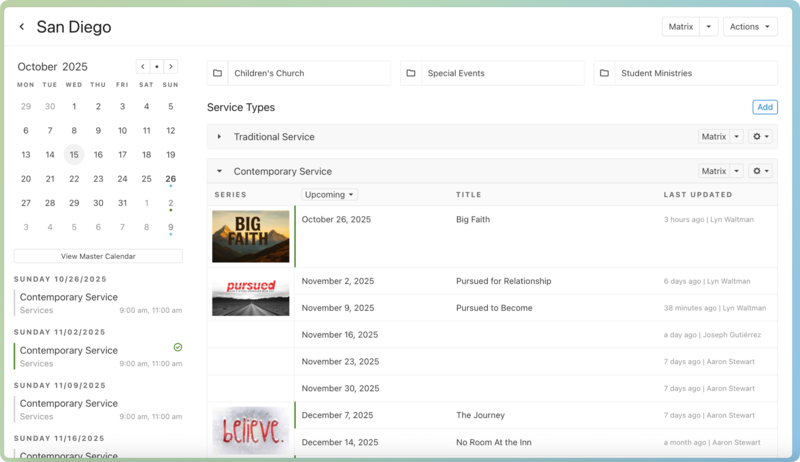
Header: The header at the top left of the page shows you which folder you're viewing. If you're not in a folder, you'll see the church name at the top of your dashboard.
Matrix: Select the Matrix button in the top right to open a matrix with all of this folder's service types.
Actions: Select the Actions button in the top right to add or edit folders, add service types, or change the calendar start date.
Sidebar: The left sidebar shows an overview of your scheduled plans for the month, along with a list of service times by date. You can select View Master Calendar to see more calendar details, such as blockout dates, birthdays, and anniversaries.
Service Types: The gray bars represent the service types in this folder. Select the arrow next to a service type to hide or display the upcoming plans in that service.
Select the Upcoming dropdown and choose a different date range to view past plans.
If there are no upcoming plans, select the Change dates dropdown to view past plans.
Select a plan date or title to open that individual plan page. Any plans for which you're scheduled will be shown in bold.