Schedule your teams
Schedule your teams in Services so people know when they need to serve! Once you send the scheduling email, team members can open the plan page to view service details and access any files they need to prepare for their role.
Before scheduling, make sure you've set up teams in your account, created plan pages for your upcoming services, and assigned your teams to the service types where they need to be scheduled.
This article covers the most common workflow for scheduling teams, which involves the following steps:
Important
If you have scheduler permissions, you can only schedule, auto-schedule, email, or manage settings for teams you lead.
Ask your administrator to add you as a leader for the teams you want to schedule.
Add people to a plan
This section covers the three most common ways to add people to a plan: creating needed positions, using scheduling templates, and manually adding people.
Schedule people using needed positions
Set up needed positions in plans or templates when you don't know who you want to schedule, but know you need a certain number of people to fill a position.
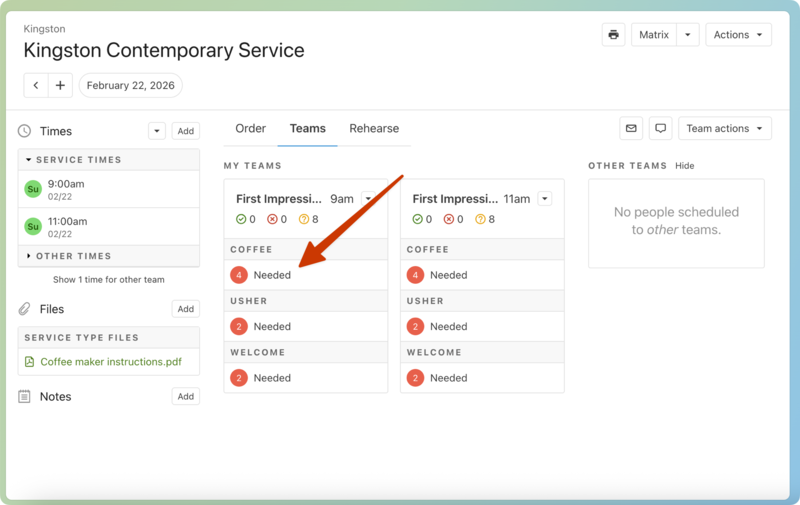
When you select a needed position, you'll see a list of team members you can schedule for that position. This list includes several pieces of information to help you choose the best people:
The number next to someone's name (e.g., +5w) shows their "last scheduled plan" (which may be in the future). You can adjust this parameter by selecting the 🗓️ calendar icon in the top right of the list.
If a team member has a blockout or a conflict for this plan, a conflict badge appears next to their name. Hover over the badge to see more details.
Head to the Set up needed positions article to learn more!
Schedule people using a template
Set up scheduling templates to quickly import the same combinations of needed positions and/or team members to your plans without adding them from scratch every time.
For example, if you consistently need the same number of people for each team on a regular Sunday service, create a "Sunday Service" template with those positions. You can apply that template automatically when creating the plan.
If you schedule team members on a rotation, you can create a template for each week (e.g., "Week 1 Greeters," "Week 2 Greeters," etc.) and add those specific team members to each template.
Check out the following articles to learn more about creating and importing scheduling templates:
Manually add people to a plan
If you want to schedule someone without creating a needed position, add them to the plan manually! This can be helpful if you're scheduling an additional team member last minute, or if you're scheduling someone who isn't normally part of a team (such as a guest or someone serving in a temporary position).
See the Schedule additional people article for more details.
Other scheduling methods
Here are some other available scheduling methods you can use, depending on your service's needs:
The matrix shows many plans side by side. You can use the matrix to schedule weeks or months at a time.
Use auto-schedule to automatically fill your needed positions with available team members. The auto-scheduler chooses team members based on their last scheduled plan and availability, which includes conflicts and blockout dates.
For large groups, learn how to schedule an entire group that isn't part of a team. You can schedule the whole group for one position or each person for different positions.
Use signup sheets to allow people to sign themselves up for their team's needed positions on a plan.
Send the scheduling email
Once you've scheduled your team members, send them a scheduling email so they can view the plan and know when they're needed.
Important
Scheduled viewers who are unconfirmed and have a prepared notification status (✉️ email icon next to their name) cannot see the plan until you send the scheduling email.
Fill scheduling gaps
If team members decline your requests, you may be left with positions that still need to be filled. Depending on your team settings, you can fill these scheduling gaps by manually rescheduling needed positions, allowing volunteers to choose their replacement, running the auto-scheduler, or enabling signup sheets.
Check out these sections of the team settings article to learn what tools you can use to help fill scheduling gaps: