Set up rehearsal teams
Set up your teams as rehearsal teams if they need to access song and media files from a plan. These teams could include:
Band
Worship team
Tech team
Important
Non-rehearsal teams will see the Teams tab by default when they first go to a plan. If they switch to the plan order, they will not see item files or the Rehearse tab. You can optionally hide the order completely by editing a team's settings.
Create a rehearsal team
You can set a team as a rehearsal team when you first create it or toggle this setting on the team settings page.
To convert an existing team into a rehearsal team:
Select the People page from the top navigation in Services.
Select the Teams tab to view a list of teams in your organization.
Use the dropdown in the top left to filter the list by My Teams (teams where you're a leader or member), All Teams, Archived Teams, Recently Deleted Teams, or specific service types.
Select a team name to open that team's member list. You can also search for a specific team using the search bar at the top.
Select the Settings tab.
Check the box in the Rehearsal Team section. When a team is set up as a rehearsal team, a speaker icon appears next to its name.
When you schedule this team to a plan, all scheduled team members will have access to item files, the media player, and songbooks in that plan, regardless of their permissions.
Assign multiple rehearsal teams
You can also assign multiple rehearsal teams from a plan.
The first time you go to a plan, you'll see a list of all the teams in the service type. Select Enabled or Disabled to set each team's rehearsal team setting.
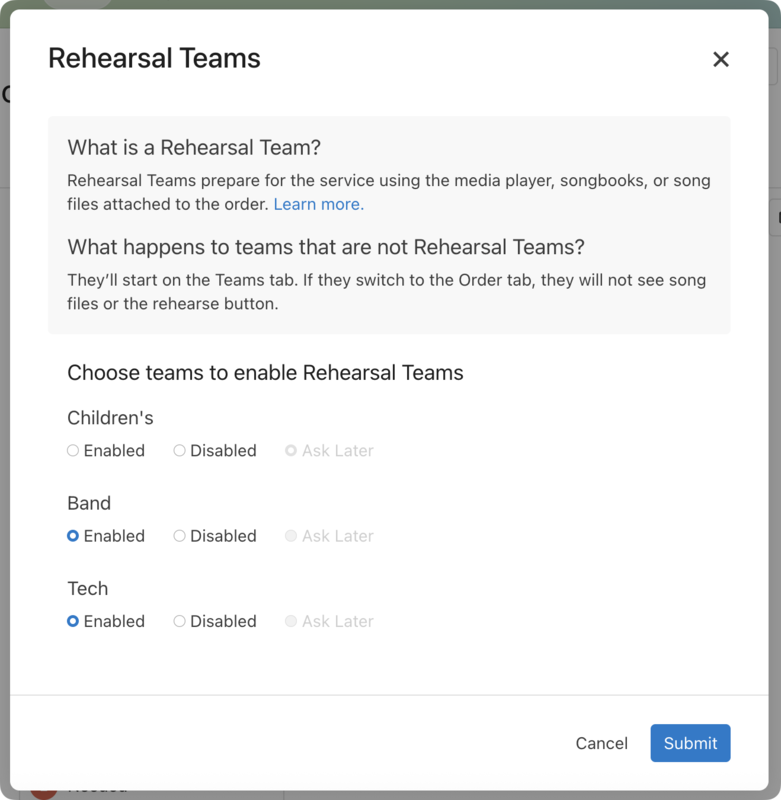
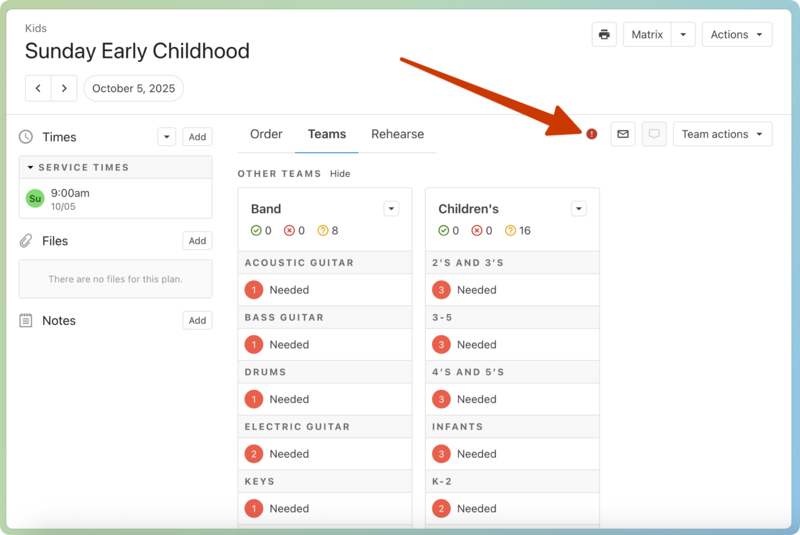
If you don't enable or disable all of the teams at this time, you'll see a red exclamation icon when you go to any plans in the service type. Select the red warning icon to see the popup and make any changes.
Important
Rehearsal teams can access rehearsal tools from the Rehearse tab.