Permissions in Services
A person's access in Services depends on both the default permissions set at the Services level and the permissions set for each individual person, which this article will explain.
Share these articles with people based on their roles in your church to help them get the most out of Giving.
People and plan permissions
Select a role below to see the access for each permission level specific to the Plans and People pages in Services.
The levels are listed from lowest to highest.
Higher-level permissions inherit access to all the permissions below them.
Your organization determines a few of these settings, so check the detailed permissions below for more information.
View their My Schedule page and the plans they've been scheduled for after a notification email has been sent.
Scheduled viewers can see plans they're scheduled to, but not other plans, songs, media, or people unless they have higher permissions elsewhere.
Participate in chats to which they are invited.
View all plans, even if they aren't scheduled for that plan.
View people on their teams on the People page.
Participate in chats to which they are invited.
View and edit profiles on teams they lead.
Edit the teams they lead.
Schedule people only on teams they lead.
Add rehearsal and other times (excluding service times) to the plan.
Start chats for the teams they lead.
Create new profiles (depending on the default permission settings and whether they are also a team leader).
Add and edit all plans and people.
Upload data and delete people or plans they've created.
Create chats for all teams.
Create teams.
View and edit everything, including service type settings.
Edit people's permissions.
Archive or remove people they've created (unless default permissions are set to allow administrators to delete anything).
Create and edit people tags.
Reschedule plans.
Copy service types.
Manage MultiTracks, PraiseCharts, and SongSelect (CCLI) integrations.
Create chats for all teams.
Edit or delete anything, even if they didn't create it.
Change default permission settings.
Oversee the entire Planning Center account (organization administrators are assigned in account settings).
Song permissions
The following table summarizes the song access for each song-specific permission level, from lowest to highest. Higher-level permissions inherit access to all the permissions below them.
Permission level | Songs access allowed |
|---|---|
Scheduled viewer |
|
Viewer |
|
Editor |
|
Administrator |
|
Media permissions
The following table summarizes the media access for each media-specific permission level, from lowest to highest. The higher-level permissions inherit access to all of the permissions below them.
Permission level | Media access allowed |
|---|---|
Scheduled viewer |
|
Viewer |
|
Editor |
|
Administrator |
|
Detailed permissions
Highest permission
These actions depend on a person's highest permission across all folders, which is listed in the header of a person's profile and on the People page.
Navigation
| Scheduled viewer | Viewer | Scheduler | Editor | Administrator |
|---|---|---|---|---|---|
View My Schedule | ✓ | ✓ | ✓ | ✓ | ✓ |
View plans | ✓ | ✓ | ✓ | ✓ | |
Songs and media libraries | ✓ | ✓ | ✓ | ✓ | |
People pages | * | * | ✓ | ✓ | |
Create/delete Service Types |
| ✓ | |||
Create folders | * | ||||
Delete folders | * |
People page
Viewer | Scheduler | Editor | Administrator | |
|---|---|---|---|---|
View People page | * | * | ✓ | ✓ |
Remove My Teams filter | * | * | * | ✓ |
Export People CSV | * | * | ✓ |
Profile
Scheduler | Editor | Administrator | |
|---|---|---|---|
View sent or received emails in other profiles | ✓ | ✓ | ✓ |
Create people | * | * | ✓ |
Remove or archive people they've created | ✓ | ✓ | |
Remove or archive any profiles | * | ||
Edit contact info | * | * | * |
Edit people assignments | * | * | * |
Edit/delete tags | * | * |
Songs/Media
Scheduled Viewer | Viewer | Editor | Administrator | |
|---|---|---|---|---|
View and interact with songs and media items they have access to through a plan they have access to. | ✓ | ✓ | ✓ | ✓ |
Access the Songs or Media pages. | ✓ | ✓ | ✓ | |
Delete songs, arrangements, and media they've created | ✓ | ✓ | ||
Delete any song, arrangement, or media | * | |||
Archive and restore songs | ✓ | ✓ | ||
Upload song/media attachments | ✓ | ✓ |
Chat
Scheduled Viewer/Viewer | Scheduler | Editor | Administrator | |
|---|---|---|---|---|
Participate in chats they are invited to | ✓ | ✓ | ✓ | ✓ |
Create new chats for teams they lead | ✓ | ✓ | ✓ | |
Create new chats for any team | ✓ | ✓ | ||
Edit and delete your created messages | ✓ | ✓ | ✓ | ✓ |
Edit and delete messages your team members created | ✓ | ✓ | ✓ |
If your organization administrators have enabled direct messages, all chat participants can also send direct messages to people they share a team or group with, regardless of their Services permission level.
Service type permission
These actions depend on a person's permission level in a specific service type.
Plans and order of service
Scheduler | Editor | Administrator | |
|---|---|---|---|
Add a plan | ✓ | ✓ | |
Delete a plan | ✓ | ✓ | |
Reschedule a plan | ✓ | ✓ | ✓ |
Edit service order | ✓ | ✓ | |
Edit service time | ✓ | ✓ | |
Edit Rehearsal or Other time | ✓ | ✓ | ✓ |
Add, edit, and view plan notes | ✓ | ✓ | ✓ |
Edit, import, or export templates | ✓ people only | ✓ | ✓ |
Upload an attachment | ✓ | ✓ |
Scheduling and managing teams
Scheduler | Editor | Administrator | |
|---|---|---|---|
Schedule teams they lead | ✓ | ✓ | ✓ |
Schedule teams they don't lead | ✓ | ✓ | |
Edit scheduling statuses and removing scheduled team members for teams they lead | ✓ | ✓ | ✓ |
Edit scheduling statuses and removing scheduled team members for teams they don't lead | * | * | |
Edit or delete teams they lead | ✓ | ✓ | ✓ |
Edit or delete teams they don't lead | * | * |
* only if they have editor or administrator permissions in all of the team's assigned service types
Services LIVE
Scheduled viewer | Viewer | Scheduler | Editor | Administrator | |
|---|---|---|---|---|---|
View LIVE | ✓ | ✓ | ✓ | ✓ | ✓ |
Control LIVE | * | * | * | ✓ | ✓ |
Take control from someone else | ✓ | ||||
LIVE chat | * | ✓ | ✓ | ✓ | ✓ |
Reset LIVE times in plan | ✓ |
* only for teams they lead
General permissions
These actions depend on a person's people and plans permission level.
Administrator | Organization administrator | |
|---|---|---|
Edit custom reports | ✓ | ✓ |
Copy service type | ✓ | ✓ |
Recover deleted service types | ✓ | ✓ |
Restore archived service types | ✓ | ✓ |
Edit permission levels | ✓ | ✓ |
Set file access | ✓ | ✓ |
Giving people access to Planning Center depends on their role at your church. Staff and background-checked leaders may have enough trust to access people's information, whether to edit or view, but people outside of that trusted circle should be given lower permissions.
This table outlines who can access people's contact information based on their permissions in another product.
Can edit | Can view | No access | |
|---|---|---|---|
Account settings | Organization administrators (in all products except Giving) | Billing managers | |
Calendar | People editor | People viewer | Any event, room, or resource permission |
Check-Ins | Editor | Viewer | Headcounter |
Giving | Administrator Bookkeeper Counter |
| Reviewer |
Groups | Administrator | Group type manager Leader (everyone in their group) Member (everyone in their group who has made info visible) | Members under the age of 13 |
People | Manager Editor | Viewer | |
Publishing | Administrators | ||
Registrations | Administrator Manager (only attendees in signup) | ||
Services | Administrator Editor (based on settings) Scheduler (based on settings) | Viewer (based on settings) | Scheduled viewer |
Organization administrators have access to specific parts of Planning Center that no other permission can access, so please familiarize yourself with them as early as possible.
Product | Task |
|---|---|
Account settings | |
Calendar | Enable Church Center to host your calendar |
Check-Ins | Enable the Church Center mobile app for pre-check Change the localization settings that all event times are based on |
Giving | Enable Church Center to host your donation form Connect Planning Center Payments to accept online donations (done in account settings) |
Groups | Enable Church Center for group engagement Change the localization settings that all event times are based on |
People | Set an expiration date for background checks Manage background check administrators Deactivate two-step verification for a profile Change a person's login method |
Publishing | |
Registrations | Enable Church Center to host signups Connect Planning Center Payments to accept online payments (done in account settings) |
Services | Choose default permission settings Update default settings for the Lyrics & chords editor |
Add or edit permissions
The instructions below show how to add or edit permissions for one person, but you can also use the bulk edit feature to edit permissions for multiple people at once.
Select the People page from the top navigation in Services.
Select a person's name from the list or search for them to open their profile.
Select Actions in the top right of their profile.
Choose Manage permissions from the dropdown.
In the popup, use the dropdowns in each section to set the person's corresponding permission levels.
At the bottom of the popup, choose which types of file attachments this person can access. File attachment access is separate from a person's permission levels in each section.
Plan: Give access to files attached to plans.
Song: Give access to files uploaded to songs on the Songs page.
Media: Give access to files uploaded to media items on the Media page.
Select Update in the bottom right to save your changes.
Set permissions for a folder or service type
If your organization uses many folders or service types, you can scale permissions so your team members can access exactly what they need.
To set different permission levels for each folder or service type:
Select the People page from the top navigation in Services.
Select a person's name from the list or search for them to open their profile.
Select Actions in the top right of their profile.
Choose Manage permissions from the dropdown.
In the Service Types section, select the Folders tab to view a list of your organization's folders and service types.
Select the arrow next to a folder to expand it.
Use the dropdowns next to each folder or service type to set the corresponding permission level.
Important
If you choose Same As Parent from the dropdown, the permission level will be the same as the parent folder. If the folder doesn't have a parent folder, the permission level defaults to the overall People and Plans permission level.
Select Update in the bottom right to save your changes.
Here's an example of how permissions would work for a staff member.
Sara is the youth pastor at the Centerville Kingston campus, and this is how her permissions break down:
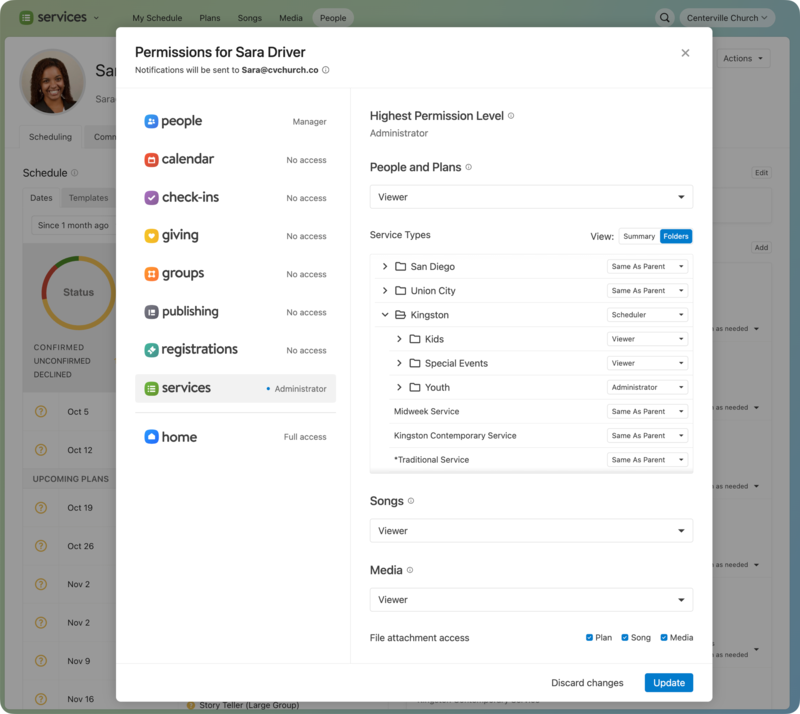
Since she's on staff and may need to see any plan, Sara's People and Plans permission level is viewer. This permission applies to everything under it unless otherwise specified.
Sara primarily works at the Kingston campus, so she has scheduler permission for that folder, allowing her to schedule people in teams she leads across the service types in that folder. However, she doesn't need to schedule anything in the San Diego and Union City campuses, so her Same as Parent permissions set her access to viewer.
Sara is not involved in the Kids or Special Events plans, so she has viewer access, which allows her to stay in the loop without scheduling anything.
Because she is responsible for youth services, Sara is assigned administrator for the Youth folder.
The service types under the Kingston folder are Same as Parent, meaning Sara is a scheduler for those service types.
She has viewer access to Songs, which means she can view the Songs page but cannot create, edit, or delete anything.
She also has viewer access to Media, which means she can view the Media page but cannot create, edit, or delete anything.
She can access all files attached to a plan, song, and media.
Downgrade permissions
If you don't want a person to be able to access Services at all, you must archive their profile.
If you just want to limit a person's access to a specific service type or folder, adjust their permissions following the steps below. The lowest permission, scheduled viewer, prohibits a person from viewing anything unless they're specifically scheduled to the service type.
Select the People page in the top navigation.
Select a person's name from the list or search for them to open their profile.
Select the Actions button in the top right of their profile.
Choose Manage permissions from the dropdown.
In the popup, use the dropdowns in each section to downgrade the person's permission levels.
Select Update in the bottom right to save your changes.
When is someone notified of permission changes?
When you change someone's permissions in Planning Center, they may receive a notification, depending on the type of change.
Add a new person
When someone who has never logged into your organization is granted access to Planning Center, they receive an email notification.
The email welcomes them and lists all of the products they've been given access to, their permission levels in those products, and explains how to log in.
Upgrade an existing person's permissions
When someone already in Planning Center has their permission levels upgraded, they receive an email notification.
The email tells them that their access level has changed, lists all of the products they have access to and their permission levels in those products, and highlights which permission levels were upgraded.
Important
This applies to all products except Publishing. There is only one permission level in Publishing, so it is not possible to upgrade a person's permissions.
Remove or downgrade an existing person's permissions
When an existing person's permission levels or product access are removed or downgraded, they don't receive an email notification unless the change was made to an organization administrator; then all organization administrators are notified.
Warning
If an organization administrator's access is removed, they will be notified via email. This is a security measure to provide awareness in the event of a profile takeover.
If a person's permissions are upgraded in one product and downgraded in another, their notification email will show their new downgraded permission in the second product. However, there will be no indication that it was changed.
Additionally, the following cases are exceptions in Giving:
When someone's role is revoked in Giving, they receive an email notifying them of the change.
When someone is removed from Giving, administrators and bookkeepers are notified.
Administrators and bookkeepers are also notified if a new Giving administrator is created or an existing administrator's permissions are changed or removed.