Communicate plan responsibilities
Now that you've set up the order of service, let your team members know what the service needs and who's leading each item. You can assign item leaders to lead specific plan items, or use item notes to communicate what needs to happen during each part of the service.
While you can use both item leader assignments and item notes to designate plan responsibilities, each feature handles plan information differently. Here are the main differences between each feature:
Song or item leaders are linked to specific positions or scheduled team members. This means that if you choose a position as the item leader, the leader automatically updates to reflect whoever is scheduled for that role. Assigning positions as item leaders can be helpful when building plan templates.
Item leaders can see all of their assigned items in scheduling and reminder emails.
Tip
You can also include item leader information in standard reports and custom reports!
Item notes are text-only fields, so they won't update automatically if you schedule someone else for a position. Use item notes to enter additional text details about service needs and specific responsibilities. Item notes are only visible in plans and plan reports.
Assign item leaders and song leaders
Let your team members know which parts of the service they're leading by assigning leaders to your plan items! Item leaders and song leaders will see their profile icon to the right of any items they're leading.
Important
You must have people and plan editor permissions or higher to add or remove song/item leaders.
Add leaders to a plan item
To add leaders to an existing plan item:
Remove leaders from a plan item
Depending on how you assigned your leaders, you can either remove an individual or an entire position from the item leader section.
Important
If an item leader declines their scheduling request or is removed from the plan, they will automatically be removed as an item leader.
View item leaders on a plan
If you're assigned as a song leader or item leader, you'll see your profile icon to the right of any item you're leading. To view other item leaders on a plan, you can toggle the Leader column on the Order tab.
Anyone who has access to a plan can view song leaders and item leaders.
Select the Plans page from the top navigation in Services.
If you have multiple folders, select the folder that contains the service type you're working with.
Select a plan from the service type you're working with.
Select the Order tab.
Select the column button (three vertical lines) in the top right of the service order.
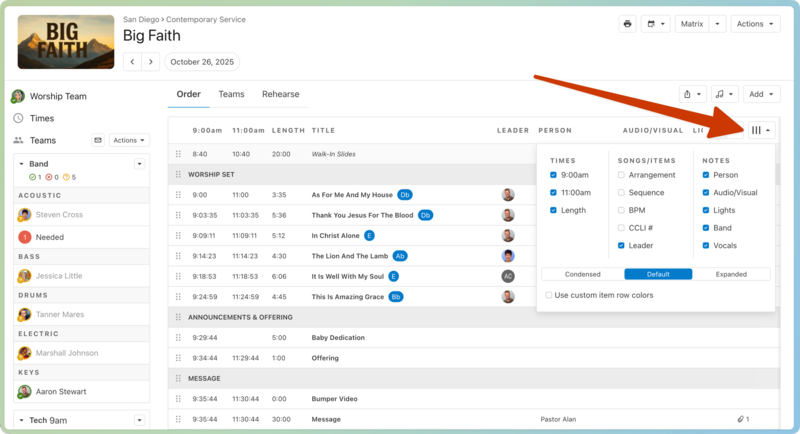
Check the Leader box in the Songs/Items section.
Choose whether to show each leader's Avatar or Name next to the item they're leading.
Select the Plans page from the bottom navigation in Services Mobile.
If you have multiple folders, select the folder that contains the service type you're working with.
Select a plan from the service type you're working with.
Select the Order tab at the top of the plan page.
Tap the three-line icon in the top right corner of the Order tab.
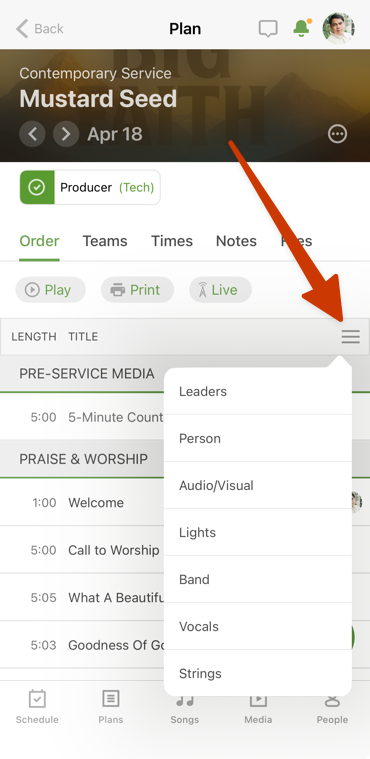
Select the Leader option to show each song or item leader's profile icons next to the items they're leading.
Use item notes for plan details
Add item notes to communicate what needs to happen during a particular item. For example, you can add band and lighting cues, or specify which song leader takes a verse or chorus. You can set up item note categories on the service type settings page.
Add item notes
View item notes
You can choose which item note categories you'd like to see on the Order tab.
Select the Plans page in the top navigation.
If you have multiple folders, select the folder that contains the service type you're working with.
Select a plan from the service type.
Select the Order tab at the top of the plan page.
Select the column button (three vertical lines) in the top right of the service order.
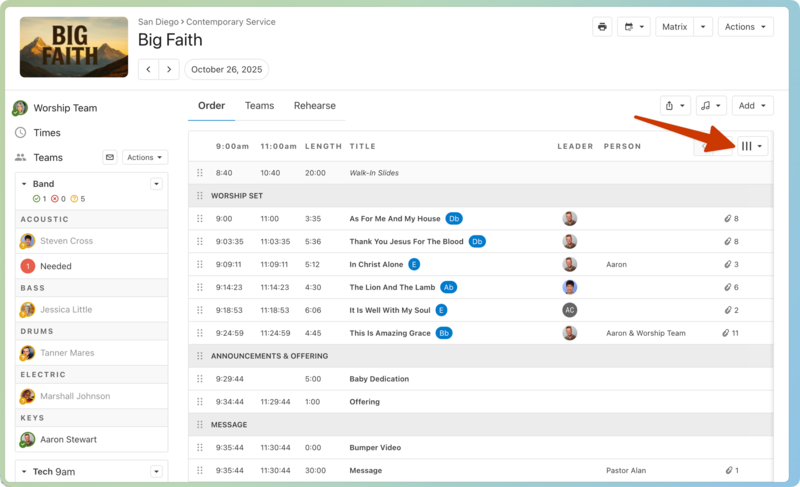
Select the item note categories you'd like to see in the plan. These note categories will appear as columns in the Order tab.
Select the Plans page in the bottom navigation.
If you have multiple folders, select the folder that contains the service type you're working with.
Select the service type you're working with.
Select a plan date from the service type.
Select the Order tab at the top of the plan page.
Tap the three-line icon in the top right corner of the Order tab.
Select the item note categories you'd like to see in the service order.