Connect other items to Calendar
Your church may have some events that you manage in multiple products. If you've created an event in Calendar but also manage it in Check-Ins, Registrations, Services, or Groups, you can add a connection to quickly switch between each product's event page. You can also connect task lists to keep track of what your event needs!
Unlike feeds, connections do not sync or change information in the other product. Connections allow you to navigate the same event across different products and review helpful information about the connected events.
Should you use connections or feeds?
There are two ways to link Calendar events to other products: connections or feeds. Each feature links Calendar events to other products differently, so review this information before deciding which feature you want to incorporate into your workflow.
Connections allow you to link individual Calendar events with related pages in other products. This link does not automatically sync information between products, but it will enable you to navigate quickly between related pages. If you want to see everything in one place and manually link products together, Connections gives you the most flexibility.
Feeds automatically sync events by recreating your Registrations and Groups events in Calendar. This is a one-way sync; events created in Calendar can't be synced to either product. If you prefer automation and want all your Registrations and Groups events to automatically show up in Calendar, feeds are the way to go.
Check out the table below for a comparison of how each feature works:
Connections |
|
Feeds |
|
The best option for you depends on your workflow and how many events you typically need to link between products.
If you typically create events in Groups or Registrations first and need all of those events to appear in Calendar, feeds would be the best option for your workflow. This prevents you from having to re-enter duplicate information in Calendar after creating your Groups/Registration events.
If you typically create events in Calendar first and would prefer to link individual events to other products as needed, connections would work best.
Add connections to an event
Event administrators and event creators can connect Calendar events to products where they also have access. With the exception of Home (task lists) and Groups, you can only connect one event page per product to a Calendar event.
Select the Events page from the top navigation in Calendar.
Open the event you'd like to edit:
In month/week view: Choose an event from the calendar, then select View event to open it.
In table view: Choose an event from the list to open it.
Select the Connections tab.
Select Connect a [product page] inside a widget to connect that product to your event, or select Add a task list.
Depending on which product you selected, choose the corresponding signup, service type, task list, event, or groups from the popup.
Registrations: Search for an existing signup or select Create signup to create a new one. Creating a new signup copies the Calendar event's information (name, dates, times, and event image) into the Registrations page.
Services: Search for an existing service type and select it from the list to add a connection.
Task lists (Home): Search for an existing task list or select Create task list to create a new one. When you select this option, you can create a brand new list or create a list based on an existing task list template.
Check-Ins: Search for an existing Check-Ins event and select it from the list to add a connection.
Groups: Search for a group or group type and select it from the list to add a connection. Select All [group type name] from the list to connect every group in that type to the event. You can connect multiple groups or group types to a single Calendar event.
Important
Connecting an event to a group won't sync that group's events to Calendar. If you want group leaders to add their events to Calendar, create an event request form and share it with your group leaders. Leaders can access the event request form directly in Groups after creating a group event.
Select Save to finish setting up your connection.
Remove a connection
Select the Events page from the top navigation in Calendar.
Open the event you'd like to edit.
In month/week view: Choose an event from the calendar, then select View event to open it.
In table view: Choose an event from the list to open it.
Select the Connections tab.
Select the ⚙️ settings icon in the top right of a product widget.
For Registrations, Services, Check-Ins, and Task lists: Choose Remove connection from the dropdown options, then select Yes, remove connection in the confirmation popup.
For Groups connections: Select the X next to a group's name to remove the connection from that group, then select Save.
Navigate between products
Once a connection is made between two events, administrators from both products will see a link in each product to switch between pages. If you don't have the right permission levels in the other product, you'll see an error page.
Important
Task list connections won't take you to Planning Center Home. You can manage your tasks in the toolbar on the right.
To switch to a connected product's event page from a Calendar event:
Select the Events page from the top navigation in Calendar.
Open an event:
In month/week view: Choose an event from the calendar, then select View event to open it.
In table view: Choose an event from the list to open it.
Select the Connections tab.
For Groups connections: Select a connected group from the list to open the corresponding events tab in Groups.
For Registrations, Services, and Check-Ins connections: Select the ⚙️ settings icon in the top right of the product's widget.
Choose View in [product] or View in Church Center from the dropdown to open the event page in that product. The connected event page depends on which product you're using:
Registrations: Go the connected Registrations signup page. You can only connect one Registrations signup to a Calendar event.
Services: Go to the closest plan date in the connected service type.
Check-Ins: Go to the closest date in the connected Check-Ins event.
Groups: Go to each connected group's Events tab.
You can also switch between connected event pages from other products:
Go to a connected event page in another product (e.g., Registrations, Services, Check-Ins, or Groups).
Select the 🔗 🗓️ Connections button in the top right.
Choose another connected product's event page from the dropdown.
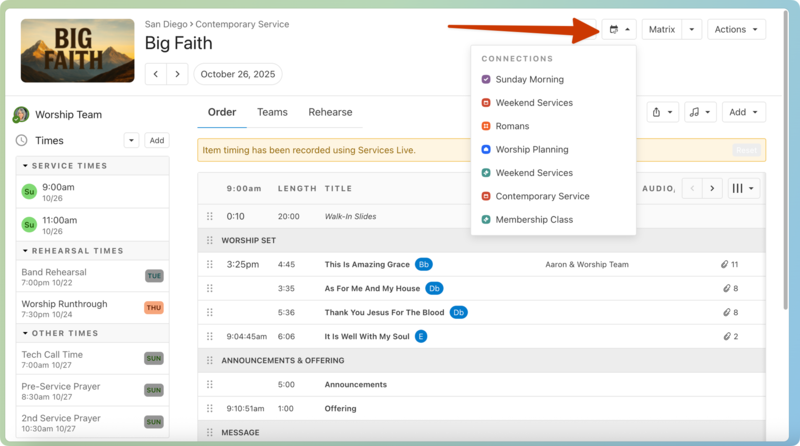
Use widgets to track connected event information
Once you've added connections to your event, you can use the product widgets to track your event's information in each product.
Select the Events page from the top navigation in Calendar.
Open an event from the calendar.
In month/week view: Choose an event from the calendar, then select View event to open it.
In table view: Choose an event from the list to open it.
Select the Connections tab to view the widgets for each connected product.
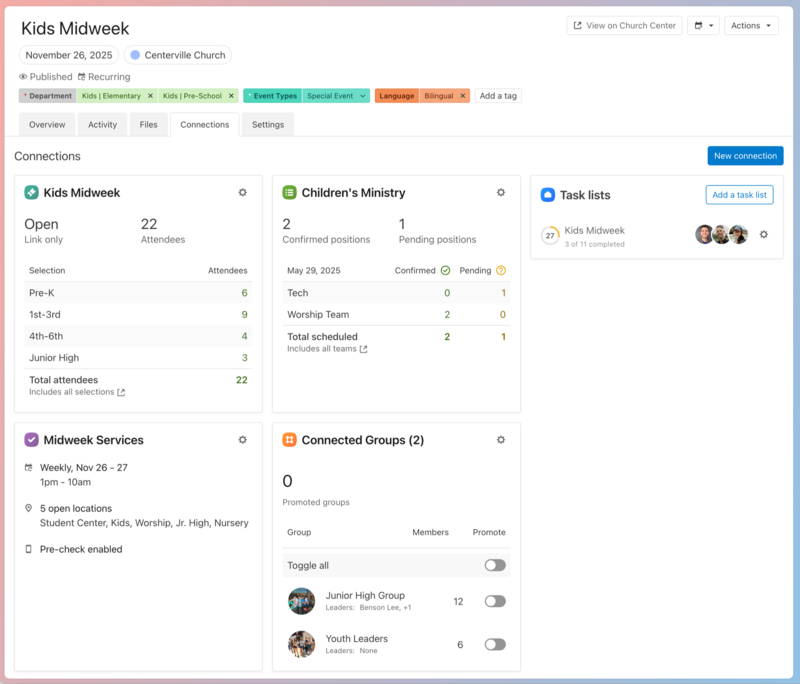
Registrations shows the total number of attendees in your connected Registrations event.
Services shows a breakdown of confirmed and pending positions from the closest plan date in the connected service type.
Task lists (Home) show the number of completed tasks in each connected task list.
Check-Ins shows the connected Check-Ins event frequency, times, open locations, and Church Center pre-check status.
Groups shows the leaders and member counts for each connected group. You can use the Promote toggles to share your published Calendar event with connected groups. This makes your event visible on the connected group's event list in Groups and Church Center.