Edit item details
You can edit songs, media, and regular plan items before or after adding them to the service order. Add important details to your items, such as names, lengths, and descriptions, so people know what's happening during the service.
Edit an existing item's details
Select the Plans page in the top navigation.
If you have multiple folders, select the folder that contains the service type you're working with.
Select a plan from the service type you're working with.
Select the Order tab at the top of the plan page.
Select the plan item you'd like to edit.
Edit the item's details in the editing sidebar:
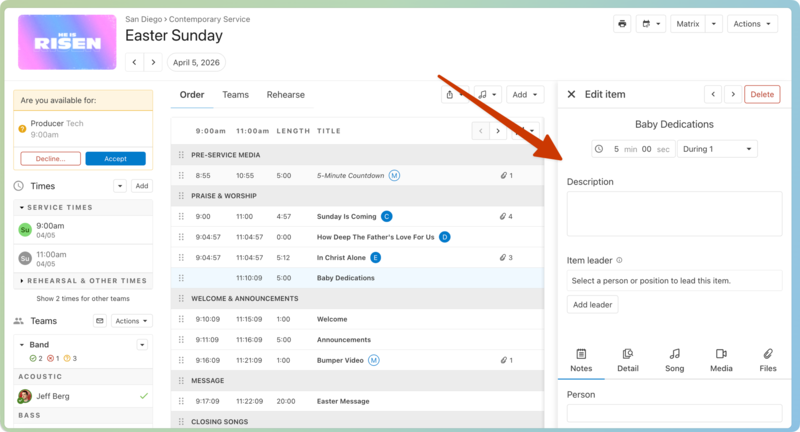
Name: Select the item name at the top to edit it.
Length: Enter the item length in minutes and seconds. Use the dropdown to choose whether this item takes place Before, During, or After all service times or a specific time. Items that are before or after a service will not be included in your total service length.
Description: Enter a brief description of the item. This will appear below the plan item in the service order and in plan reports.
Linked song: This only appears on song items. Choose a different arrangement/key or select the red ⊖ minus icon to remove the linked song and choose a different one.
Item Leader/Song Leader: Assign a position or scheduled team member to lead this song or item.
Choose one of the tabs to add notes, details, or upload files:
Notes: Add notes to the item note categories from this service type. You can edit item note categories in the service type's settings.
Detail: Add longer, more detailed information or change fonts, colors, or text size and formatting. This can be shown on a plan report.
Tip
When pasting text from an outside source, use the 'paste and match style' shortcut on your device (
CMD+SHIFT+Von Mac orCTRL+SHIFT+Von Windows) to clear any hidden formatting that may affect the font sizes on your printed report.Song/Media: Link this item to a song or media item. If the item is already a song or media item, you can edit arrangement info, enter CCLI reporting data, or edit the media attachments.
Files: Access any previously uploaded files or add new files to the item.
Select the X to close the editing sidebar and save your changes.
Select the Plans page in the bottom navigation.
If you have multiple folders, select the folder that contains the service type you're working with.
Select the service type you're working with.
Select a date to open the corresponding plan page.
Select the Order tab at the top of the plan page.
Tap the plan item you'd like to edit.
Edit the following details in the editing page that appears:
Name: Tap the item's name at the top to edit it.
Length: Enter the item length in minutes and seconds. Use the dropdown to choose whether this item takes place Before, During, or After all service times or a specific time. Items that are before or after a service will not be included in your total service length.
Description: Enter a brief description of the item. This will appear below the item in the Order tab and in plan reports.
Linked song: This only appears on song items. Choose a different arrangement/key or select the red ⊖ minus icon to remove the linked song and choose a different one.
Tap one of the tabs to add notes, details, or upload files:
Notes: Add notes to the item note categories from this service type. You can edit item note categories in the service type's settings.
Song/Media: Link this item to a song or media item. If the item is already a song or media item, you can edit arrangement info, enter CCLI reporting data, or edit the media attachments.
Files: Access any previously uploaded files or add new files to the item.
Tap the ✅ green check mark in the top right to close the editing window and save your changes.
Important
When editing a song item, you can select a different arrangement and key using the dropdowns in the Linked song section.
Unlink a song from an item
If you don't want song files attached to an item, you can unlink the song.
Select the Plans page in the top navigation.
If you have multiple folders, select the folder that contains the service type you're working with.
Select a plan from the service type you're working with.
Select the Order tab at the top of the plan page.
Select the song item you'd like to unlink.
Select the red ⊖ minus icon next to the Linked song title.
Select the X to close the editing sidebar and save your changes.
Select the Plans page in the bottom navigation.
If you have multiple folders, select the folder that contains the service type you're working with.
Select the service type you're working with.
Select a date to open the corresponding page.
Select the Order tab at the top of the plan page.
Tap the song item you'd like to unlink.
Select the Song tab in the editing window.
On iOS devices: Swipe left on the song title, then tap Unlink.
On Android devices: Tap the three-dot icon next to the song title, then tap Unlink Song.
Tap Unlink in the confirmation popup.
Tap the ✅ green check mark in the top right to save your changes.
