Sermons and Services integration
You can coordinate your series and plans in Services with channels and episodes in Sermons by importing plan information when creating a new episode or adding a plan to an existing one. Episodes with connected plans can be viewed in Services.
Link a plan to a new episode
When creating a new episode in Publishing, connect a plan. If you've previously connected a service type to an episode in this channel, you can choose a plan from the associated service type.
To connect a service type:
Select Content in the top navigation in Publishing.
Select the Sermons tab at the top of the page.
Select a channel.
Select an episode on the Episodes tab.
Select the General tab.
Select Connect under the Connected Services plan section to choose a service type and plan you want to link to the episode.
Choose which plan information you want to import, including the title and the series.
Select Connect & Import to import the plan and series information into the episode.
You can also edit an existing episode to link a plan within it. Any information you import from Services overrides the existing episode information.
View the episode from Services
After the episode is created in Publishing, you can access it from the linked plan in Services.
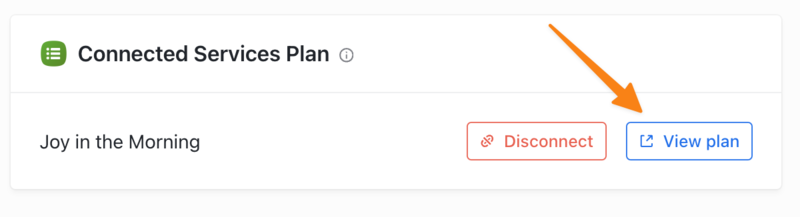
From within the episode, select the View Plan button on the bottom left to open the page in Services.
On the bottom left of the plan page, select View the episode on Church Center to open the episode in the mobile app or web browser, or choose Edit in Publishing to make changes to the episode in Publishing.