Set up the matrix
The matrix lets you view many plans at once, so you can schedule many weeks at a time. Set it up so the plans you want to access show in the quick load, and you can also load and remove plans individually.
Warning
If you have more than one window with the matrix open in your browser, you may experience errors.
Want to watch a video before you get started? No problem! This eight-minute video will show you the concepts in this article in action.
Load the matrix
You can load a matrix from four different places.
Load plans that are scheduled either right before or right after the plan you are in.
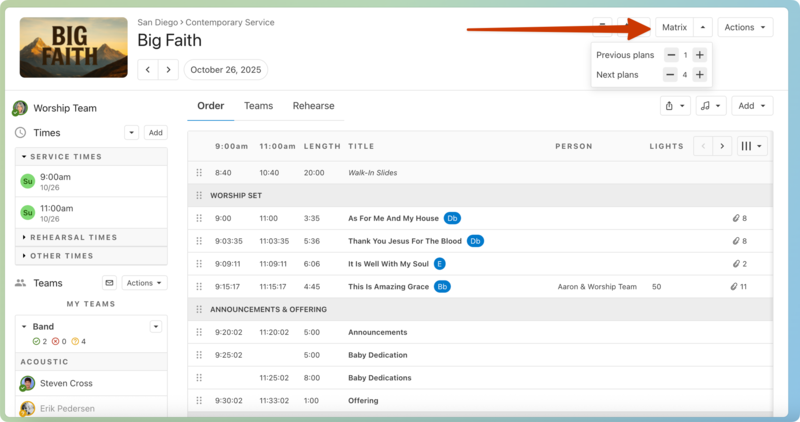 |
Select the dropdown next to the Matrix button to choose the plans to load. Select Matrix to load the matrix with the plans you've selected.
Use the +/- plus and minus icons to change the number of previous plans and next plans that you want to see in the matrix.
Important
The previous and next plan numbers will be saved in your current browser as your defaults for this Service Type until you change them again.
Load the matrix from a service type if you want to view the plans right before or right after the current date in the same service type.
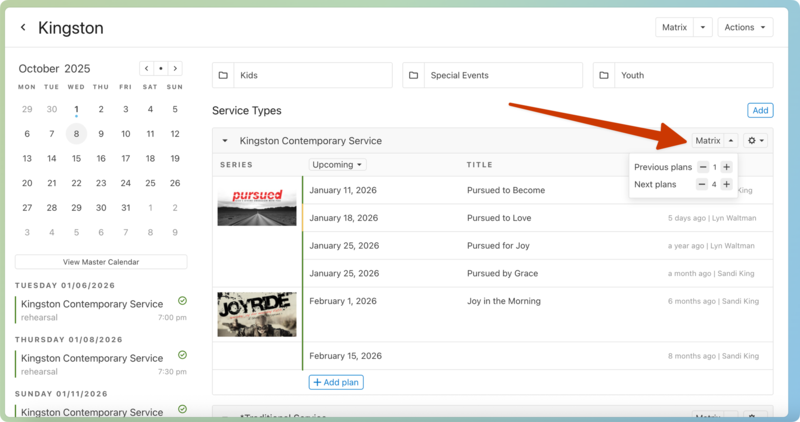
Select the dropdown next to the Matrix button to choose the plans to load. Select Matrix to load the matrix with the plans you've selected.
Use the +/- plus and minus icons to change the number of previous plans and next plans that you want to see in the matrix.
Important
The previous and next plan numbers will be saved in your current browser as your defaults for this Service Type until you change them again.
Type
Mwhile hovering over a specific plan to open the matrix with that plan as the base plan.
Load the matrix from a folder if you want to load all the plans from all of the service types in the folder.
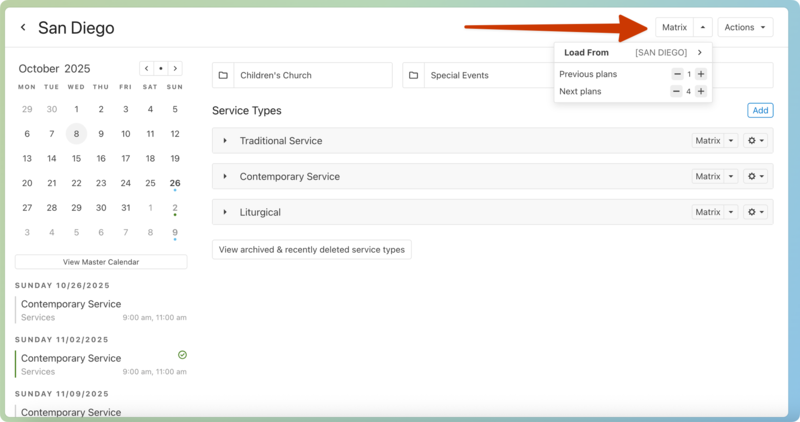
Select the dropdown next to the Matrix button to choose the plans to load. Select Matrix to load the matrix with the plans you've selected.
Use the +/- plus and minus icons to change the number of previous plans and next plans that you want to see in the matrix.
Important
The previous and next plan numbers will be saved in your current browser as your defaults for this Service Type until you change them again.
Load the matrix for your schedule to view only the plans that you are scheduled in.
From a folder, select the dropdown next to the Matrix button, then select the current folder to show more options. From there, select My Schedule.
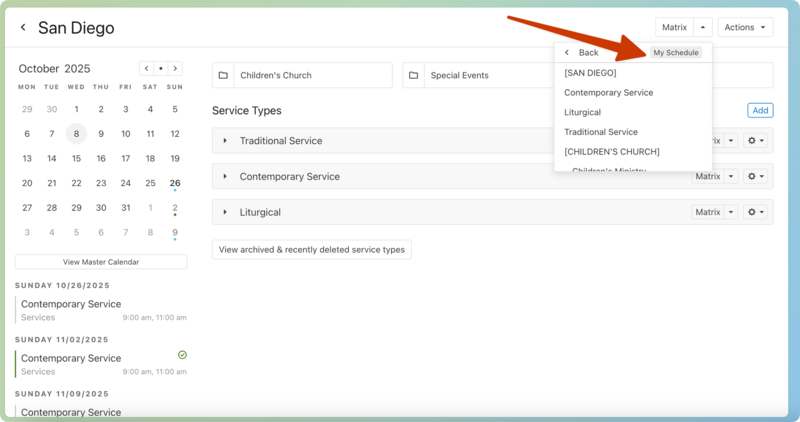
The plans will load according to the current date.
Matrix defaults
Setting your defaults lets you see the items you need each time you load a matrix. This can be particularly helpful if you only need to see a small scope of items each time. For example, a band leader might regularly want to default to only seeing information relevant to the band.
To set your matrix defaults, open a matrix and select the ⚙️ settings icon in the top left. You can set your default for what plans, templates, or sections you want to see.
Once you expand the matrix settings, use the following tabs to change your defaults:
Plans: Set the range of plans you want to be displayed. You can set this by quantity or date.
Templates: Select a template or set of templates to show next to your plans.
Sections: Use the checkboxes to choose what to hide or display for the plans in the matrix. This information is taken from the service type and plan.
Tip
If you are putting announcements in your item description, you may want to see these each week to make sure you are announcing the correct things each week.
These settings are saved in your browser, so they are unique to you and won't be available for everyone.
Create a custom matrix
If you regularly schedule for a specific set of plans, create a custom matrix and select it when scheduling to quickly load your plans or templates.
To create a custom matrix:
Select the Matrix button from the Plans page.
Select the matrix title in the top left next to the ⚙️ settings icon.
Select New Custom Matrix from the dropdown, or select an existing custom matrix to edit it.
Once you've chosen or created a matrix, select the ⚙️ settings icon and edit your matrix settings in each tab:
Plans: Add the service type and plans you want to see in the matrix.
Templates: Add any templates to the matrix.
Sections: Choose which sections you'd like to see for plans in the matrix.
Remove plans
To remove a plan from your matrix view, hover your mouse over a plan date and select the red ⊖ minus icon that appears.
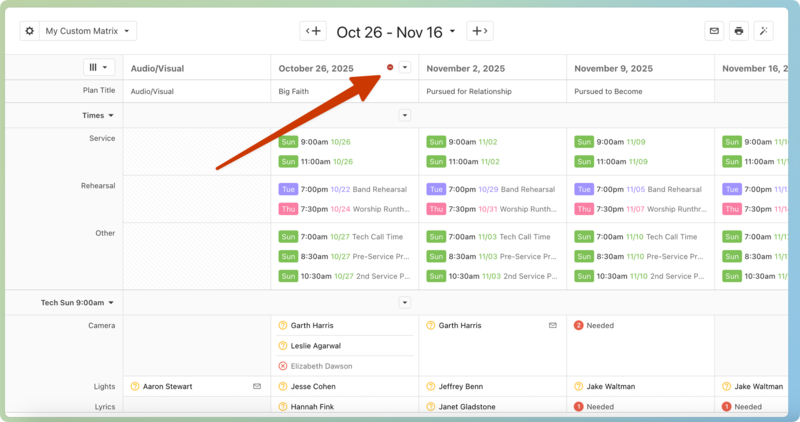 |
Quick load plans
If you need to make temporary changes to your matrix, you can use the dates at the top of the matrix to quick load any additional plans.
To load the previous or next plan in the selected service type, select the arrow buttons at the top of the Matrix view.
Select the date range to expand the Quick load plans menu.
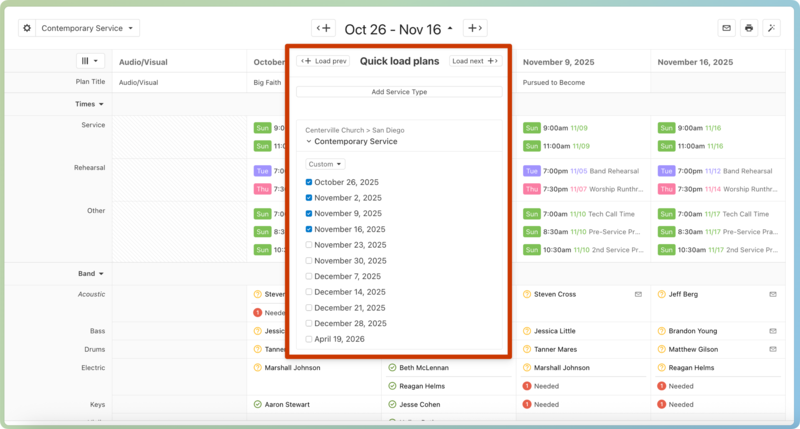 |
Select Add Service Type to add more service types to the matrix.
The selected service types for this view appear above the list of plan dates.
Use the checkboxes to choose which plans to include in your view.
You can quickly change this view to make updates to multiple plans, but anything you load here will not be a saved view.
Matrix views
Hover over any person or item in the order, and select the target icon in the floating action menu to see the repeated item in the matrix.
Every instance of that item or person will be highlighted in yellow. To turn it off, select the button again or Exit target view in the top right.
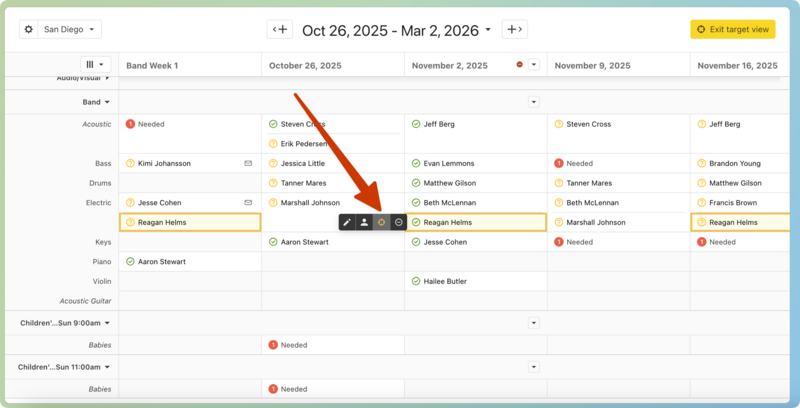
You can also highlight all the columns for a specific service type by selecting an empty space in the column header, or by selecting the dropdown arrow next to a plan title and choosing Highlight Service Type.
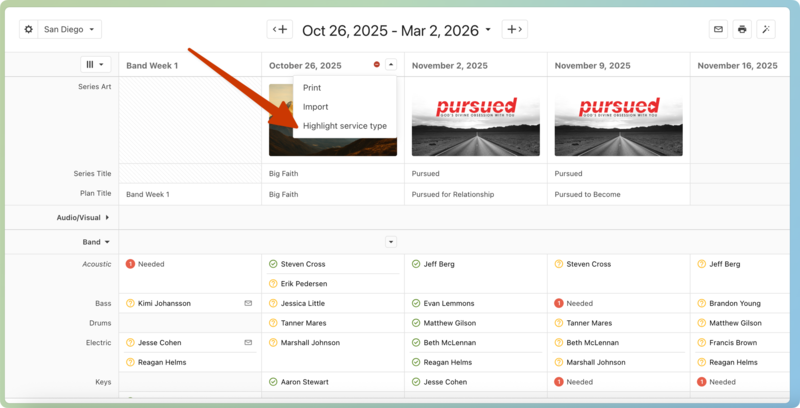
The layout button in the top left gives you several options to customize your view.
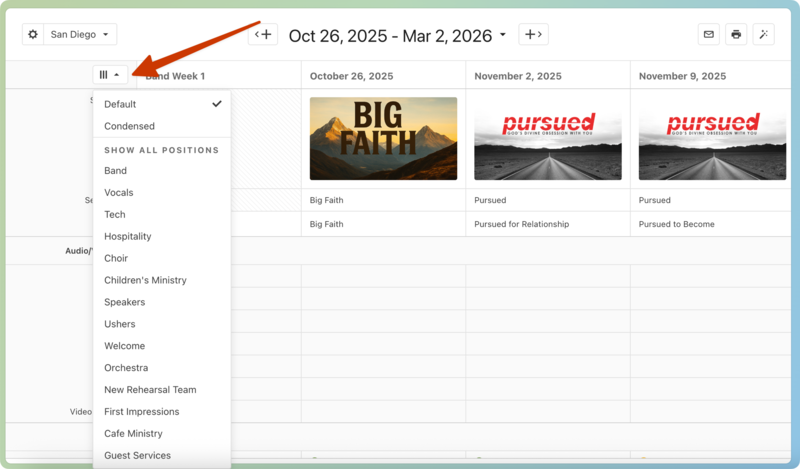
Default: This is the standard matrix view option.
Condensed: The condensed view lets you shrink each plan column, see more plans at one time, and scroll a bit less. It's particularly useful when you have more than five plans loaded.
Show All Positions: See all your positions in a team even if they have no needed positions listed.