Schedule additional people
After scheduling teams to your plan, you might need to schedule additional team members or guests. You can also create a temporary position to schedule someone for a role that's not typically needed.
Schedule an additional team member
If you need more team members for a service, you can schedule additional people from that team.
Select the Plans page from the top navigation in Services.
If you have multiple folders, select the folder that contains the service type you're working with.
Select a plan from the service type you're working with.
Select the Teams tab at the top of the plan page.
Select the arrow in the top right corner of a team.
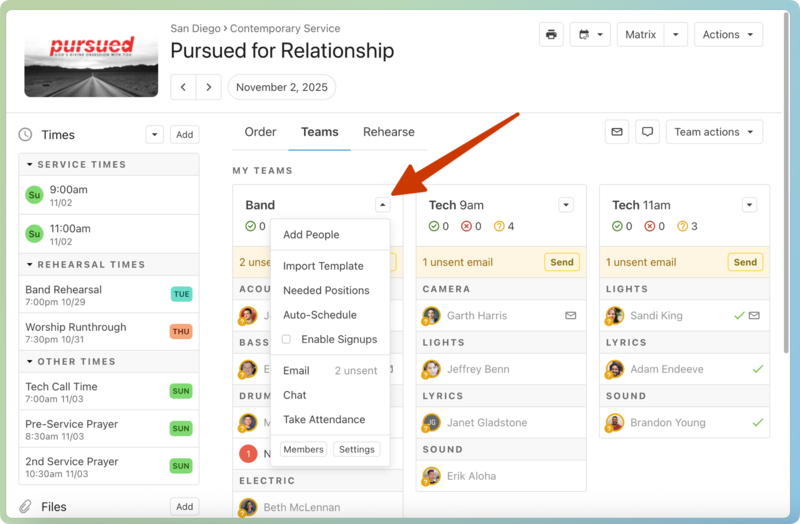
Choose Add People from the dropdown. A list of team members will appear on the right.
(Optional) Search for a specific name or position to narrow down the list of team members. If someone has a conflict, blockout date, or scheduling preference, hover over the badge for more information.
Hover over a team member's name and select the checkbox that appears.
If a team member is assigned to multiple positions, use the dropdown arrow next to the current position name to schedule them for a different position.
Select Add at the top right of the list.
Select the Plans page from the bottom navigation in Services Mobile.
If you have multiple folders, select the folder that contains the service type you're working with.
Select the service type you're working with.
Select the plan for which you need to schedule.
Select the Teams tab at the top of the plan page.
Tap the arrow in the top right corner of a team.
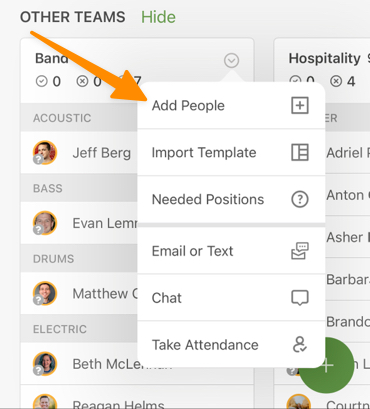
Select Add People from the dropdown.
Select a name from the list, or use the search bar and/or Filter button to narrow down the list first.
Select the position for which you'd like to schedule this person, and add them to that position on the plan.
Schedule a guest
You can schedule a person as a guest if they're not a regular member of your team and are temporarily filling a position.
Schedule a temporary position
If you have a position that's not needed very often, you can create a temporary position without adding it to the team using Services web.
Important
You can only create temporary positions when using Services on a web browser.
Select the Plans page from the top navigation in Services.
If you have multiple folders, select the folder that contains the service type you're working with.
Select a plan from the service type you're working with.
Select the Teams tab at the top of the plan page.
Select the Team actions button in the top right.
Choose Add People from the dropdown to open the sidebar. The Guest tab will be selected, and a list of everyone with a Services profile will appear.
Search for a person by name or apply filters to narrow down the list.
(Optional) If the person you want to schedule isn't on the list, select New to add a profile for them in Services.
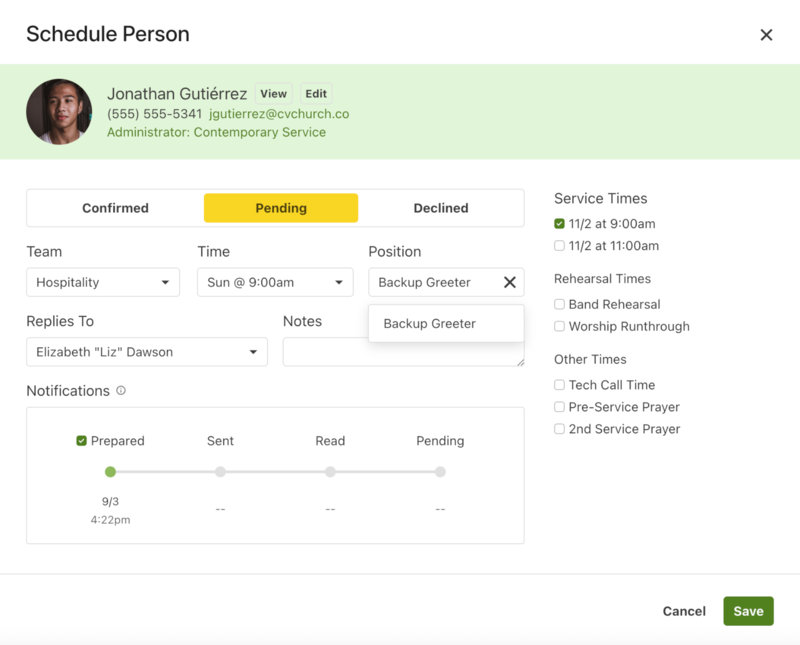
Select a person's name from the list to open the Schedule Person popup.
Important
The Schedule Person popup will only appear if you select a person's name; it will not appear if you select the checkbox that appears after hovering over their name.
Select which team this temporary position belongs to using the Team dropdown.
(Optional) If this position belongs to a split team, select any service times that apply to this position from the Time dropdown.
Select the X to clear the Position field and enter a new name for the temporary position.
Select a leader from the Replies To dropdown to determine who receives scheduling responses for this person.
Check the boxes next to any additional times that apply to the temporary position.
Select the Prepared checkbox to prepare a scheduling request email for this person. If this box isn't checked, they will see this request on their schedule before you send the scheduling email.
Select Save at the bottom right to schedule this person. The temporary position name will be italicized on the plan.