Communicate with your teams
Communicate with your team members to make sure everyone is on the same page! You can reach out to your teams via email, chat, and text (only on Services Mobile). Choose whether to communicate with the entire team or scheduled team members from a particular plan.
Want to watch a video before you get started? No problem! This five-minute video will show you the concepts in this article in action.
Email your team
You can email team members from a specific plan page or from the team members list, depending on whether you need to communicate with only scheduled team members or your entire team.
Tip
If your team members have trouble receiving emails in Services, check out the article on how to troubleshoot common email problems.
Email scheduled team members
You can email scheduled team members from a plan page to communicate about that particular service. Emails sent from a plan include:
Accept or Decline buttons for unconfirmed team members to respond to scheduling requests.
Any times to which the recipient is assigned.
To email team members from a plan:
Email an entire team
If you need to email everyone assigned to a team or position, go to that team's member list.
Select the People page from the top navigation in Services.
Select the Teams tab to view a list of teams in your organization.
Use the dropdown in the top left to filter the list by My Teams (teams where you're a leader or member), All Teams, Archived Teams, or specific service types.
Select a team name to open that team's member list. You can also search for a specific team using the search bar at the top.
Select All team members or a specific position from the left sidebar.
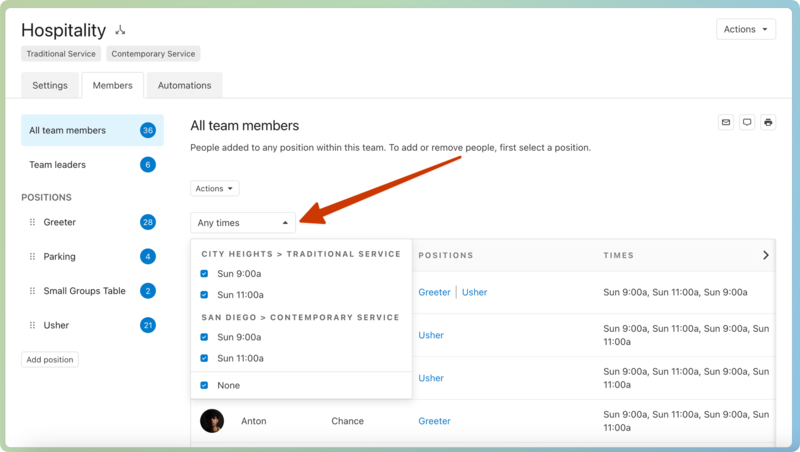
(Optional) To email split team members with a specific service time preference, filter to that time using the Any times dropdown.
Select the ⚙️ settings icon in the top right.
Choose Email from the dropdown.
At the top of the popup, choose an email template from the dropdown or select Edit Templates to create a new one.
Important
You can only send general email templates or welcome emails from this page.
(Optional) Select the x next to a team member's name if they shouldn't receive this email.
Edit your subject line or message in the text fields. Use the toolbar above the text field to format your message, insert an image, or upload an attachment.
Select the 📎 paperclip icon in the toolbar to upload an attachment. You can only upload attachments up to 10MB each, up to 5 per email, for a total of 10MB.
Warning
Do not attach copyrighted material, such as chord charts and audio files, to emails. If you have the right licenses, add chord charts and audio files to your songs instead to ensure that usage is properly tracked and reported.
See the Copyright concerns article to learn more.
Add images using the 🖼️ image icon in the toolbar, or drag and drop the image file directly into the editor. Refer to the image sizing guide for file size restrictions.
Select Send [number of recipients] at the bottom right to send your email.
Email specific people
If you need to email specific groups of people who aren't on the same team, go to the People page to send your email.
Chat with your team
You can chat with scheduled team members or an entire team at once!
Chat with scheduled team members
Chat with an entire team or multiple teams
Text your teams in Services Mobile
In Services Mobile, you can start a group text using your device's preferred texting app from a plan page. This text message includes a shortened link to open the corresponding plan page.
Because this feature redirects you to your device's text messaging app, recipients cannot opt in or out of the messages.
Text messages rely upon the limitations of each cell phone provider, so while they can be convenient, here are two things to keep in mind:
If you've prepared a text message for more people than your phone carrier allows, not everyone will receive it.
Tip
If you're not sure how many people your carrier allows, copy the text before tapping the button to send it. You may need to send multiple messages, and this will help you keep track of what you're sending.
There is no additional Planning Center charge to send a text; however, recipients may incur standard texting charges, as applicable to their mobile provider.
To start a group text in Services Mobile:
Tap the Plans page from the bottom navigation in Services Mobile.
Select the service type or folder you're working with.
Select the plan date from which you'd like to email your teams.
Tap the Teams tab at the top of the plan page.
Tap the Email or Text button.
Choose which team members to include in the Recipients page.
Send Messages For: Choose to only email team members whose Prepared Notifications are still unsent, or choose Scheduled People to email any team member scheduled for the plan. Choose Needed Signups to email a signup sheet.
With Status: Select the toggle next to each scheduling status (Pending, Confirmed, Declined) to email team members based on their scheduling status on the plan.
Teams: Select the toggle next to a team to include them in this email.
Times: If there is more than one service time, select the toggle next to a service time to email the people assigned to that time.
Tap x People Selected to select which specific team members should receive this text.
Tap Next in the top right.
Select the Text tab at the top of the page.
If any team members from the recipients list don't have mobile numbers, tap x People without mobile numbers and then tap each name to save a mobile number to their profile.
Tap the Text Message field to edit your message.
Tap the toggle next to Include phone reference to include the last four digits of each person's phone number in the text. This will let your recipients know who might be able to reply.
Tap the Send icon at the top right to open your device's preferred texting app.