Introduction for organization administrators
If you're a new organization administrator, you may wonder what you can—or should—do in this new system. This article outlines your new role and links to detailed instructions to help you get oriented.
Check out this five-minute video for a quick walkthrough, and then read on for helpful instructions and links when you're ready to get started:
Tip
If you cannot log in, follow the steps in the Log in to Planning Center article.
Being the first organization administrator
If you created the church account, congratulations! You are the original organization administrator, which comes with some unique responsibilities.
You are the only organization administrator who is automatically made a billing manager. New administrators must be added to each specific role as an organization administrator and/or a billing manager. Once a new person is added to the billing manager role, you can remove yourself if you don't want to receive invoices and receipts.
Get set up for success
A great first step for a new organization administrator is to verify that the information in the Account settings is correct. Use the links below to ensure that your account has the most up-to-date information.
Tip
Follow these tips to optimize your setup:
Have at least two people in the organization administrator role.
Review the Secure your account article to help you protect your account.
Ensure two-step verification is set up for all organization administrators and anyone else who can log in to Planning Center.
Learn how to make the most of your budget by changing subscription plans in slow seasons.
If you've just joined an established account subscribed to Services, the Introduction for administrators guide can help you get your bearings.
Which products can I access?
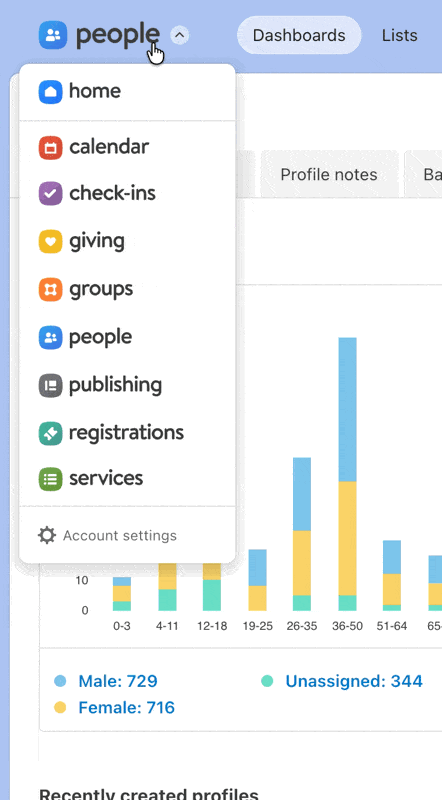
By default, an organization administrator has the highest permissions in all subscribed products except Giving. For anyone to have access to Giving, a Giving administrator must manually grant them access.
From the top left, click on the product name to be taken to another product.
Tip
If you're unsure which products you subscribe to, go to the Subscriptions page.
Learn the products
Getting to know each one is important so you can use them more fully. These links will introduce you to each product.
Warning
You may not be subscribed to all of these products. Learn the ones you're subscribed to before branching out to the ones you're not subscribed to.
People: The Planning Center Hub
Planning Center People is the hub for all Planning Center products. It houses all contact information and even tracks activity happening in other products.
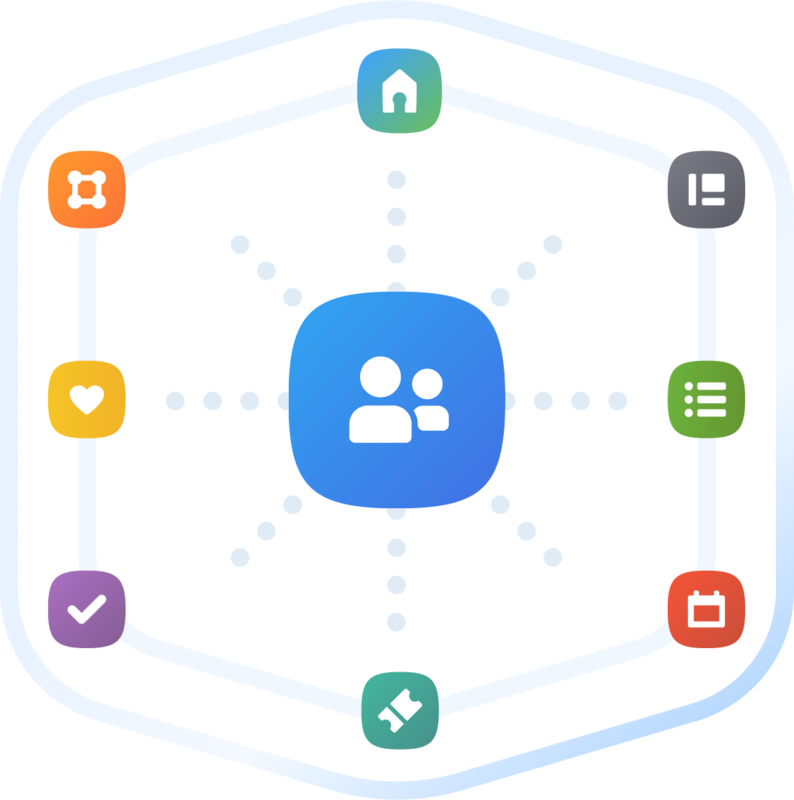
The People product stores all information about people in your organization, and this information can be accessed through your other products. If you can't find what you're looking for, it might be in another product. Check out some features of our other products below.
Organization administrators have access to specific parts of Planning Center that no other permission can access, so please familiarize yourself with them as early as possible.
Product | Task |
|---|---|
Account settings | |
Calendar | Enable Church Center to host your calendar |
Check-Ins | Enable the Church Center mobile app for pre-check Change the localization settings that all event times are based on |
Giving | Enable Church Center to host your donation form Connect Planning Center Payments to accept online donations (done in account settings) |
Groups | Enable Church Center for group engagement Change the localization settings that all event times are based on |
People | Set an expiration date for background checks Manage background check administrators Deactivate two-step verification for a profile Change a person's login method |
Publishing | |
Registrations | Enable Church Center to host signups Connect Planning Center Payments to accept online payments (done in account settings) |
Services | Choose default permission settings Update default settings for the Lyrics & chords editor |
Notifications
Everyone who can log into Planning Center can view their notifications across all Planning Center products by selecting the 🔔 bell icon in the toolbar. Selecting a notification takes you to that product. Or, if you select the three-dot button next to the notification, you can either mark it as read or add it as a task in your To do list. You can filter your notifications by selecting Show read or Hide read at the top of the toolbar.
Bookmark the status page
As an organization administrator, it is recommended that you add the Planning Center status page to your bookmarks. If you find yourself running into trouble with your account, visit the status page to check for any known issues.
Get help and support
Any time you have questions, Planning Center's support team is here to help! Use the ? question mark icon in the toolbar to open the Help and support sidebar.
From here you can:
Search online documentation for an instant answer to your question. The toolbar also suggests help articles based on the page you are currently viewing.
Access getting started resources or jump into Planning Center University (PCU). You can also connect with other Planning Center customers in the customer communities and see what's new by checking out the changelog.
Connect with a support agent for one-on-one help. You can email them directly from the toolbar, or schedule a phone call if you prefer.
Depending on which Planning Center product you're using, you can also contact support directly from the corresponding mobile app:
Services/People: Tap your profile icon in the top right, then tap Help to access help articles or open a ticket with support.
Check-Ins: Tap the ⚙️ settings icon in the bottom right, then tap Contact Support to open a ticket with support.
Music Stand: Tap the menu icon (three horizontal lines) in the top left, then tap Help to access help articles or open a ticket with support.
Organization administrator requests
The following Support requests can only be made by organization administrators:
Data removal or corrections you can't make yourself (undo old CSV imports, iCal imports, etc)
Gain access to anything that was created and managed by someone else in the account
Restore or fully delete a canceled account
Request access to Giving (if there are currently no Giving administrators in the account)