Permissions in account settings
Account settings contains your account's subscription, basic settings, and billing information. There are two permission levels: organization administrators and billing managers.
The person who created your Planning Center account is an organization administrator by default. Organization administrators have full administrator access to all products except Giving. It's best to limit who has this role, but you should always have at least two people in it. Share this introduction article with any organization administrator to familiarize them with the account settings.
Tip
Use the security history to see when changes have been made to the organization administrator list.
Organization administrator | Billing manager | |
|---|---|---|
Add or remove organization administrators and billing managers | ✓ | |
Change subscription | ✓ | |
✓ | ||
✓ | ||
Turn the Mailchimp Integration, or Checkr Integration on/off | ✓ | |
Change the Church Center subdomain | ✓ | |
✓ | ✓ | |
✓ | ✓ | |
✓ | ✓ |
Organization administrators and billing managers will receive email notifications from time to time with information about your account.
Organization administrator | Billing manager | |
|---|---|---|
Subscription changes | ✓ | |
Overages | ✓ | |
Organization administrator changes | ✓ | |
Payment reminders | ✓ | |
Billing statements | ✓ | |
Receipts | ✓ |
Giving people access to Planning Center depends on their role at your church. Staff and background-checked leaders may have enough trust to access people's information, whether to edit or view, but people outside of that trusted circle should be given lower permissions.
This table outlines who can access people's contact information based on their permissions in another product.
Can edit | Can view | No access | |
|---|---|---|---|
Account settings | Organization administrators (in all products except Giving) | Billing managers | |
Calendar | People editor | People viewer | Any event, room, or resource permission |
Check-Ins | Editor | Viewer | Headcounter |
Giving | Administrator Bookkeeper Counter |
| Reviewer |
Groups | Administrator | Group type manager Leader (everyone in their group) Member (everyone in their group who has made info visible) | Members under the age of 13 |
People | Manager Editor | Viewer | |
Publishing | Administrators | ||
Registrations | Administrator Manager (only attendees in signup) | ||
Services | Administrator Editor (based on settings) Scheduler (based on settings) | Viewer (based on settings) | Scheduled viewer |
Organization administrators have access to specific parts of Planning Center that no other permission can access, so please familiarize yourself with them as early as possible.
Product | Task |
|---|---|
Account settings | |
Calendar | Enable Church Center to host your calendar |
Check-Ins | Enable the Church Center mobile app for pre-check Change the localization settings that all event times are based on |
Giving | Enable Church Center to host your donation form Connect Planning Center Payments to accept online donations (done in account settings) |
Groups | Enable Church Center for group engagement Change the localization settings that all event times are based on |
People | Set an expiration date for background checks Manage background check administrators Deactivate two-step verification for a profile Change a person's login method |
Publishing | |
Registrations | Enable Church Center to host signups Connect Planning Center Payments to accept online payments (done in account settings) |
Services | Choose default permission settings Update default settings for the Lyrics & chords editor |
Give access
To add an organization administrator:
Choose the People page from the top navigation.
Select the Administrators tab.
Select Add organization admin in the Organization administrators box.
Type the person's name in the Add new organization admin field.
Choose the person's name from the search results.
If the person isn't in your database yet, select the Create new person button and enter their information.
Select Add organization admin.
To add a billing manager:
Choose the People page from the top navigation.
Select the Administrators tab.
Select Add billing manager in the Billing manager box.
Type the person's name into the Add a new billing manager field.
Choose the person's name from the search results. If the person isn't in your database yet, select the Create a new person button and enter their information.
Select Add billing manager.
When a new person is added, they'll receive an email that welcomes them and includes instructions for setting their password and logging in.
Remove access
Warning
Removing someone from the organization administrator role can cause some processes to break, especially in People.
To avoid any hiccups, read through the Staff transition guide before removing an administrator.
To remove access:
Choose the People page from the top navigation.
Select the Administrators tab.
Find the person's name in the list of organization administrators or billing managers.
Select the Actions button to the right of the person's name.
Choose Remove admin access... in the dropdown.
Select Remove access in the popup warning.
Removing a person's access will not notify them. If they try to log in, they will encounter an error page.
Request organization administrator change
If you need to replace an organization administrator but cannot access the Administrators page, email accounts@planningcenter.com to request that change. You must verify your identity before any changes can be made; use the table below to determine what identifiable information to include in your email based on your payment method.
Payment method | Required info |
|---|---|
Credit card |
|
Check |
|
Product users
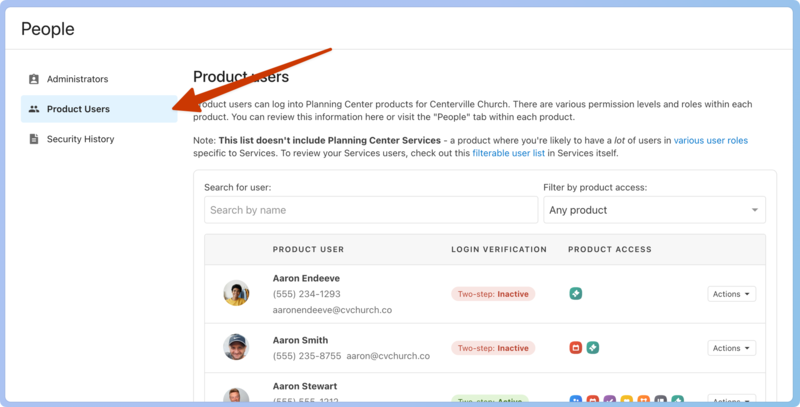
In the Product Users tab on the People page, you can see a list of everyone who has been given login access to your Planning Center account and which products each person has access to. (With the exception of Services.)
To review people's access to your account:
Select the People page in the top navigation in account settings.
Select Product Users on the left.
Type a person's name in the search box, or use the dropdown to filter the list by product.
Select Actions to the right of a person's name to view their security history or manage their permissions in each product.
Tip
To review people with access to Services, head to the People page in Services and use the available filters to search.
To export a CSV of the product users table:
Select the People page in the top navigation in account settings.
Select Product Users on the left.
(Optional) Filter the table by product.
Select Export CSV in the top right.
The exported CSV file will include each product user's name, email, and phone number, as well as their two-step verification status and product access.
When is someone notified of permission changes?
When you change someone's permissions in Planning Center, they may receive a notification, depending on the type of change.
Add a new person
When someone who has never logged into your organization is granted access to Planning Center, they receive an email notification.
The email welcomes them and lists all of the products they've been given access to, their permission levels in those products, and explains how to log in.
Upgrade an existing person's permissions
When someone already in Planning Center has their permission levels upgraded, they receive an email notification.
The email tells them that their access level has changed, lists all of the products they have access to and their permission levels in those products, and highlights which permission levels were upgraded.
Important
This applies to all products except Publishing. There is only one permission level in Publishing, so it is not possible to upgrade a person's permissions.
Remove or downgrade an existing person's permissions
When an existing person's permission levels or product access are removed or downgraded, they don't receive an email notification unless the change was made to an organization administrator; then all organization administrators are notified.
Warning
If an organization administrator's access is removed, they will be notified via email. This is a security measure to provide awareness in the event of a profile takeover.
If a person's permissions are upgraded in one product and downgraded in another, their notification email will show their new downgraded permission in the second product. However, there will be no indication that it was changed.
Additionally, the following cases are exceptions in Giving:
When someone's role is revoked in Giving, they receive an email notifying them of the change.
When someone is removed from Giving, administrators and bookkeepers are notified.
Administrators and bookkeepers are also notified if a new Giving administrator is created or an existing administrator's permissions are changed or removed.