Introduction for administrators
Publishing helps you manage what your congregants can access on Church Center. You can create custom pages, customize the navigation, share sermon content, and view data on how your content performs.
Manage pages
Each Planning Center product you're subscribed to has a built-in page on Church Center, and those pages can be managed in the product itself.
You can create a custom home page like the example below, and depending on your Publishing subscription level, you can create additional custom pages with your content, links to Forms, and videos.
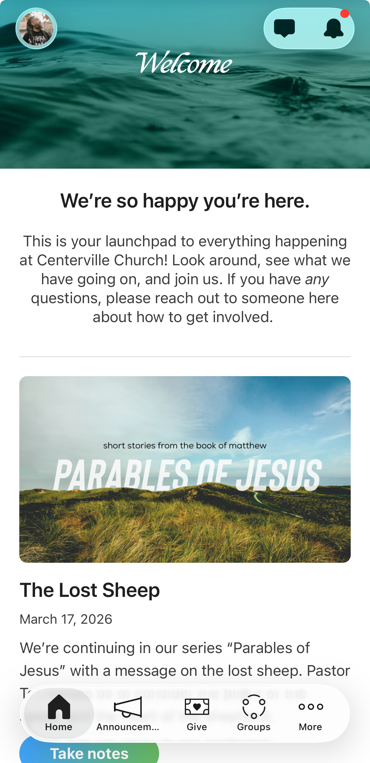
Once you create a page, you can immediately add it to the navigation or wait to release it to Church Center.
You can also create Sermon channels for people to watch messages from your church, and customize the color scheme of Church Center to match your church branding.
Activate the Church Center mobile app
Church Center is the public-facing place for all the pages you create in Publishing. It can be used as an app, website, or both! Follow the steps below to activate the Church Center mobile app.
Select the Customize page from the top navigation.
Select the Mobile app tab at the top of the page.
Use the toggle next to Church Center mobile app to activate and deactivate the app.
Promote Church Center to your congregation
Once you've built your site and activated the Church Center mobile app, check out our article devoted to promoting Church Center to your congregation.
There you'll find instructions for generating a custom Church Center promo video, creating QR codes, and downloading free promotional materials.
You can then use the dashboard in Publishing to monitor how your congregation is engaging with your content in Church Center.
Tip
Try out Publishing's Premium plan for free for 30 days! An organization administrator can change your Publishing subscription to Premium in account settings, then contact Planning Center support using the ❓ question mark icon in the toolbar to get a month free.
Notifications
Everyone who can log into Planning Center can view their notifications across all Planning Center products by selecting the 🔔 bell icon in the toolbar. Selecting a notification takes you to that product. Or, if you select the three-dot button next to the notification, you can either mark it as read or add it as a task in your To do list. You can filter your notifications by selecting Show read or Hide read at the top of the toolbar.
Get help and support
Any time you have questions, Planning Center's support team is here to help! Use the ? question mark icon in the toolbar to open the Help and support sidebar.
From here you can:
Search online documentation for an instant answer to your question. The toolbar also suggests help articles based on the page you are currently viewing.
Access getting started resources or jump into Planning Center University (PCU). You can also connect with other Planning Center customers in the customer communities and see what's new by checking out the changelog.
Connect with a support agent for one-on-one help. You can email them directly from the toolbar, or schedule a phone call if you prefer.
Depending on which Planning Center product you're using, you can also contact support directly from the corresponding mobile app:
Services/People: Tap your profile icon in the top right, then tap Help to access help articles or open a ticket with support.
Check-Ins: Tap the ⚙️ settings icon in the bottom right, then tap Contact Support to open a ticket with support.
Music Stand: Tap the menu icon (three horizontal lines) in the top left, then tap Help to access help articles or open a ticket with support.
Organization administrator requests
The following Support requests can only be made by organization administrators:
Data removal or corrections you can't make yourself (undo old CSV imports, iCal imports, etc)
Gain access to anything that was created and managed by someone else in the account
Restore or fully delete a canceled account
Request access to Giving (if there are currently no Giving administrators in the account)