Toolbar overview
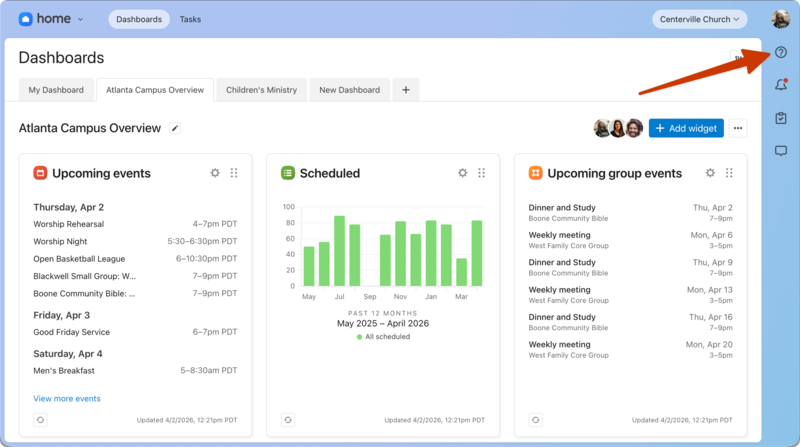
You'll find the toolbar on the right side of every Planning Center product. Use it to quickly access your profile and login settings, as well as support resources, notifications, tasks, and chat. Here's a rundown of all it can do!
Profile
Select your avatar icon at the top of the toolbar to open the profile tab. From there, you can quickly jump to your profile in the product you're currently using, edit your login settings, or log out of Planning Center.
You won't see the My profile option if you open the toolbar while using Home or Publishing because these products don't contain people profiles.
Help and support
Select the ? question mark icon to open the Help and support tab of the toolbar and quickly find a variety of help options:
Search the documentation for an instant answer to your question. The toolbar also suggests help articles based on the page you're currently viewing.
Access the getting started resources or jump into Planning Center University (PCU). You can also connect with fellow Planning Center customers in the customer community and see what's new by checking out the change log.
Connect with a support agent for one-on-one help. You can send them an email directly from the toolbar, or schedule a phone call if you'd prefer.
Notifications
Select the 🔔 bell icon to open the Notifications tab of the toolbar.
Here you can view your notifications across all Planning Center products. Selecting a notification takes you to that product. Or, if you select the three-dot button next to the notification, you can either mark it as read or add it as a task in your To do list.
You can filter your notifications by selecting Show read or Hide read at the top of the toolbar.
To do
Select the 📋 clipboard icon to open the To do tab of the toolbar.
Chat
Select the 💬 chat icon to open the Chat tab of the toolbar.
Quickly open existing conversations or start a new one using the New conversation button.
Select the 🔍 search icon to find a specific message or conversation. The search looks in the conversation title and message content for matches.
Planning Center chat is only available if you're subscribed to Services or Groups.
Ask AI
Select the ✨ AI icon to open the Ask AI tab of the toolbar.
The AI assistant can search all help articles, pricing information, API documentation, and other resources to answer questions about Planning Center. It uses your permissions and sees your account the same way you do, so if you can't access something, Ask AI can't either.
Type in the Ask anything box, then tap the ⬆️ up arrow button to ask a new question.
Tip
For better results, add details to your question, such as the product or feature name, the item title, or how you want the answer formatted.
Scroll to the end of the response given to provide feedback, copy the response, or tap the ? question mark icon to contact Planning Center support if you need more help.
Tap the three-dot More options menu to:
Select Chat history to view your previous questions.
Select Settings to add your role and responsibilities. These details help tailor responses to your specific needs.