Use the Lyrics & Chords editor
Create and edit chord charts for your arrangements using the Lyrics & Chords editor that's built into Services. By using the built-in editor, you can automatically transpose chords for each key in the arrangement, as well as create lyrics-only PDFs and number/numeral charts!
You can enter chords into the editor using one of two formats:
ChordPro® format: Enter your chords in line with your lyrics by placing them in brackets. This is called ChordPro® format, which ensures your chords align perfectly with your lyrics, even after transposing or changing fonts.
Standard chord format: You can also place your chords on a separate line from the lyrics. This is simpler, but if you change fonts or keys, chords can shift slightly and won't always stay aligned with the correct syllable.
Important
Lyrics & Chords charts created using the editor don't count toward your file storage and won't appear on your Manage Files page.
Want to watch a video before you get started? No problem! This four-minute video covers how to transpose audio and use the Lyrics & Chords editor.
Create Lyrics & Chords files
If you have song editor permissions, you can create Lyrics & Chords files by following the steps below.
Important
Any changes you make in the editor will only apply to Lyrics & Chords files. Your changes won't be reflected in any files you've manually uploaded or imported, unless you imported editable chord charts.
Select the Songs page from the top navigation in Services.
Select a song for which you'd like to create a Lyrics & Chords file.
Choose an arrangement from the left sidebar.
Select the Lyrics & Chords button in the Files section to open the editor.
Enter your lyrics and chords on the left side of the editor, or copy and paste them from another document.
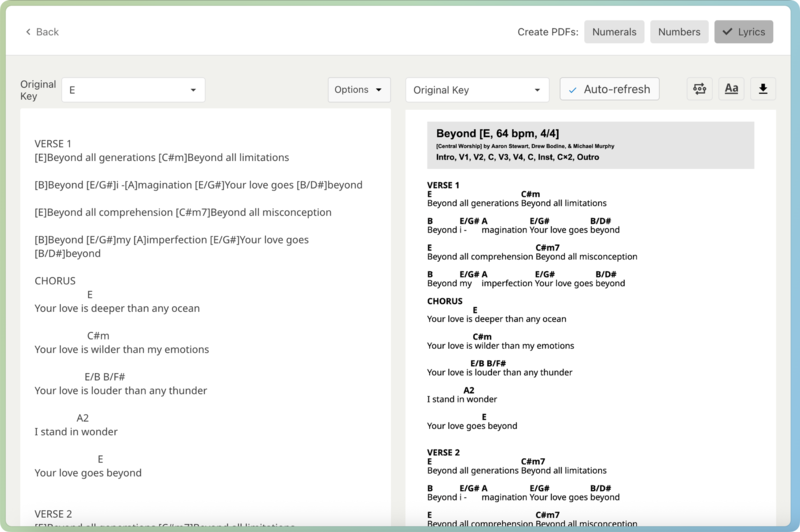
Original Key: Use the Original Key dropdown to choose the key from which you'd like to enter your chords.
Options: Choose an option from the Options dropdown to insert page breaks, column breaks, key changes, chord symbols, or codes for bolding or italicizing text.
Select More Codes to go to the Special codes for Lyrics and Chords article.
Select Revert All Changes to undo all changes made since you first opened the editor.
Preview your chart and adjust your formatting on the right side of the editor.
Preview Key: Use the dropdown above the preview area to choose whether to preview the chart in the original key, a transposed key, or in the Number/Numerals/Lyric format.
Auto-Refresh: Toggle the Auto-refresh button to choose whether to refresh the preview automatically while you enter text.
Sequence: Select the sequence button in the top right to edit the arrangement's sequence, which will show at the top of the chart.
Format: Select the formatting button in the top right (Aa) to adjust the print and formatting options for this chart. Organization administrators can update the default settings for the editor by choosing the Defaults tab.
Warning
Changing the default chart settings will automatically update existing charts that use the defaults.
Download: Select the ⬇️ download icon to download a PDF of the chart.
(Optional) Toggle the Numerals, Numbers, and/or Lyrics buttons in the top right to choose whether to create PDFs for numeral charts, number charts, or lyrics-only files in the arrangement.
Select Back in the top left to return to the arrangement page and view your automatically generated files.
Number charts are commonly used by studio musicians who must be ready to play a song in any key. Instead of having twelve chord charts in different keys, you only need one number chart. Chords are replaced by numbers based on the scale of the key you are in. In D, 1 = D, 2 = E, 3 = F#, and so on. Then, just by saying you are now in E, the musicians see 1 and now play E instead of D.
Numeral charts are a little different. In a numeral chart, if your chord is major, the roman numeral is uppercase, but if the chord is minor, instead of showing the 'm', you use a lowercase roman numeral. In the key of C, II would be D major, but ii would be D minor.
In both number and numeral charts, chords or notes outside of the key will be represented using flats. So, in the key of C, if you have a G#, it will show as b6 or bVI instead of #5. Likewise, E/G# would be 3/b6 or III/bVI.
When you have a C2 chord, we'll put the 2 in superscript to make it clear this is a 12 chord and not a 12 chord. Superscript chord suffixes on number and numeral charts make it easy to tell what the chord is and the suffix is.
Important
You can only output your chord charts in the numeral/number format; you can't input chords as numbers or numerals on the left side of the editor.
Import editable chord charts
If you have the SongSelect or PraiseCharts integrations enabled, you can import lyrics and editable chord charts directly into the editor so you don't need to enter them from scratch!
Check out the following articles to learn how you can set up each integration and import chord chart files to your songs:
Once you've imported editable chord charts using either integration, the lyrics and chords will automatically populate in the editor when you open it.
Access Lyrics & Chords files
Whenever there's text in the editor, chord charts automatically appear in each of the arrangement's key sections. Lyrics & Chords charts are named "Chord Chart in [key]."
If you choose to create PDFs for numeral charts, number charts, or lyrics-only files, they'll appear in the Arrangement section.
To view a transposed chart for a new key, add that key to the arrangement.
Remove Lyrics & Chords files
If you need to remove Lyrics & Chords files from your arrangement, you'll either need to clear the text from the editor or remove capo keys.
Remove all Lyrics & Chords from an arrangement
To remove all Lyrics & Chords files from an arrangement:
Select the Songs page from the top navigation in Services.
Select the song from which you'd like to remove files.
From the left sidebar, select the arrangement from which you'd like to remove files.
Select the Lyrics & Chords button in the Files section to open the editor.
Clear any text from the left side of the editor by selecting it and pressing
deleteon your keyboard.Select Back in the top left to return to the arrangement page.
Remove capo charts
To remove capo charts only:
Select the Songs page from the top navigation in Services.
Select the song from which you'd like to remove files.
From the left sidebar, select the arrangement from which you'd like to remove files.
Hover over the key from which you want to remove capo charts.
Select the ✏️ edit icon that appears next to the key.
Select the X next to the capo keys in the Capos section.
Select Save in the bottom right of the popup.