Introduction for administrators
Welcome to Calendar! This article introduces the features available for event administrators. If you haven't already, check out this overview of how Calendar works for your church!
Planning Center Calendar is designed to:
Help you and your church manage your facilities.
Streamline room and resource reservation requests.
Keep track of when and how your facilities are used.
Prevent conflicts and double bookings.
Calendar is primarily for internal use, not the general congregation. This means that only people with permissions in Calendar can create events and request rooms or resources directly in Calendar.
The events coordinator, custodial staff, and security manager are great examples of people who need access to Calendar. Check out the Add people to Calendar article to learn how!
If you want to offer a public option for requesting events, you can create an event request form in Calendar and share it with your congregation!
To share your events with the public, you can set up Calendar in Church Center or learn about the different ways you can share events in Calendar, such as sharing iCal feeds or embedding your calendar on a website.
Calendar is for the facilities manager, maintenance crew, department heads, and church staff, but not the general congregation. Only someone with permissions in Calendar can create events and requests for rooms or resources from within Calendar.
Approval groups
Check out the article on how to create approval groups to learn more!
Rooms and resources
Rooms and resources are physical items located at your church, such as the sanctuary and folding chairs. You can add optional questions to any room or resource to help you evaluate reservation requests.
Organize with tags
Tags organize your events based on information that makes them alike.
Assign a tag to multiple events and filter the calendar to view all those events and share calendars based on the tags filtered.
Event overview
Events hold the schedule, rooms, and resources, so you can keep all your events in order without double booking. Events are added to Calendar in several ways:
You can create an event directly in Calendar.
Import events from other calendars with iCal feeds.
From pending requests created through a public event request form.
A completed, approved event created in Calendar looks like this:
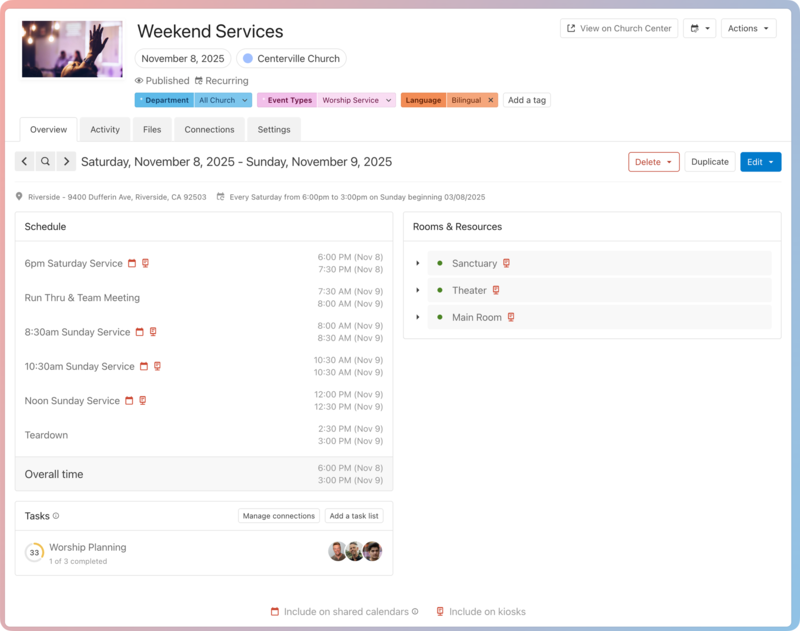
When you create your event, add the schedule, request rooms and resources, connect it to events in other Planning Center products, and then wait for approval.
As approval groups approve or reject requests, the event owner and managers will receive emails, and all activity will be logged in the Activity tab.
Change the calendar start day
Organization administrators can choose for the calendar view to start on either Sunday or Monday, depending on your localization and organization preferences.
To change your organization's view:
Select the Events page from the top navigation in Calendar.
Select the ⚙️ settings icon in the top right.
Select View preferences from the left sidebar.
Choose whether to start your organization's calendar week on Sunday or Monday. Your changes are automatically saved.
This setting applies to all Calendar pages and the month view in your Church Center calendar.
Notifications
Everyone who can log into Planning Center can view their notifications across all Planning Center products by selecting the 🔔 bell icon in the toolbar. Selecting a notification takes you to that product. Or, if you select the three-dot button next to the notification, you can either mark it as read or add it as a task in your To do list. You can filter your notifications by selecting Show read or Hide read at the top of the toolbar.
Get help and support
Any time you have questions, Planning Center's support team is here to help! Use the ? question mark icon in the toolbar to open the Help and support sidebar.
From here you can:
Search online documentation for an instant answer to your question. The toolbar also suggests help articles based on the page you are currently viewing.
Access getting started resources or jump into Planning Center University (PCU). You can also connect with other Planning Center customers in the customer communities and see what's new by checking out the changelog.
Connect with a support agent for one-on-one help. You can email them directly from the toolbar, or schedule a phone call if you prefer.
Depending on which Planning Center product you're using, you can also contact support directly from the corresponding mobile app:
Services/People: Tap your profile icon in the top right, then tap Help to access help articles or open a ticket with support.
Check-Ins: Tap the ⚙️ settings icon in the bottom right, then tap Contact Support to open a ticket with support.
Music Stand: Tap the menu icon (three horizontal lines) in the top left, then tap Help to access help articles or open a ticket with support.
Organization administrator requests
The following Support requests can only be made by organization administrators:
Data removal or corrections you can't make yourself (undo old CSV imports, iCal imports, etc)
Gain access to anything that was created and managed by someone else in the account
Restore or fully delete a canceled account
Request access to Giving (if there are currently no Giving administrators in the account)