Introduction for administrators
Congratulations, you are now a Giving administrator! As a Giving administrator, you play a crucial role in managing and facilitating the giving process. If you have completed the initial setup of your Giving account or were recently added to the finance team, this article is for you. This guide provides an overview of the main Giving concepts to better understand how Giving works and what's involved in administering your account.
Tip
If you cannot log in, follow the steps in the Log in to Planning Center article.
How do I decide which plan to choose?
Here are some tips for choosing which product plan is best for your church:
Typically, about 17% of churchgoers donate. So, to get your average number of monthly donations, multiply [your weekly attendance] x .17 x 4.3 (average weeks in a month). For example, a congregation of 1000 would receive approximately 731 donations a month (1000 x .17 x 4.3 = 731).
Any donation counts as one donation, no matter which payment source is used. For example, if you process 500 cash and check donations, it's the same price as processing 200 cash or check donations + 300 online donations.
Process online and in-person donations
With Giving, you can track both online and in-person donations. Online donations are given via Church Center, text, or an external donation platform. Funds can be used to designate giving for different ministries.
Tip
Only want to use Giving to track in-person donations or those processed from an external donation platform? Go ahead and skip the step to connect the payment processor during the setup process!
Use funds
A default fund is created when you set up your Giving account, but you can add additional funds at any time to designate donations for a specific purpose (such as foreign missions or a building fund).
By default, funds are visible to online and text donors, but you can choose to hide a fund and make it available to administrators only.
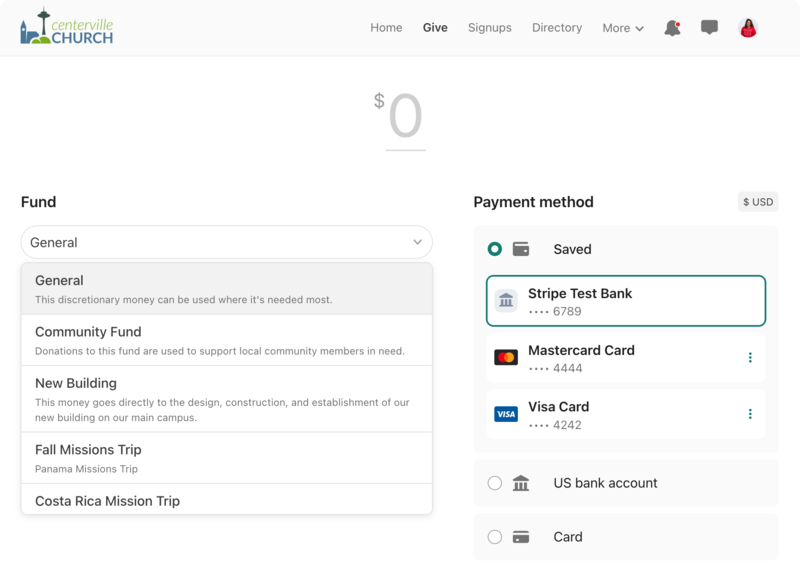
When creating batches, you can set a default fund for every donation in the batch or designate each donation to a different fund.
Receive online donations
Online and text donations are received on Church Center and processed through Planning Center Payments.
Church Center
Church Center is an online giving portal included with your Giving subscription at no extra charge! Church Center allows people to donate to your church, get church information, and manage their profiles from both the web and the Church Center app for iOS or Android.
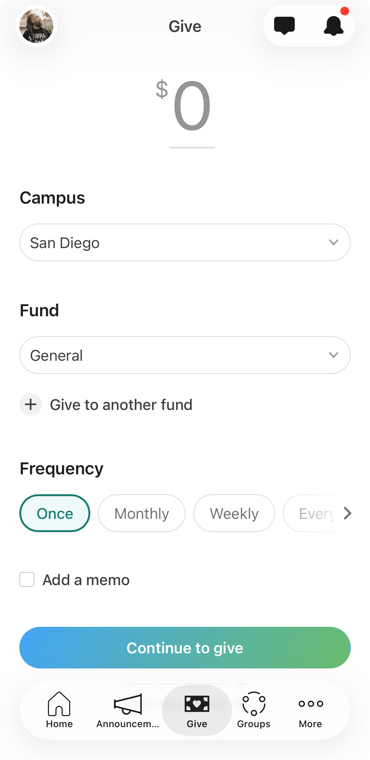
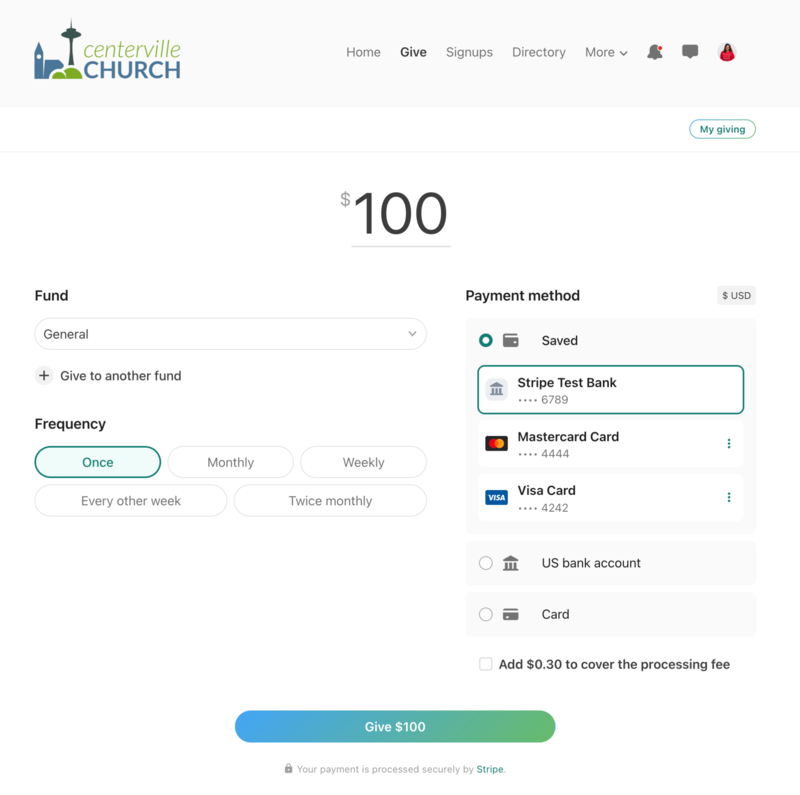
From their Church Center profile, all donors can access their donation history and statements. They can also set their email receipt preferences and adjust recurring donations. To update their profile information, donors can contact an administrator to request changes.
Tip
The Help donors give online article has some great tips for sharing Church Center with your congregation and helping them with common questions.
Tracking in-person donations
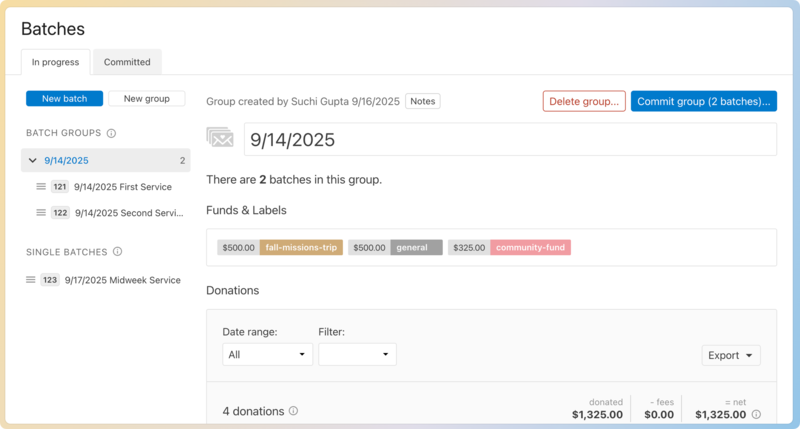
In-person cash and check donations, along with donations given through external payment sources, certain non-deductible donations, and historical donations imported through a CSV, are added to Giving via batches.
Tip
Check out Planning Center's Integrations page to learn more about other donation softwares that can integrate with Giving.
Bookkeeping
Giving won't replace your general ledger, so you'll still need a basic bookkeeping software to handle your payable and receivable accounts.
However, keeping every individual donation in your general ledger is not advisable. Instead, use journaled entries in your general ledger to record the payouts you receive and donation batches.
Tip
See this article on bookkeeping for tips on entering donations from Giving to your general ledger.
Reports
The following reports are available in Giving:
The Giving dashboard lets you view donations, new donors, and labels or funds within a specified date range.
Donations can be filtered by Stamp, Label, Fund, or Payment Source on any page that includes an itemized list of donations in Giving.
You can create a list of donors based on criteria such as the amount donated, fund type, or recurring donor status.
Use payout reports to reconcile deposits (called payouts) to your bank account or general ledger.
You can generate statements in Giving and email them to your donors or print them out and send them by mail. Donors can access statements from their Church Center profile.
Notifications
Everyone who can log into Planning Center can view their notifications across all Planning Center products by selecting the 🔔 bell icon in the toolbar. Selecting a notification takes you to that product. Or, if you select the three-dot button next to the notification, you can either mark it as read or add it as a task in your To do list. You can filter your notifications by selecting Show read or Hide read at the top of the toolbar.
Get help and support
Any time you have questions, Planning Center's support team is here to help! Use the ? question mark icon in the toolbar to open the Help and support sidebar.
From here you can:
Search online documentation for an instant answer to your question. The toolbar also suggests help articles based on the page you are currently viewing.
Access getting started resources or jump into Planning Center University (PCU). You can also connect with other Planning Center customers in the customer communities and see what's new by checking out the changelog.
Connect with a support agent for one-on-one help. You can email them directly from the toolbar, or schedule a phone call if you prefer.
Depending on which Planning Center product you're using, you can also contact support directly from the corresponding mobile app:
Services/People: Tap your profile icon in the top right, then tap Help to access help articles or open a ticket with support.
Check-Ins: Tap the ⚙️ settings icon in the bottom right, then tap Contact Support to open a ticket with support.
Music Stand: Tap the menu icon (three horizontal lines) in the top left, then tap Help to access help articles or open a ticket with support.
Organization administrator requests
The following Support requests can only be made by organization administrators:
Data removal or corrections you can't make yourself (undo old CSV imports, iCal imports, etc)
Gain access to anything that was created and managed by someone else in the account
Restore or fully delete a canceled account
Request access to Giving (if there are currently no Giving administrators in the account)