Introduction for administrators
Welcome to Registrations! This article will introduce you to key features in Registrations.
Tip
If you cannot log in, follow the steps in the Log in to Planning Center article.
Signups basics
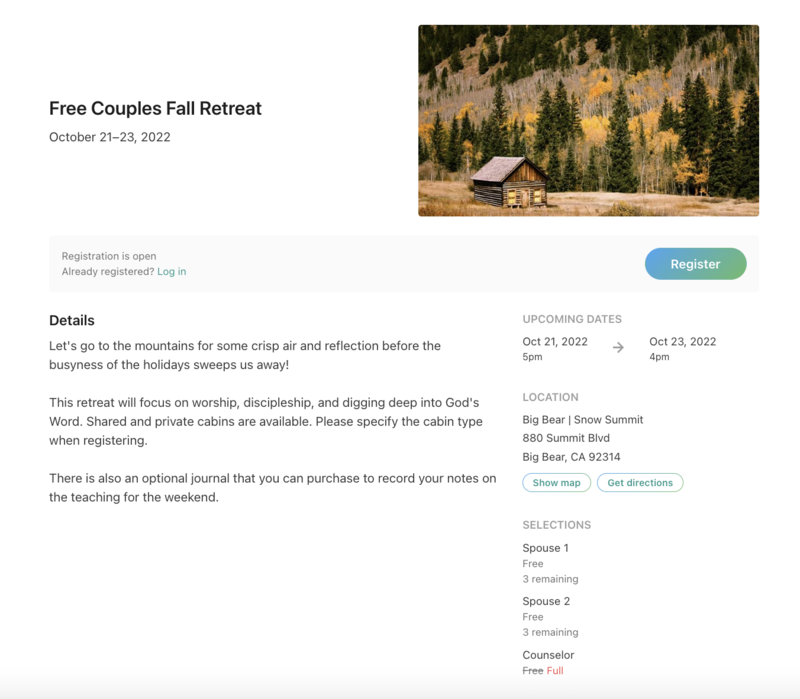
When you create a signup, you can manage the settings that others will see when they register on Church Center.
Enter the description, and choose the dates, times, image, location, and category, as well as assign managers, on the About tab.
From the Settings tab, choose how to show the signup on Church Center, set it to open and/or close for registrations automatically, and adjust payment and registrant options. You can also add people as subscribers to notify them of new registrations and add a support contact for people to contact with questions.
A "Standard" selection type is included for you at setup since you have to have at least one in your signup, but you can change the name and settings or add more.
If you have any extra options or merchandise you want people to add to their registration, put those options in the Add-on options tab.
To gather information, customize the settings in each selection, add questions, and attach forms.
Create discounts based on the date people register, how many people register together in a group, or by giving out a code.
Add scholarships and apply them as payments to attendees' registrations.
Add a custom confirmation email that will be sent to people when they register on the Confirmation message tab.
Set up the ability to take attendance using a Check-in station or a Check-in event on the Check-ins tab.
Once attendees have registered, you can then manage their registration information, payments, and organize them with assignments.
Tip
If you have used a different product for signups, here's the best way to transition to using Registrations:
Open a past event in the other system and recreate a signup in Registrations.
While setting up that signup in Registrations, make notes of the differences between the two products.
Process and collect payments
Signups provide a way for you to collect payments for events. Payments can be received online through Church Center if you've set up Planning Center Payments, and cash and check payments can be applied manually.
Tip
You can allow people to register without requiring online payments by enabling partial payments in any selection type and add-ons that have a cost, and setting the deposit amount to $0.
Church Center
All public signups live on Church Center, a website and mobile app created for you with a personalized URL.
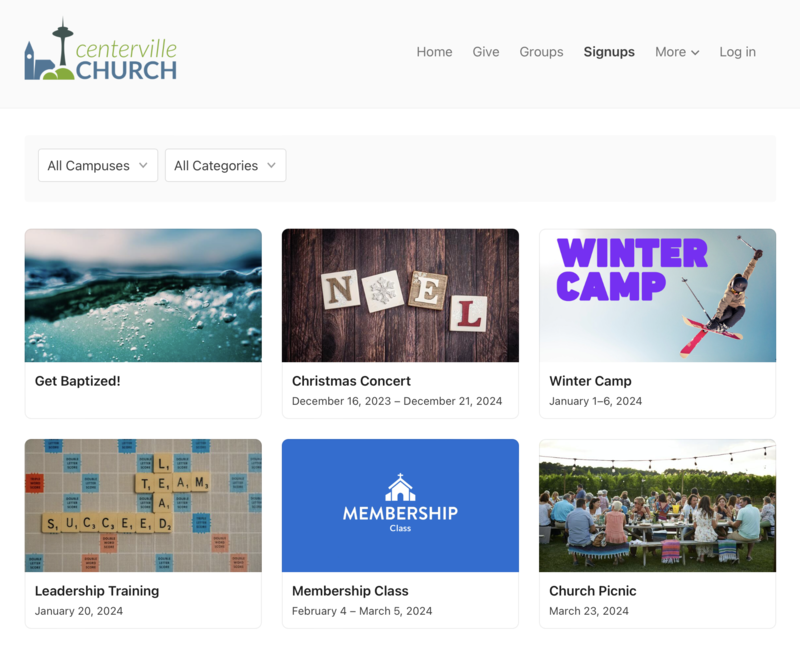
When someone chooses a signup from the list, they'll be taken to the signup page, which is created based on your chosen settings.
Tip
Once you set up your event, register yourself for it to test it out! Once you've finished testing, you can delete completed test registrations in the signup.
Adjust your subscription
The pricing of Registrations is based on the number of attendees for your largest future signup. Your subscription can be upgraded or downgraded as often as necessary. Organization administrators can adjust your subscription from the Subscriptions page in Account settings.
Only have one to two large events per year? Feel free to upgrade to a higher plan during the registration time period. After the event, downgrade to a lower plan (even the free one!).
Notifications
Everyone who can log into Planning Center can view their notifications across all Planning Center products by selecting the 🔔 bell icon in the toolbar. Selecting a notification takes you to that product. Or, if you select the three-dot button next to the notification, you can either mark it as read or add it as a task in your To do list. You can filter your notifications by selecting Show read or Hide read at the top of the toolbar.
Get help and support
Any time you have questions, Planning Center's support team is here to help! Use the ? question mark icon in the toolbar to open the Help and support sidebar.
From here you can:
Search online documentation for an instant answer to your question. The toolbar also suggests help articles based on the page you are currently viewing.
Access getting started resources or jump into Planning Center University (PCU). You can also connect with other Planning Center customers in the customer communities and see what's new by checking out the changelog.
Connect with a support agent for one-on-one help. You can email them directly from the toolbar, or schedule a phone call if you prefer.
Depending on which Planning Center product you're using, you can also contact support directly from the corresponding mobile app:
Services/People: Tap your profile icon in the top right, then tap Help to access help articles or open a ticket with support.
Check-Ins: Tap the ⚙️ settings icon in the bottom right, then tap Contact Support to open a ticket with support.
Music Stand: Tap the menu icon (three horizontal lines) in the top left, then tap Help to access help articles or open a ticket with support.
Organization administrator requests
The following Support requests can only be made by organization administrators:
Data removal or corrections you can't make yourself (undo old CSV imports, iCal imports, etc)
Gain access to anything that was created and managed by someone else in the account
Restore or fully delete a canceled account
Request access to Giving (if there are currently no Giving administrators in the account)