Create email templates
Create customized email templates for general emails, scheduling emails, signup sheet emails, and welcome emails, and apply the template when communicating with your teams.
Important
You must have scheduler permissions or higher to create email templates.
There are four types of email templates in Services:
General emails: Use general emails to send information that doesn't pertain to a specific plan or date. These are only available on the People page or when emailing an entire team from the team's member list. Blockout requests are stored under general email templates.
Schedule emails: Schedule emails include links to the corresponding plan page, Accept and Decline buttons for unconfirmed recipients, and the recipient's assigned times. These emails can only be sent from a plan or matrix.
Signup Sheet emails: Signup sheet emails include a button that takes people to the signup. These are only available from a plan or matrix where signup sheets are enabled.
Welcome emails: Welcome emails include steps for setting up your login information and links to getting started guides. These can be sent when creating a new profile or emailing someone from the People page.
Create an email template
You can create an email template while sending any type of email in Services.
Important
You can only create email templates while using Services on a web browser.
Open the email popup from a plan page, a team member list, a matrix, or the People page.
From a plan, matrix, or the People page: Select the ✉️ email icon to open the email popup.
From a team member list: Select the ⚙️ settings icon in the top right, then choose Email from the dropdown.
If you're emailing from a plan or matrix, select Next in the bottom right of the Recipients popup to skip to the email editor.
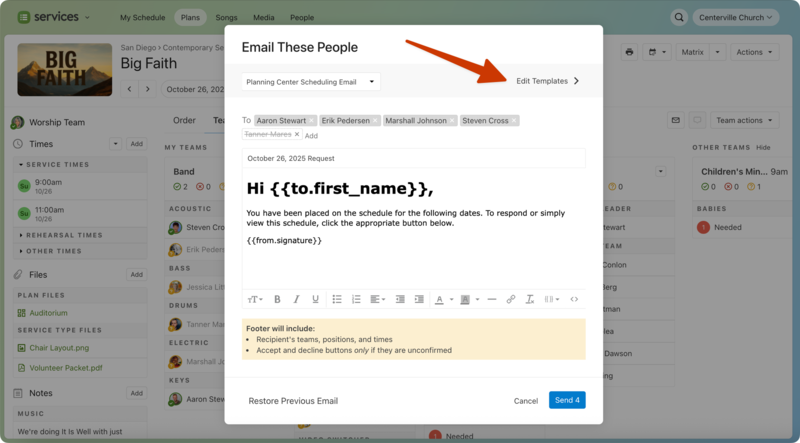
Select Edit Templates in the top right of the email editor.
Choose which type of email template you'd like to create using the tabs at the top of the popup.
Select Create [Type] Template in the bottom right to create your new template.
Edit your email template in the New Email Template popup:
People and plans administrators can use the tabs in the top right to make this template available only to themselves (Personal) or available to others (Shared).
Important
Shared templates are available to everyone in your account who can send emails. Schedulers and editors can only create personal templates.
Enter the title of the template in the text field at the top. For schedule or signup sheet templates, you can check the Use as subject box to use the template title as the email's subject line. This is set automatically for general and welcome emails.
Edit your template's message in the text field. Use the toolbar above the text field to format your message, insert an image, or insert placeholders.
Add images using the 🖼️ image icon in the toolbar, or drag and drop the image file directly into the editor. Refer to the image sizing guide for file size restrictions.
Important
You can only insert inline images. There's no way to upload other types of file attachments to an email template, but you can add files directly to a plan.
Select the {{ }} curly brackets button in the toolbar to insert a placeholder. Placeholders appear in the template with
{{ }}curly brackets, but are replaced by the actual text when the email is sent.Select the <> Source code button in the top right of the toolbar to switch to Source Code view, which allows you to see the full HTML code (for advanced users).
Select Save in the bottom right to save your template.
When you are ready to send an email, choose your template from the template dropdown at the top of the Email These People popup.
Edit an email template
Open the email popup from a plan page, a team member list, a matrix, or the People page.
From a plan, matrix, or the People page: Select the ✉️ email icon to open the email popup.
If you're prompted to adjust the Recipients but don't need to send an email, select Next in the bottom right of the popup to skip that step.
From a team member list: Select the ⚙️ settings icon in the top right, then choose Email from the dropdown.
If you're emailing from a plan or matrix, select Next in the bottom right of the Recipients popup to skip to the email editor.
Select Edit Templates in the top right of the email editor.
Choose which type of email template you'd like to edit.
Select the template you'd like to edit. Templates with the shared badge are available for others as well. If there is no badge, you are the only one with access to that template.
Edit your email template in the Edit Email Template popup:
People and plans administrators can use the tabs in the top right to make this template available only to themselves (Personal) or available to others (Shared).
Important
Shared templates are available to everyone in your account who can send emails. Schedulers and editors can only create personal templates.
Edit the title of the template in the text field at the top. For schedule or signup sheet templates, you can check the Use as subject box to use the template title as the email's subject line. This is set automatically for general and welcome emails.
Edit your template's message in the text field. Use the toolbar above the text field to format your message, insert an image, or insert placeholders (the {{ }} curly brackets button).
Placeholders appear in the template with
{{ }}curly brackets, but are replaced by the actual text when the email is sent.Select the <> Source code button in the toolbar to switch to Source Code view, which allows you to see the full HTML code (for advanced users).
Select Save in the bottom right to save your template.
Email template examples
Expand the sections below to view email template examples.
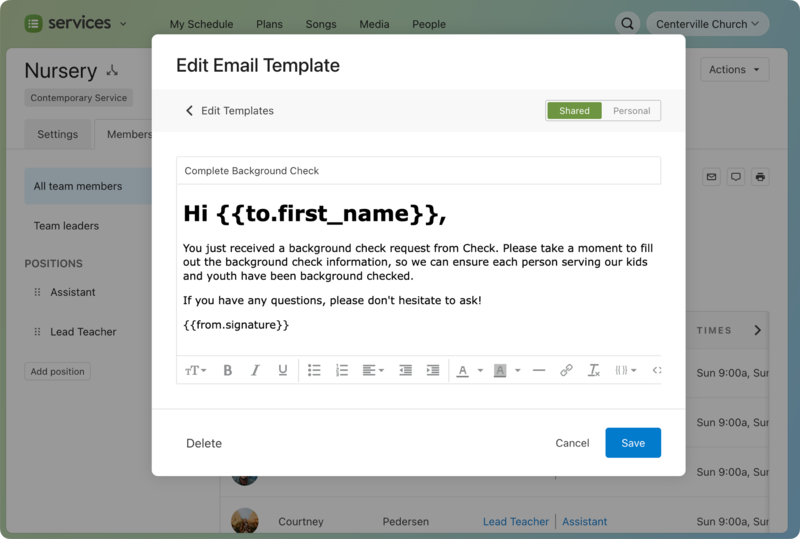
The following general template can be sent to volunteers who've received a background check request.
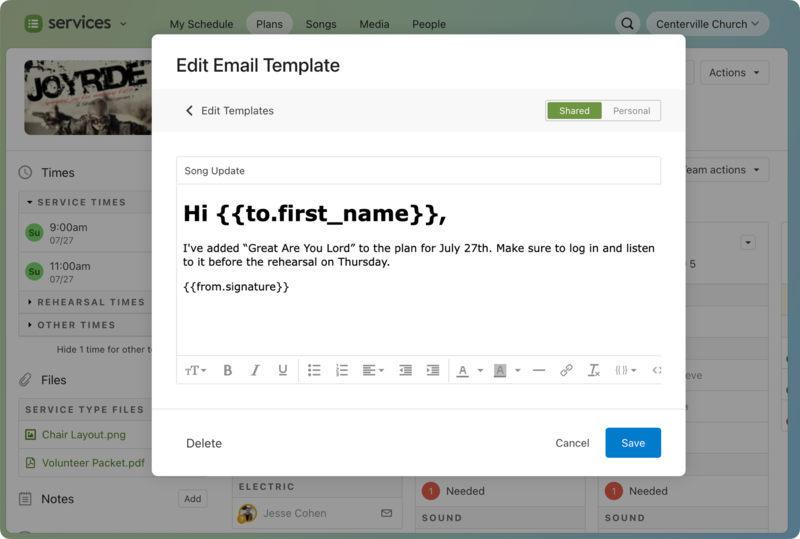
You can create a schedule template to send to people who are scheduled to an updated plan.
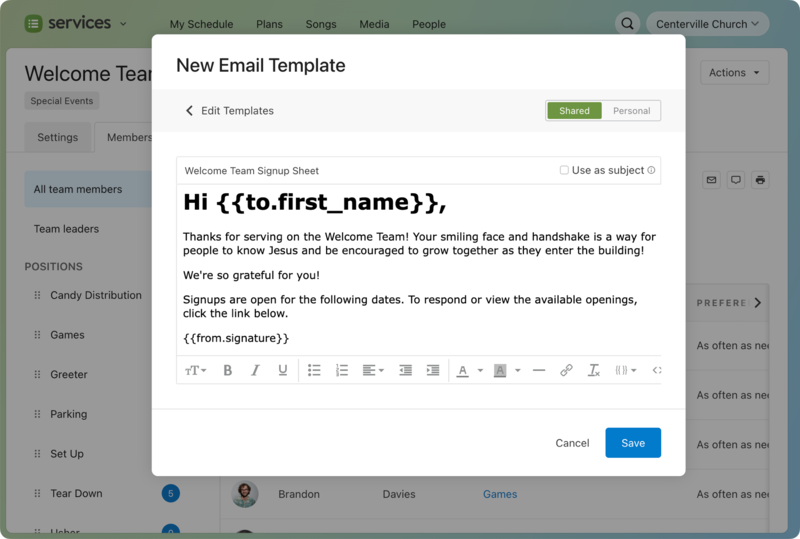
The following signup sheets template is an example of what you can send to volunteers when a signup sheet is available.