View and download payouts
All funds received (minus processing fees) online via Church Center are pooled together and deposited into your organization's linked bank account. These deposits are called payouts. By default, payouts are received on a rolling two-day basis, meaning any money that's cleared in the last two days is deposited.
Every time you receive a payout, a payout report is generated in Account settings to help you reconcile the deposit with your bank account and general ledger. Each payout report provides an overview of income from Giving and Registrations for each deposit you receive, including Giving totals broken down by fund and Registrations totals broken down by signup. Following each payout report is a table of every transaction included in the payout. This list is only visible to people with access to Giving, as the table includes donation data.
Refer to the table below to see who can access what, and use it to help you decide what role you should assign people to.
Permission role | Can view payout reports | Can view transaction-level data | Can export payout summary | Can export transactions |
Payments account owner | ✓ | ✓ | ✓ | ✓ |
Organization administrator | ✓ | ✓ | ||
Billing manager | ✓ | ✓ | ||
Giving administrator | ✓ | ✓ | ✓ | ✓ |
Giving bookkeeper | ✓ | ✓ | ✓ | ✓ |
If a person holds multiple permission roles, such as organization administrator and Giving administrator, their access follows the permission level with the most access. Using this example, if a person is an organization administrator and a Giving administrator, they would have access to all a Giving administrator can see.
View payout reports
You can view a report of each payout you receive on the Payouts tab on the Payments page in Account settings. These reports will show you how much of each deposit came from each Giving fund and Registrations signup.
Select the Payments page in the top navigation in account settings.
Select the Payouts tab.
Use the date dropdown filter on the left to filter payouts to a set timeframe.
Select the date range at the top of the list to view a summary of all payouts received during the filtered date range.
Select a specific date from the list to view an individual payout.
Review the payout summary at the top, including the gross income, fees, and net income. You'll also see the effective rate, which is the percentage of the payout that went to processing fees.
Select Download summary CSV to download a CSV that includes only the breakdown of the payout, not the transactions.
Expand or collapse the Giving and Registrations sections while you review the breakdown of income from each Giving fund and Registrations signup included in the payout.
Download a CSV of all transactions included in a single payout
Below the income breakdown of each payout report is a list of transactions, both successful and attempted, included in the deposit from Giving and Registrations. Because the list contains Giving information, only the Payments account owner, Giving administrators, and Giving bookkeepers can view or download it.
Select the Payments page in the top navigation in account settings.
Select the Payouts tab.
Use the date dropdown filter on the left to filter payouts to a set timeframe.
Select the date range at the top of the list to view a summary of all payouts received during the filtered date range.
Select a specific date from the list to view an individual payout.
Scroll down to the transactions table at the bottom of the report.
Use the filters at the top of the table to filter transactions by source (Giving or Registrations), payment method (card or ACH), or type (charge, dispute, failure, fee, or refunded).
Refunds, fees, and disputes appear as negative transactions in the payout reports in which they settle.
Select an individual transaction to view more details about the payment, including:
Fund allocations for Giving transactions, including a breakdown for split fund donations.
A breakdown of the transaction by fees and net income.
A link to the person's profile in People.
A link to view the transaction in Giving or Registrations.
A link to the payout the transaction was included in.
Select Download in the top right to export a CSV of your transactions.
Reconcile payments with your general ledger
It is recommended to use the payout reports to enter journal entries into your general ledger rather than individual transactions. The CSV export from the Payouts tab will provide this level of information.
While the Transactions tab, provides a list of all transactions received, itemized lists of transactions by payout are found inside a specific payout report.
It is recommended to record journal entries in your general ledger instead of individual payments. Deposit entries will reflect your cash and check totals, as well as your payout totals. In your general ledger, record something like this:
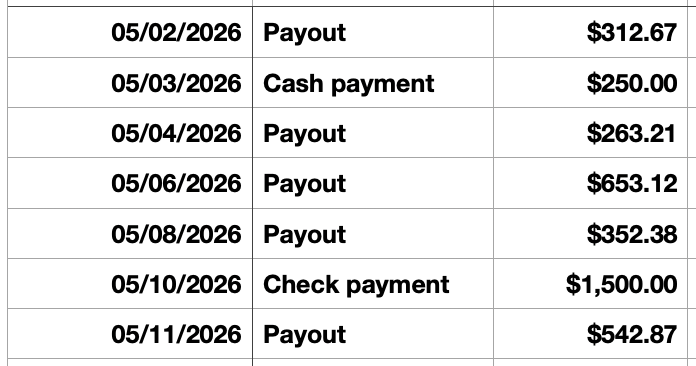
If you do keep individual payments in your general ledger and would like to continue this method, it's recommended to export the CSV of an individual payout from the Payouts tab on the Payments page in Account settings. This will ensure payments are tracked based on their deposit date, not the received date.