Review security history
Your account stores a lot of data, which means security is essential and should be taken seriously. The Security History tab in account settings empowers organization administrators to stay informed of their account's activity, and it is a helpful tool if you are investigating a possible security breach. If a problem happens, it isn't always clear whose profile was compromised. For example, if you think someone got into your account through an organization administrator's profile, the security history logs will help you identify whose profile was accessed.
The security history logs began collecting data on 12/14/2022. Earlier data does not exist.
Important
While the security history logs are helpful, the best actions you can take to prevent a breach from happening in the first place are to review the Secure your account article and ask users to enable two-step verification.
View security history
The security history records a log of many important actions taken across your account regarding data access. These records provide you with a tool to review and look for suspicious activity when facing a potential security breach.
From account settings, select the People page in the top navigation.
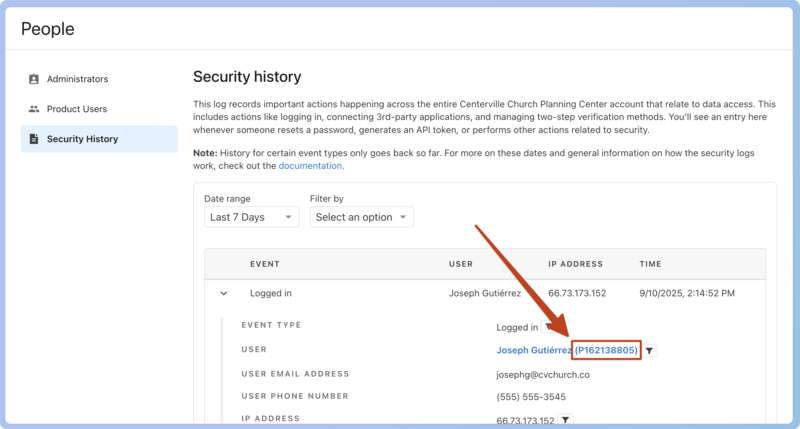
Select the Security History tab in the left sidebar to view the security history logs. Each log entry shows the event, user (name and profile ID), IP address, and time at a glance.
For more information about a specific log, select the arrow to the left of the entry to see:
Event type
User (Select the person's name to view their profile in Planning Center People.)
User email address
User phone number
IP address
Device
Operating system
Browser
Select the filter icon next to the event type, user, or IP address information to filter the entire security history by that parameter.
Filter security history
You can use the filter options to narrow down the security history log. You can filter by date range and/or user name, user ID, IP address, and events.
From account settings, select the People page in the top navigation.
Select Security History in the left sidebar.
Filter by date: Use the Date range dropdown to select a range of time to filter by.
Filter by criteria: Use the Filter by dropdown to filter by one of the following parameters.
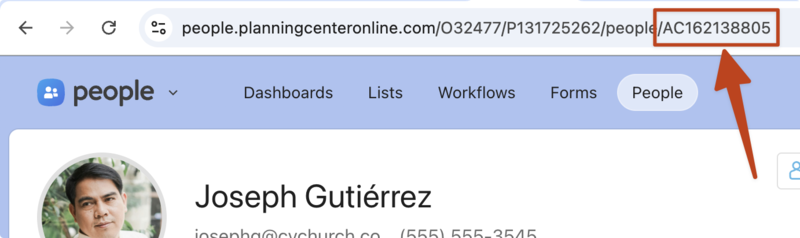
Select User ID and type in a person's user ID to search the logs for only their activity. The user ID can be found inside a log next to the person's name or in their profile URL in People, beginning with AC.
Select User Name and type in a person's name to search the logs for only their activity.
Select IP Address and type in the IP address to view all events tied to the same geolocation.
Select Event and use the dropdown to select an event type to filter by. Check out the Type of security history events section below for a description of each event type.
Select the Apply filter button.
After reviewing a filtered list of logs, select Clear filters to return to the unfiltered security history log.
Export security history
If you're looking into a security event, it may be necessary to export logs.
Select the People page in the top navigation in account settings.
Select the Security History tab on the left.
Filter the logs down to the events you need to export.
Select Export CSV in the top right corner of the log table.
The CSV file will be delivered to the requester's primary email, and will include all security events within the set filters.
Types of security history events
Events correspond to specific actions taken in your account. The following list describes when a log is created for that event type.
Login
Logged in: A log is created each time a person logs in.
Password reset: A log is created each time someone resets their password.
Password set: A log is created whenever someone sets a password for the first time.
Login method changed: A log is created whenever a login method has been changed.
Two-step verification
Two-step verification device created: A log is created each time someone enables two-step verification.
Two-step verification device deactivated: A log is created each time someone deactivates two-step verification for their profile.
Two-step verification deactivated for a person: A log is created each time an organization administrator deactivates two-step verification for a person.
Two-step verification device recovered: A log is created each time a person uses their recovery key.
Two-step verification requirement changed: A log is created when an organization administrator makes two-step verification required for a profile.
API and integrations
Personal access token created: A log is created each time someone makes a personal access token to connect to your account through the API.
OAuth integration connected: A log is created each time a third-party application connects to your account.
Permissions
Org admin permission changed: A log is created each time an organization administrator is added or removed.
Resource access changed: A log is created whenever resource access to a task list is changed in Planning Center Home.
Product role changed: A log is created whenever a person's product role is changed, or access is removed.
Church Center settings
Directory privacy mode status changed: A log is created whenever an administrator changes the privacy mode setting for the Church Center directory.
Exports
People list exported: A log is created every time a People list is exported.
People table exported: A log is created whenever data from the People tab on the People page in the People product is exported.
Product users exported: A log is created whenever data from the Product Users tab on the People page in account settings is exported.
Security log exported: A log is created whenever data from the Security History tab on the People page in account settings is exported.