Manage event details
Open a specific event to edit its schedule, rooms, resources, files, and tasks, and track activity associated with the event.
Want to watch a video before you get started? No problem! This video will demonstrate the steps in this article in action.
Open a specific event
To manage an event's details, open that specific event page:
Select the Events page from the top navigation in Calendar
Choose the event you'd like to open:
In month/week view: Choose an event from the calendar, then select View event to open it.
In table view: Choose an event from the list to open it.
On the specific event page, you can do the following:
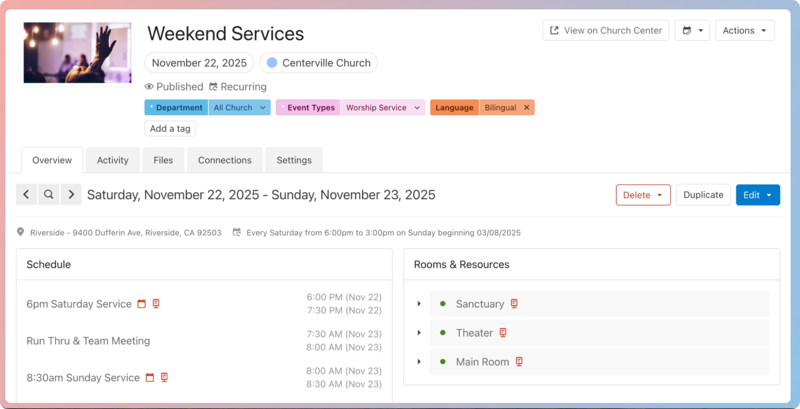
Review the event's basic details in the header. The status below the event name indicates which calendar it belongs to, its visibility status in Church Center, and whether it is a recurring event.
Everything in the event header (besides the name) applies to the event as a whole, including past and future instances.
Use the Actions button in the top right to edit the event title, create an iCal feed, embed, or kiosk to share this event, run a report for this event, or delete every instance of this event.
Add tags using the Add a tag button.
Select one of the tabs at the top to manage specific details. Expand the sections below to learn more about what details you can manage on each tab!
The Overview tab shows information about the specific instance of the event you're viewing. If you're editing a recurring event, you can choose to apply Overview tab edits to only this instance or all future event instances.
You can take the following actions on the Overview tab:
If your event is recurring, use the arrows in the top left to move between instances or select the 🔍 search icon to skip to a specific date.
Select the Delete button in the top right to delete this date or this and future dates.
Select the Duplicate button to create a duplicate event with the same settings and booking requests.
Select the Edit button to edit event details, such as the schedule and sharing settings, recurrence pattern, location, tasks, and rooms & resources for this date or this and future dates.
Important
The calendar and kiosk icons in the Schedule section only affect whether information is displayed on shared iCal feeds, embeds, and kiosks.
You must manage Church Center visibility on the Settings tab.
If you are an approver, you can select the Review approvals button in the top right to go to the Approvals tab on the Events page.
The Activity tab shows the activity feed, where you can keep track of event changes, collaborators, and internal comments.
Select a filter option from the Filter by category dropdown on the left to filter the activity feed by category:
Bookings include all activities around the requested rooms and resources.
Comments show all internal and emailed comments.
Conflicts show when conflicts are created and resolved. If this event has a conflict with an event from a calendar you don't have access to, you'll see the room/resource that's in conflict, but you can't see any other event details.
Requests denote when a requested event is approved.
Schedule shows any changes made to the event time and date, schedule, and repeating pattern.
Settings include any changes made to the event's overall settings, including added files, location, tags, and all features managed on the Settings tab.
Add internal comments or send emails
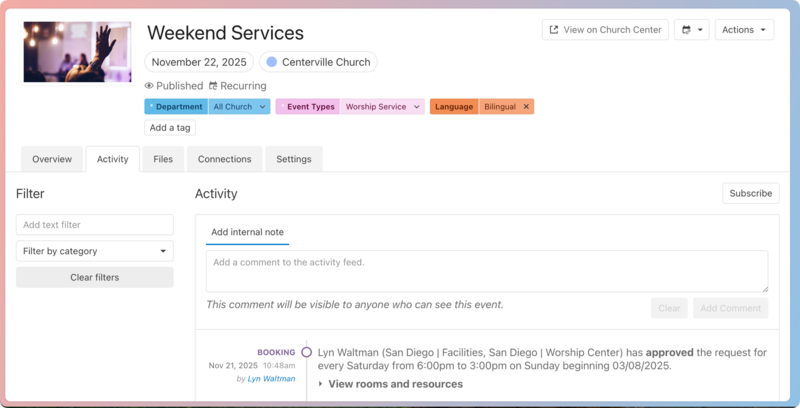 |
Use the text box at the top of the activity feed to add internal comments. If the event is an event request form submission, you can also choose to send an email to the requester.
Important
The Send email option only appears on event requests and is only available for the event owner and any approval group members that are assigned to the form, rooms, or resources associated with the request.
Add internal comment: People with Calendar access can leave internal comments on regular events for other admins to see. To receive email updates for those comments, select the Subscribe button in the top right and toggle the Enable email notifications option in the popup.
Send email: If the event is an event request form submission, the event owner and approval group members can select Send email to communicate with requesters who don't have Calendar access.
See the Communicate using the Activity tab section of Approve or reject requests to learn more.
The Files tab allows you to add any attachments needed to run the event. Files added to an event are not visible to the public when the event is published.
Add files using the Add file button in the top right.
To view an existing file, select the file name in the list.
To edit or delete a file, select Edit to the right of the file.
If this event was requested using an event request form, you can review the original form submission details by selecting View next to the form name in the Form Submission section.
In the Connections tab, connect Calendar events to events in other Planning Center products. Events from other products appear as widgets and provide an at-a-glance overview of your event's information in connected products.
Select the New connection button in the top right corner to add a connection to another product.
Select the ⚙️ settings icon in a widget to remove the connection or open the event in the connected product.
In the Settings tab, you can make changes to the event as a whole. These settings and the tags in the header apply to all instances of recurring events.
Update your event's basic settings in the top section:
Event calendar: If you have multiple calendars in your organization, use the dropdown to change which calendar this event belongs to.
Warning
Moving an event to a calendar with a different event approval requirement setting may affect the event's approval status. See the Require event approvals article to learn more.
Event owner: Select event owners and managers to allow them to make changes to the event. Event owners receive all communication about this event.
Event managers: Enter someone's name in the search field to add them as an event manager. Event managers can edit the event's details and subscribe to the event's activity feed.
Registration URL: If people need to register for this event, connect it to a signup in the Registration URL section. Choose an existing Registrations signup event from the dropdown, create a new signup in Registrations, or enter the URL for signups hosted through another site.
Toggle the Use signup page as event page on Church Center setting to automatically redirect people to the published Church Center signup page when they select the event on your Church Center calendar.
Important
The event only redirects to the Church Center signup page if you select the event directly from the Church Center calendar page.
If you select View in Church Center from the event page in Calendar, you'll be taken to the Church Center calendar event page.
Summary: Add an event summary to display on iCal feeds and kiosks.
Notes: Add internal notes to the Notes section. These notes won't be displayed on any public-facing event page.
In the Church Center section, you can update the settings for the event's Church Center calendar page.
Event image: Upload an image to display on Church Center and iCal feeds, or select Free photos to choose a stock image.
Visibility: Set the event's Church Center visibility setting. If you keep the event unpublished, it can still appear on iCal feeds, but it will not appear on Church Center.
Description: Enter the public description for your event, which will show on the Church Center page instead of the summary in the Basic settings section.
Warning
The Delete event button in the top right erases the entire event, including past instances, and deleted events cannot be recovered.
To delete a single instance or only future instances of an event, use the Delete button on the Overview tab instead.