Share your events
You can share your Calendar events in multiple ways, depending on whether they need to be shared with the public or only with staff members. This article explains the different ways you can share your events with the people who need to see them.
Print calendar
You can use the month view on the Events page to print all visible events:
Select the Events page from the top navigation in Calendar.
If you're currently in table view, switch to month view:
Select View settings in the top right of the calendar.
Choose Month from the dropdown.
(Optional) Apply filters to narrow down the events you'd like to include in the printout.
Select Actions in the top right of the calendar.
Choose 🖨️ print from the dropdown.
Adjust the print settings in your browser's printer settings popup.
Select Print.
Important
Because the number of events and length of the names vary monthly, use the Scale feature in your print dialog box to ensure that what you need fits on one piece of paper.
Publish events on Church Center
If you use Church Center, you can set up the Calendar page on Church Center so that your congregation can see published events.
You can make some events private for just your staff and others with Calendar access, or make your events visible to everyone on Church Center by changing their visibility status.
Embed Church Center calendar
If your church website isn't powered by Publishing, you can still add your events by embedding your Church Center calendar.
Important
You must publish your Calendar in Church Center before embedding it on another website. Only events published in Church Center are visible to the public.
Promote events to Groups
If you also have Groups access, you can share your Calendar events with connected groups. To promote a Calendar event to a connected group:
Select the Events page from the top navigation in Calendar.
Open the event you'd like to promote:
In month/week view: Choose an event from the calendar, then select View event to open it.
In table view: Choose an event from the list to open it.
Select the Connections tab.
If you haven't already set up a connection, select Connect a group in the Groups widget.
Search for a group and select it from the list to connect it to your event. You can connect multiple groups to your Calendar event.
Select Save to finish connecting your selected groups.
Select the Promote toggle next to a group's name to add your Calendar event as a "view-only" event to that group's page.
Show events at a kiosk
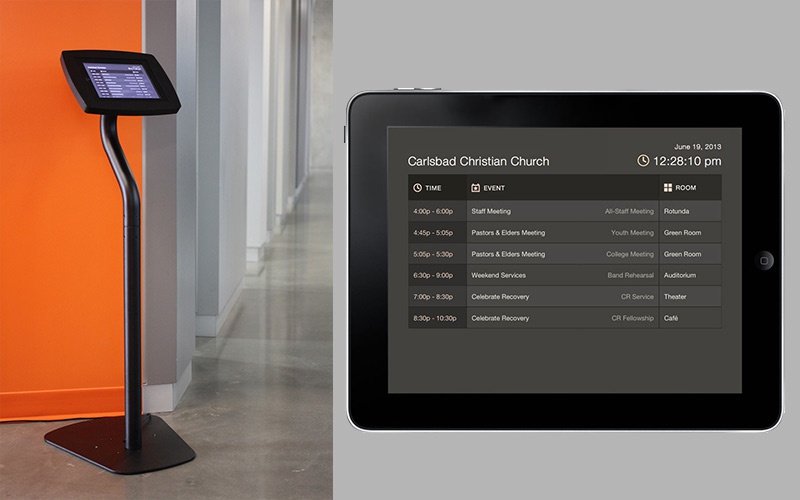
If your church has a screen for visitors to check, you can show an overview of the day's events using the Kiosk mode. This can help visitors find events in your building!