Create and edit event request forms
If you want people without Calendar access to request events at your church, create an event request form! Use your form to collect important event details, such as the date, time, or any required rooms or resources.
Events submitted through a form always require approval—even if they don't include rooms or resources—so consider creating a form for your staff if you want all church events to go through an approval process.
Anyone with a link to the form can request an event while the form is open. Once someone submits a request, the form's approval group members are notified and can either approve or reject the request. You can assign multiple approval groups to a form.
Create an event request form
Important
Only organization administrators and event administrators can create and edit event request forms, but anyone with Calendar access can view all event request forms and submissions.
Select the Forms page from the top navigation in Calendar.
Select New form in the top right.
Enter your event request form's details in the popup.
Form name: Add a name that describes what this form will be used for.
Event owner: Select a default event owner for events requested using this form.
Tip
An event owner is someone at your church who can say, "Yes, we can have this event at our church." They guide the event from request to approval and handle any conflicts or questions that may arise. This person should have a high-level view of the church or ministry calendar and be familiar with the rooms/resources listed on the form.
Approval groups: Choose which approval groups are in charge of approving requests from this form. Approvers do not receive an email notification when the form is created.
Default calendar: If you have multiple calendars, choose which calendar this form's events should belong to.
Select Create to edit your new form.
Select Add a description below the form name to add a description.
Edit the description using the rich text field, then select Save in the top right.
(Optional) Check the Allow requests for recurring events box to give requesters the option to choose a recurrence pattern for their event request.
Drag a field from the Add a Field sidebar on the right to add it to your form:
Event Fields: Use event fields to allow requesters to choose event templates, rooms, or resources on the public form.
Important
You can only add an event template field OR a room and resource field to your form. Event templates and room/resource fields can't be used together.
Basic Fields: Choose how you'd like to gather specific types of information from the requester.
Type in the question and description you'd like the requester to see on the form.
If you selected a Room or Resource field, search for the rooms or resources you'd like to add as options. Check Allow multiple selections to allow requesters to add multiple rooms or resources to their submission.
Important
Requesters can choose any room or resource that has been added as an event request form option, even if it's already been requested for another event.
Once the request is submitted, a conflict resolver can choose how to resolve the booking conflict.
(Optional) Check the Required box to require an answer to this field before the form can be submitted.
Select Save to finish adding the field. You can continue adding multiple fields to your form.
Drag and drop fields to your desired location to reorder them on the form.
To edit a field, select it from the form and make your changes, then select Save.
To remove a field, select it from the form and select Remove.
Now that you've created an event request form, learn how to share your form and manage event requests!
Check out the article on how to request an event in Church Center to see how requesters can fill out an event request form.
Tip
Payments are not supported in Calendar. If you'd like to charge a fee for reserving an event, you can create a hidden signup in Registrations to collect non-deductible payments for rentals and add the signup's URL to the event request form's description.
Add conditions to a question
Add conditions if any of your questions only apply to certain situations, such as gathering more information about A/V needs or food service. You can add a condition when creating or editing a field.
Select a field to which you'd like to add a condition.
Select the Add condition button.
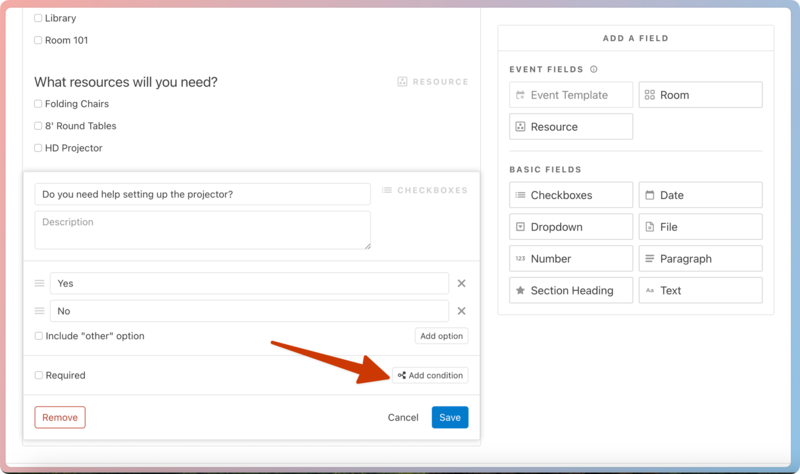
Use the dropdowns to choose the question and answer that a requester must select to display this field.
Select Save.
Update event request form settings
Select the Forms page from the top navigation in Calendar.
Select an event request form from the list to open it.
Select the Settings tab to update the form's settings:
Event owner: Choose an event owner for all events created with this form. The new owner will receive an email notification.
Event tags: Add tags to apply to events created with this form.
Default calendar: If you have multiple calendars, choose which calendar this form's events should belong to.
Custom reply email: By default, the submitter will receive an email with the details of their submission. Enter a message or any additional information in the text field, then select Save to customize the reply email.
Approval groups: Choose which approval groups should approve or reject events created with this form.
Important
Changing a form's approval groups immediately updates pending requests for affected approval group members. New approvers will not receive email notifications for existing pending requests.
Status: Update the form's status.
Open: People can submit requests, and the pending event will show in the calendar view for the default event owner and assigned approvers.
Closed: No new requests can be submitted, but pending requests are kept intact and hidden from everyone in the calendar view. Feeds from closed forms will be hidden from the Filter pane on the Events page until they are reopened. If someone tries to use the form's link while it's closed, they'll see that it is not accepting submissions.
Archived: Archived forms are closed, and all pending event requests are rejected. You can restore an archived form by changing the form's status back to Open.
Sharing: Share your form on Church Center or with group types in Groups.
Important
Calendar event request forms cannot be embedded onto your Church Center website.
Duplicate an event request form
If you need to create a form that's similar to an existing one, duplicate it!
Select the Forms page from the top navigation in Calendar.
Select an event request form from the list to open it.
Select Actions in the top right.
Choose Duplicate from the dropdown.
Enter a name for the new form.
Select a default event owner for the new form.
Select an approval group for the new form.
Select Create form to finish duplicating the form.
Archive an event request form
You can archive an event request form if you no longer need it.
Warning
Archiving a form rejects any pending requests. Rejected events cannot be restored or edited.
Select the Forms page from the top navigation in Calendar.
Select an event request form from the list to open it.
Select Actions in the top right.
Choose Archive from the dropdown.
Select Yes, archive this form in the confirmation pop-up.
Restore an archived event request form
Select the Forms page from the top navigation in Calendar.
Select Archived from the left sidebar.
Select an archived event request form from the list to open it.
Select the Settings tab.
Choose Open from the Status dropdown to restore this form.
Delete an event request form
Warning
Deleting a form rejects all associated pending event requests. Requested events that have already been approved are not affected. Deleted forms and event requests cannot be recovered.
Select the Forms page from the top navigation in Calendar.
Select an event request form from the list to open it.
Select Actions in the top right.
Choose Delete from the dropdown.
Type "DELETE" in the pop-up.
Select Yes, delete form to permanently delete this form.