Show events on Church Center
If you want events to be available on your Church Center calendar, choose your preferred calendar views, then update the Church Center visibility settings on your events. When your congregants visit Church Center, they'll see all your published events in one place!
Check out the Set up Church Center and Publishing article to learn how to set up your Church Center website.
Important
If you use Publishing to manage your Church Center website, make sure to publish the Calendar page and add it to the navigation first.
Manage your calendar views
Choose the right view for your church to ensure your events are easily discoverable. You can enable up to three views for your calendar and set one as the default.
Select the Events page from the top navigation in Calendar.
Select the Church Center button in the top right.
Choose Update settings from the dropdown.
Check the boxes next to the views you want to enable. You can select all three or only certain ones.
List view is a chronological view of your events. People associate the event with its name. List view is always enabled.
Month view shows a breakdown of events based on a typical monthly calendar view, which helps people associate an event based on its date.
Important
The Month view is not available on the Church Center mobile app.
Gallery view gives people an overview of upcoming events using event thumbnails. For recurring events, only the closest upcoming instance is listed.
Select Set as default next to a view to set it as the default Church Center view.
Select Apply to save your changes.
Set the Church Center visibility for your events
You can publish events, feature them, or keep them unpublished by choosing a Church Center visibility setting.
Published events appear chronologically on your public Church Center page. You can choose whether to make a published event accessible by link only, which keeps it unlisted on Church Center.
Featured events are published, starred, and moved to the top of the gallery view.
Unpublished events are for internal use, and congregants cannot see them in Church Center.
You can set the Church Center visibility when creating a new event or while updating an existing event's settings. To set the Church Center visibility for multiple events at once, use the bulk editing tool.
Once you set an event's Church Center visibility to Published or Featured, a public event page is automatically created in Church Center.
Update the Church Center visibility for an existing event
Select the Events page from the top navigation in Calendar.
Open the event you'd like to edit:
In month/week view: Choose an event from the calendar, then select View event to open it.
In table view: Choose an event from the list to open it.
Select the Settings tab.
Scroll down to the Church Center section.
Choose a setting from the Visibility dropdown. If you select Featured or Published, the event is automatically published in Church Center.
Important
The Visibility dropdown is unavailable for feed events because Church Center visibility must be managed in the original product. Select the View in [product] button from the banner at the top to adjust the settings in Registrations or Groups.
If you'd prefer to manage event visibility in Calendar instead of Registrations or Groups, use connections instead of feeds.
(Optional) For published events, you can check the Link only box to make the event viewable by anyone with the link, but unlisted on your public Church Center page. Select Copy link to copy the event's URL to your clipboard.
To view the Church Center event page, select the View in Church Center button in the top right.
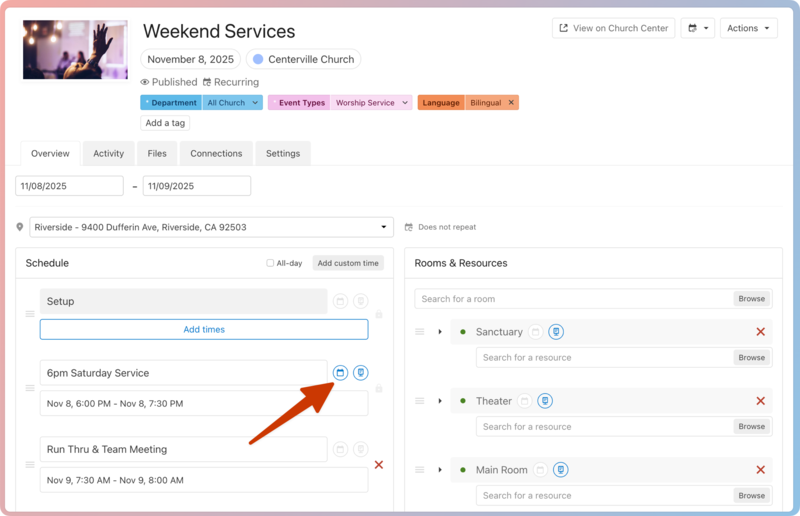
When editing an event, you can choose which scheduled times or rooms to show on the Church Center event page by toggling the 🗓️ calendar icon.
Warning
Changing an event's schedule also changes the event's Church Center URL. If you edit an event's scheduled times, make sure to share the updated link.