Hide an event
Some events, such as staff meetings, AA meetings, or weddings, don't need to be shared on Church Center or your public calendars. In these cases, you can either unpublish the events, hide them from shared feeds, or create a link-only event.
If you need to hide multiple events of the same type, consider adding them to a separate calendar and limiting that calendar's access to specific people instead!
Important
Events created through an event request form are hidden from shared calendars, kiosks, and embeds until they're approved. However, they'll remain unpublished on Church Center until you manually publish them, regardless of their approval status.
Remove from Church Center calendar
You can remove an event from the Church Center calendar by changing its visibility setting:
Select the Events page from the top navigation in Calendar.
Open the event you'd like to edit:
In month/week view: Choose an event from the calendar, then select View event to open it.
In table view: Choose an event from the list to open it.
Select the Settings tab.
Scroll down to the Church Center section.
Change the Visibility dropdown setting to Unpublished to remove this event from your Church Center calendar.
Hide from shared iCal feeds, kiosks, and embeds
You can hide an event or specific times related to the event (such as the setup or teardown) from shared iCal feeds, kiosks, and embeds.
Select the Events page from the top navigation in Calendar.
Open the event you'd like to edit:
In month/week view: Choose an event from the calendar, then select View event to open it.
In table view: Choose an event from the list to open it.
Select the Overview tab.
Select Edit in the top right.
If you're editing a recurring event, choose whether you'd like to edit This date or This and future dates.
In the Schedule section, deselect the 🗓️ calendar icons and kiosk icons next to each time, depending on whether you want to hide the event from iCal feeds, embeds, or kiosks.
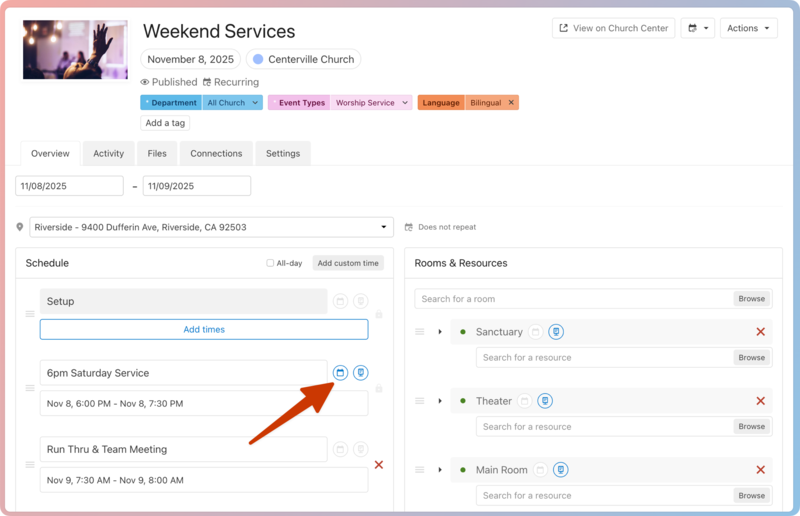
Deselect the 🗓️ calendar icon next to a time to hide the event from shared public iCal feeds and embeds.
Deselect the kiosk icon next to the times, rooms, and resources you do not want to display on public kiosks.
Important
Deselecting an icon does not remove the time/event from shared calendars that are filtered to include the Full Schedule.
Select Save changes, to hide the event or time from your public times view, shared calendars, kiosks, and embeds.
Create a link-only event
If an event isn't meant for everyone, you can make it accessible by link only. Link-only events aren't listed on your public Church Center page, so you can share the event URL with only the people who need it.
Select the Events page from the top navigation in Calendar.
Open the event you'd like to edit:
In month/week view: Choose an event from the calendar, then select View event to open it.
In table view: Choose an event from the list to open it.
Select the Settings tab.
Scroll down to the Church Center section.
Choose Published from the Visibility dropdown.
Check the Link only box to make this event viewable by those who have the URL, but unlisted on your public Church Center page.
Select Copy Link to copy the event's URL to your clipboard.