Share events with personal calendars
Share an iCal feed of your events so people can subscribe with their personal calendars. You can create different calendar feeds for multiple events or an individual event. This is a great way to share events with people who don't otherwise need access to Calendar.
When you share a calendar feed, you can include public times or the full schedule.
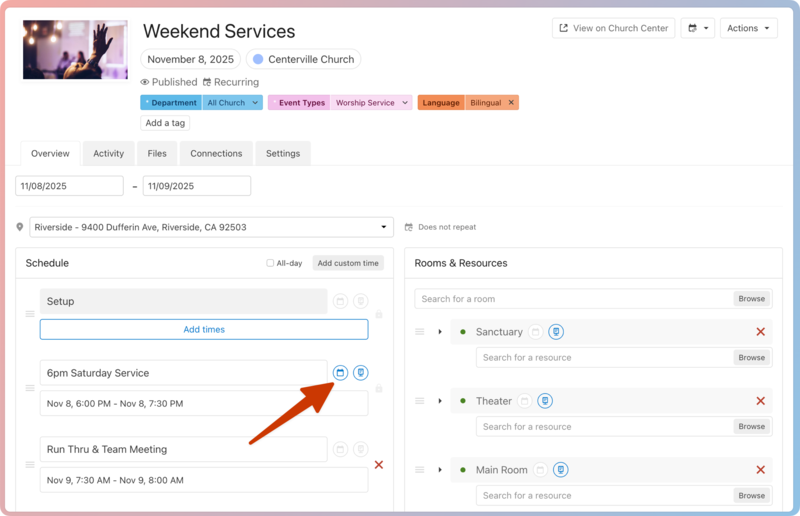
Public times only creates an instance for each time and date in an event's schedule with the red shared calendar icon enabled.
Full schedule creates an instance for all times and dates in each event's schedule.
Important
If you need to make changes to a shared calendar, recreate it with the changes, and then update the iCal link where you have shared the original.
Share multiple events
Share an iCal feed for multiple events on the Events page. When creating your iCal feed, you can apply filters to narrow down which events subscribers can see. Any newly created events that match a feed's filters are automatically synced to subscribers' calendars.
Select the Events page from the top navigation in Calendar.
Select Actions in the top right of the calendar.
Choose Share events from the dropdown.
Choose the iCal Feed option in the popup.
Select Continue.
Choose which filters to apply to your iCal feed:
Filters from your calendar: Any filters applied to the Events page before selecting the share icon are automatically applied to your feed. Select the X next to a filter to remove it.
Tags: Search for a tag filter and select it from the list to apply it to your feed.
Rooms and Resources filters: Filter iCal feed events based on their requested rooms and resources. Search for a room or resource and select it from the list to apply the filter, or select Browse to look through your organization's rooms and resources.
Church Center filters: Choose whether to filter your iCal feed events by their Church Center visibility status.
Feeds to include: If you use Registrations or Groups feeds to sync events, choose which feeds to include in your iCal feed. Select the X next to a feed to remove it from the list.
Choose which event details to include on iCal feed events.
Choose whether to show the Full schedule or Public times only.
Select Continue.
Choose whether to Copy the iCal feed link or add this feed directly to Google Calendar, Apple Calendar, or Outlook.
Important
iCal feeds include all current and future events, but past events are limited to the previous calendar month.
Share a single event
You can share a single event as an iCal feed. If the event is recurring, the iCal feed includes all current and future instances of that event.
Select the Events page from the top navigation in Calendar.
Open the specific event you'd like to share:
In month/week view: Choose an event from the calendar, then select View event to open it.
In table view: Choose an event from the list to open it.
Select Actions in the top right.
Choose Share from the dropdown.
Choose the iCal Feed option.
Select Continue.
Choose which event details to include on iCal feed events.
Choose whether to show the Full schedule or Public times only.
Select Continue.
Choose whether to Copy the iCal feed link or add this feed directly to Google Calendar, Apple Calendar, or Outlook.
Share events from rooms or resources
You can create iCal feeds of events that request specific rooms or resources. The included rooms and resources depend on whether you create the iCal feed from a specific folder, room, or resource.
Select the Rooms or Resources page from the top navigation in Calendar.
(Optional) To share events that request rooms or resources from a specific folder, choose that folder from the list.
To share events that request a specific room or resource, choose that specific room or resource.
Select Actions in the top right.
Choose Share from the dropdown.
Choose the iCal feed option.
Choose which filters to apply to your iCal feed:
Filters from your calendar: If you're creating an iCal feed from a specific room or resource folder, a filter for that folder is automatically applied. Select the X next to a filter to remove it.
Tags: Search for a tag filter and select it from the list to apply it to your feed.
Rooms and Resources filters: Search for an additional room or resource filter to apply it to the feed. If you're creating an iCal feed from a specific room or resource, the corresponding filter is automatically applied.
Church Center filters: Choose whether to filter your iCal feed events by their Church Center visibility status.
Feeds to include: If you use Registrations or Groups feeds to sync events, choose which feeds to include in your iCal feed. Select the X next to a feed to remove it from the list.
Choose which event details to include on iCal feed events.
Choose whether to show the Full schedule or Public times only.
Select Continue.
Choose whether to Copy the iCal feed link or add this feed directly to Google Calendar, Apple Calendar, or Outlook.
Troubleshooting iCal feeds
The calendar you used to subscribe to the iCal feed determines how quickly new data is pulled and how often to check for new data. Some calendars take days to pull your events from the iCal feed.
Some versions of MS Outlook check for new events every time they boot up.
Apple Calendar allows you to set how often the iCal feeds are refreshed.
Google Calendar refreshes sporadically, anywhere from two hours to five days.
Important
If you're linking to an iCal feed with SubSplash or the PushPay mobile app, replace webcal with https to allow the feed to display correctly.
If the feed isn't showing up in your calendar
Is the calendar icon disabled? If your iCal feed uses public times only, check the event schedule to make sure the calendar icon is enabled on your times.
Where did you get your feed? The feed you get from a Share button (or the Share option in the Actions button dropdown) changes based on the page you're on, so make sure you create the feed from the page based on the events in the feed.
Main events page
If you're getting your feed from the main event page, the filters you have applied to that page will affect which events appear in your feed.
Adjust your filters on that page until you only see the events you want on your iCal feed.
Specific event page
When you select the Share option from the Actions menu dropdown while on a specific event's page, that feed will only contain that one event.
Specific room/resource
When you select the Share option from the Actions menu dropdown while on a specific room or resource page, that feed will only contain events that have been requested for that particular room or resource.
Event requests
Pending events created through an event request form are hidden from shared calendars until approved. Once approved, they're automatically added to your shared calendars.
To remove an approved event request from a shared calendar:
Disable the shared calendar icon in the event schedule if the iCal feed shows public times only.
If the iCal feed displays the full schedule, add tags to the event to filter it out.
Get help
If waiting 24 hours and adjusting your iCal settings doesn't correct this, contact Support using the ? in the toolbar. Please include these details:
What page did you pull your feed from?
If you pulled your feed from the event page, what filters did you apply when you created your iCal feed?
What event is missing from your shared calendar, and what date do you expect to see it?