Create or edit a team
Set up teams in Services to manage any group of people you need to schedule for services and events at your church. Create different positions on your teams that represent specific roles or responsibilities within that team.
Common examples of teams in Services include:
Worship teams
Volunteer teams
Children's ministry
Staff for services
Tip
If you're not sure whether to create a group or a Services team, check out the Should I create a new team or a new group? section of the FAQs.
Follow the steps in this article to learn how to set up teams in your account and manage your team members.
When teams are appropriately set up with all their members and leaders assigned, you gain the following benefits:
Members can select the Email My Leader button on their My Schedule page to contact any of their leaders.
Members can see the teams they are assigned to and set scheduling preferences from their profile.
Schedulers can use needed positions to schedule people from a list of team members.
When someone declines, schedulers receive a list of other people assigned to that position in the decline message, allowing them to instantly reschedule it from their email.
The People tab can only show you the people assigned to your teams and filter out everyone else.
The ability to email everyone on your team, even if they aren't scheduled on the same date, or even email everyone on multiple teams at once.
Set up teams
People and plans administrators can set up new teams in your organization by creating them from scratch or copying existing ones.
Create a new team
Select the People page from the top navigation in Services.
Select the Teams tab.
Select Add team in the top right.
Enter your team's details in the Add Team popup:
Name: Enter a name for your team.
Team Leaders: Select Add to assign leaders to this team. You are automatically listed as a team leader. Select the X next to a person's name to remove them.
Service Types: If you've already created service types in your account, select Add to choose the service type(s) to which this team should be assigned. Select the X next to a service type to remove it from the list.
If you don't have any service types set up yet, you can manage this team's assigned service types later on the team settings page.
Important
Teams must be assigned to the service types where they need to be scheduled before you can add them to a plan.
(Optional) Check the corresponding boxes to make the team a rehearsal team, a secure team, and/or a split team.
Select Submit to create your team.
If you're creating a team in a service type that has rehearsal times or other times, you'll see a popup where you can choose the times from each service type to which your new team should be assigned.
After creating your team, you'll be taken to the Members tab of your team page, where you can add positions and team members.
Copy a team
If you need to create a team that's similar to an existing one, you can make a copy!
Select the People page from the top navigation in Services.
Select the Teams tab.
Select Add team in the top right.
Choose the Copy option next to the Name field.
Enter your new team's details:
Name: Enter a name for your new team.
Copy From: Use the dropdowns to choose the service type and team you want to copy from. Keep the Include Team Members box checked to copy team members from the existing team.
Team Leaders: Select Add to assign leaders to this team. The team leaders from the existing team and the person creating the team are automatically listed. Select the X next to a person's name to remove them.
If you checked Include Team Members, you can't remove the team leaders from the existing team. You can manually remove them after creating the new team.
Service Types: Select Add to choose the service type(s) to which this team should be assigned. Select the X next to a service type to remove it from the list.
If you don't have any service types set up yet, you can assign this team to a service type later on the team settings page.
Important
Teams must be assigned to the service types where they need to be scheduled before you can add them to a plan.
Select Submit to finish copying your team.
If you're creating a team in a service type that has rehearsal times or other times, you'll see a popup where you can choose the times to which your new team should be assigned.
Now that you've copied your team, you can add new team leaders, edit positions, and add team members.
Manage team members
Once you've set up your teams, you can manage positions, members, and team leaders for each team.
Add positions
Before adding people to your teams, you must set up positions for them. Positions denote the specific roles for which your team members can be scheduled, such as "Greeter" or "Worship Leader."
Important
If you just finished creating a team and are already on the Members tab, skip to step 5.
Select the People page from the top navigation in Services.
Select the Teams tab to view a list of teams in your organization.
Use the dropdown in the top left to filter the list by My Teams (teams where you're a leader or member), All Teams, Archived Teams, Recently Deleted Teams, or specific service types.
Select a team name to open that team's member list. You can also search for a specific team using the search bar at the top.
Select the Add position button below the left sidebar.
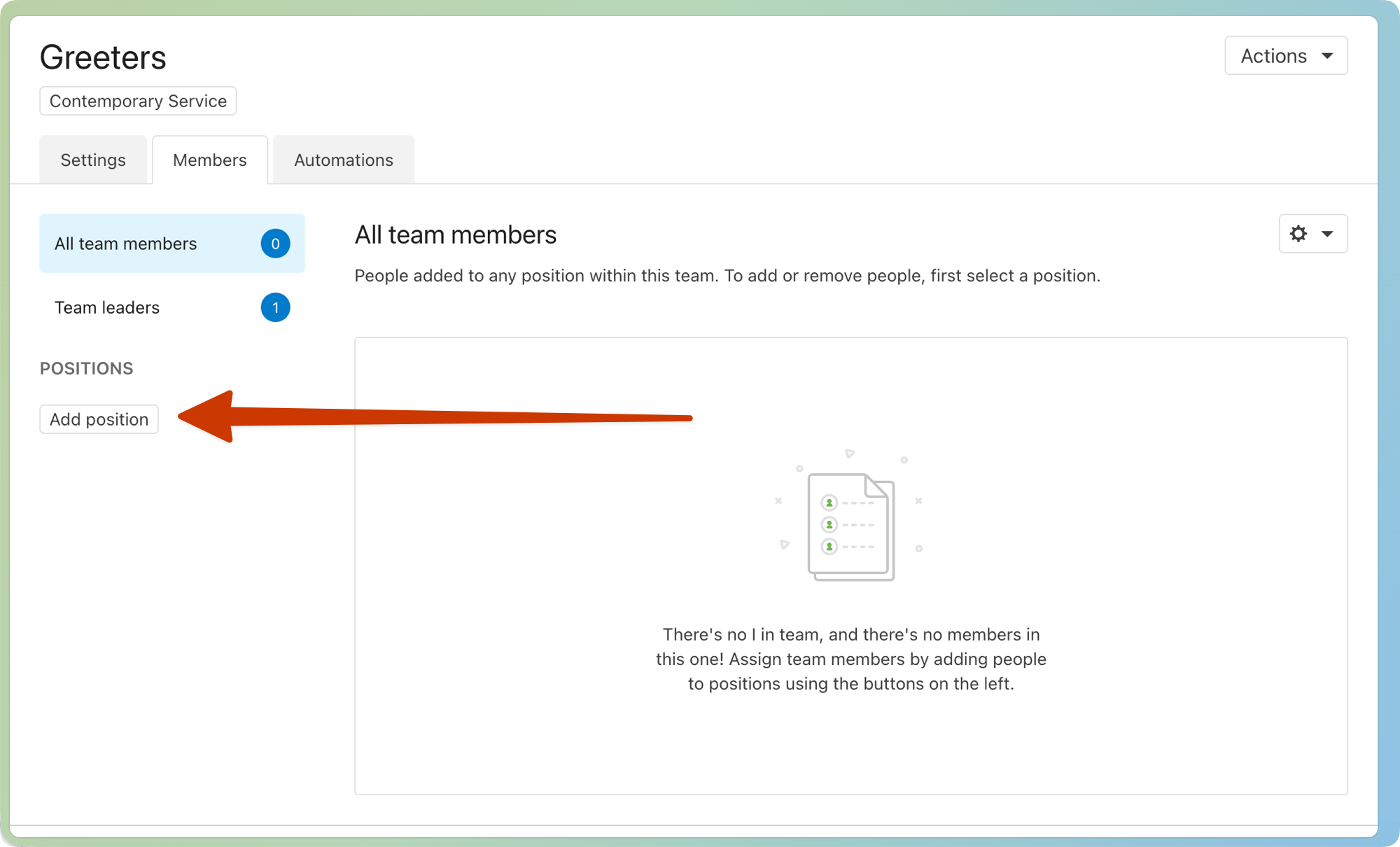
Enter your new position's name, then select the Add button.
Position names should not include times (e.g., "Greeter 9AM"). Set up split teams to assign people to specific service times.
Reorder positions by dragging the six-dot icon next to a position's name to the desired spot in the list.
Once you've created all of your positions, you can start adding team members to them!
Add team members
Add team members to the positions they need to be scheduled for. You can add people to more than one position on a team, but if you have a large team you want to schedule all at once, it is recommended that each team member be added to only one position.
Add team leaders
Team leaders are added when the team is created, but you can add more leaders later. Each team must have at least one leader to schedule, manage, and communicate with team members. Leaders can also receive scheduling and blockout notifications from team members.
Select the People page from the top navigation in Services.
Select the Teams tab to view a list of teams in your organization.
Use the dropdown in the top left to filter the list by My Teams (teams where you're a leader or member), All Teams, Archived Teams, Recently Deleted Teams, or specific service types.
Select a team name to open that team's member list. You can also search for a specific team using the search bar at the top.
Select the Team leaders tab from the left sidebar.
Select Add person in the top right of the list.
Search for a person's name, and then select it from the list.
If the person doesn't exist in your People database, type out their full name and select Create a new person to create their profile in Services.
After adding a leader, set their leader notification preferences using the checkboxes under the Notifications column.
Important
Adding someone as a team leader grants them scheduler permissions in that service type.
Edit a position
As your team changes, you can rename positions while keeping the same team members.
Select the People page from the top navigation in Services.
Select the Teams tab to view a list of teams in your organization.
Use the dropdown in the top left to filter the list by My Teams (teams where you're a leader or member), All Teams, Archived Teams, Recently Deleted Teams, or specific service types.
Select a team name to open that team's member list. You can also search for a specific team using the search bar at the top.
Select a position from the left sidebar.
Select the ✏️ edit icon next to the position's name above the list.
Edit the position name.
Select Save.
Delete a position
If you no longer need a position, delete it from the team.
Warning
Once you delete a position, there's no way to recover that position or its previously assigned team members.
Select the People page from the top navigation in Services.
Select the Teams tab to view a list of teams in your organization.
Use the dropdown in the top left to filter the list by My Teams (teams where you're a leader or member), All Teams, Archived Teams, Recently Deleted Teams, or specific service types.
Select a team name to open that team's member list. You can also search for a specific team using the search bar at the top.
Select a position from the left sidebar.
Select the ⚙️ settings icon in the top right of the list.
Choose Delete position from the dropdown.
Select Yes, delete in the confirmation popup to permanently delete the position.
Remove team members
If a person is no longer serving, you can remove them from the position.