Set up secure teams
If you want to require your volunteers to go through a background check before serving, set up secure teams so that only people with cleared background checks can be scheduled.
Background checks for secure team members
In Planning Center, you can set up background checks in People in one of two ways:
Integrate with our partner Checkr to order background checks directly from Planning Center People.
Manually set background check statuses if you want to use your own provider or if the person is a minor. If you want someone under 18 to serve on a secure team, they must be assigned a manual background check that expires on the day they turn 18.
Important
If you need to set up background checks for your team members, ask an organization administrator to adjust your People permissions or to clear tagged people for you.
Once the background check statuses are set to Clear, people on secure teams can be scheduled to plans.
Create and schedule a secure team
You can make a team secure when you first create it, or toggle this setting at any time on the Team Settings page. To convert an existing team into a secure team:
Select the People page from the top navigation in Services.
Select the Teams tab to view a list of teams in your organization.
Use the dropdown in the top left to filter the list by My Teams (teams where you're a leader or member), All Teams, Archived Teams, Recently Deleted Teams, or specific service types.
Select a team name to open that team's member list. You can also search for a specific team using the search bar at the top.
Select the Settings tab.
Check the box under the Secure Team section. When a team is set to secure, a badge icon shows next to the team name.
You can assign people to the team whether or not they have cleared a background check, but only people with a cleared background check can be scheduled.
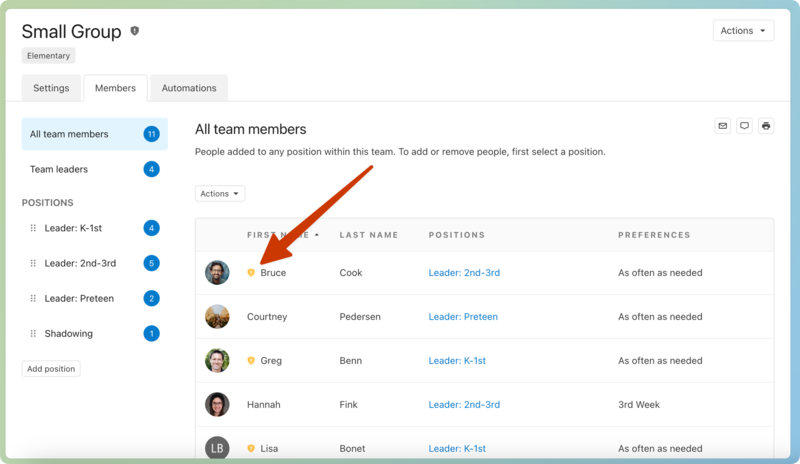
In a team's Members tab, people who are missing background checks will have a yellow badge next to their name and can't be scheduled until they have a cleared background check on their profile.
 |
If a person is already scheduled to a plan and their background check expires or a new background check fails to clear:
The person will still remain assigned to plans in which they were previously scheduled.
You will not be able to schedule people with expired or failed background checks to future plans.
The background check administrator will receive an email so they can personally follow up with the person or any other team leaders.
Team leaders typically speak to a person with an expired or failed background check in-person and manually remove them from any positions they have been scheduled to.
You can use list automations to stay on top of checks that are expiring.
Scheduling warnings for expired background checks
When you import a template or schedule teams, any people on secure teams who don't have a cleared background check will not be imported to the plan, and needed positions will be created instead.
If you try to schedule a team member or guest with an expired background check on a secure team, their name will be grayed out with a shield icon next to it, and you won't be able to schedule them.