Planning Center FAQ
Getting started with a new platform can come with a lot of questions. This FAQ article covers some of the most common questions about Planning Center, from getting started and managing your account to finding training and support resources. If the answer you're looking for isn't here, Planning Center's support team is always happy to help.
What browsers and/or devices are required to use Planning Center?
Supported Browsers: Planning Center products are web-based and compatible with the latest version of each major web browser. The following web browsers are supported for Planning Center web products:
Supported devices: Many Planning Center products also offer mobile apps compatible with iOS and Android devices. Check out the Planning Center Mobile Apps page for a comprehensive list and links to download each of these apps.
How can I try a new product?
If you are interested in trying a new Planning Center product, check if your church already has a Planning Center account to avoid creating a duplicate account. If your church already has an account, you don't need to create a new one! Ask one of the account's organization administrators to help you access the account. Each product has a free level, but depending on how you plan to use the product, an organization administrator might need to update the account's subscription.
Warning
It is very important to ensure that you aren't making duplicate Planning Center accounts because you can't merge multiple Planning Center accounts together. If you attempt to sign up for a new account and your email address is already associated with another organization, you'll see a warning.
Existing account | If your church is already using any part of Planning Center, an organization administrator can give you access to try out a new product. These are the people with full access to all Planning Center products. If needed, they can upgrade the account's subscription based on your needs. |
No existing account | If you are the first person from your church to try Planning Center, check out one of the following setup guides to get started: |
How can I use Planning Center for free?
All Planning Center products have a free tier. You can manage people, organize events, connect with your congregation, and track data with reporting!
People management: Keeping track of people's information can be done in many ways, but sharing that information and keeping it up to date can be hard for a single administrator. Planning Center makes people management easy and fully free forever, no matter how many people you have.
Church Center and People forms make it easy for new visitors to create profiles for themselves and even for existing members in your congregation to update their profile data, so you always have the most up-to-date information.
Event organization: All churches have events, and you need a place to create and share them. All the avenues listed below filter into Church Center, where people can see a full calendar of events!
Calendar is a great tool for managing all your events. It is priced by the number of rooms you'll be scheduling, and the free tier comes with one room. You can create unlimited events as well as unlimited resources. To populate your calendar, you can import calendar feeds and then share your events without restrictions!
With Registrations, you can have people sign up for free or paid events while collecting necessary information about them. You can have up to five registered attendees for your largest event each month. All other features are unrestricted, and you can create as many signups as you like.
Notice
Online event payments are charged a low processing fee per transaction.
If you have Groups, you can ask group members to RSVP for an event and then take attendance at the event. You can have up to fifteen group members across unlimited groups.
Services is the best way to schedule volunteers, organize your teams, and plan your services or other special events. Schedule up to five team members, store 100 MB of song, media, or general files, and prepare for as many plans as you desire!
Check-Ins gives you the ability to track attendance for up to ten individuals. If you want to track more than ten people attending your event, you can use Headcounts to record overall attendance numbers for your services or events without having each person check in when they arrive.
People engagement: When people engage with your church, your church can make a much more significant impact! There are many digital ways to initiate engagement with people, making it easier to keep connecting with them.
Church Center enables your church members to manage their profile information, donations, and schedule. They can also view a church calendar or directory and fill out forms.
Publishing gives you the tools to customize Church Center's home page and navigation items. Publishing has built-in pages to help congregants view, register for, and check into events, join groups, and give, as long as you enable those products.
Groups equips you to help connect your congregants with each other in community. You're not limited in the number of groups, events, and resources you can create, and you can have up to fifteen total group leaders and members on the free version. All groups can even use the chat on Church Center!
Giving allows you to collect up to ten donations and track giving trends. Create funds, collect donations electronically, and manually enter physical donations, like cash or checks, in batches.
Notice
Online donations are charged a low processing fee per transaction.
Reporting: Each product has reporting features to make it easy to track data and trends in each product!
Report type | Products |
|---|---|
Donor reports | Giving |
Attendance reports | Check-Ins, Registrations, and Groups |
Event and room reports | Calendar |
Volunteer, song, and plan reports | Services |
People | |
People and database reports | People |
Can I merge or transfer account information?
There is no built-in option to merge organization account data in Planning Center. Once a new organization is created, all people data, permissions, and application-specific data belong to that account. Therefore, it is important to ensure that you don't duplicate Planning Center accounts.
However, if you need to combine account information, you can do that manually by following these steps:
Log in to "Church A" and "Church B" on different browsers, so you can be logged in to both accounts at the same time.
Warning
Due to copyright and security reasons, Services media and songs can't be transferred from one account to another, even if you own the rights to those files. Those files must be manually downloaded to your computer from the account they were attached to, and then uploaded to the other account.
If you need to transfer ownership of the account, follow the steps to transfer administration.
Can I import data from another system?
There are various types of data available in Planning Center. Check out the table below to determine if your data can be imported.
People data | You can import a CSV file of people data into Planning Center People. Once imported, all of your subscribed Planning Center products can access those people and information. Planning Center has a list of accepted fields, but if you have custom data for your people in that CSV, you might need to add custom fields, so there's a place to put all the data you are trying to import. Ensure there's a place in Planning Center People for all that data before importing the CSV. If you already have some people who exist in Planning Center, you can still complete the import. If the person's first name, last name, given name, and name suffix match the record already on file, the system recognizes the duplicate and updates their information, rather than creating a new person. Check out these articles to learn how to import people: Prepare a CSV file for import and Import a CSV file in People. |
Donations data | You can import a CSV of donation history into Giving using the donation import tool. Spend some time reading through Import donation history to learn how to format your CSV file before getting started. |
Attendance data | Attendance is taken in Check-Ins, but you can't automatically import attendance. Create events and add past check-ins to each session one by one. You can also add general attendance numbers to Headcounts. You can't add past attendance from any group events. |
Event data | Events exist in Calendar, Registrations, Check-Ins, Groups, and Services. Any event you want to have in the database must be created in the appropriate product. In Calendar, you can import an iCal feed of events. |
How can I pay or update my payment information?
The first time you sign up for a Planning Center account, you get your first 30 days free! After that, the payment for a subscription to the Planning Center products you choose is due by the date in the Subscription box on the Billing Info tab.
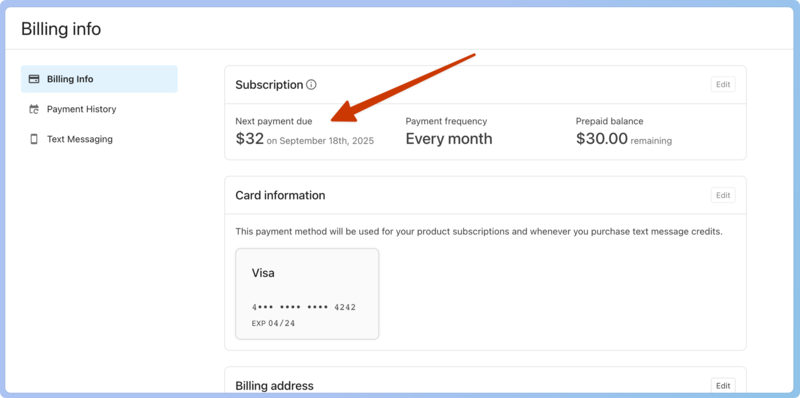
Each product has its own pricing level, depending on events, resources, or people. All subscriptions are based on a monthly plan, and you can upgrade or downgrade your subscription at any time, tailoring it to your church's needs for that month.
If you unsubscribe from a product, your information will remain associated with that product in case you decide to resubscribe in the future.
Check out the Set billing information article for steps on how to add or update payment information for your account.
Should I create a new team or a new group?
Planning Center has two main ways to organize a group of people. You can make a team in Services or a group in Groups.
Use Services when you need to know exactly who will show up on a specific date and to find someone to take their place if they can't. Making a team in Services allows you to put relevant notes in the team's plan, send scheduling invitations and reminders, and participate in team chats that the leader creates.
Use Groups for situations where everyone in the group is always invited to each event or included in all communication. If enabled, group members can use chat to communicate.
Organization administrators can use the Teams & Groups hub in People to manage and create teams and groups in one place.
How do I take attendance in Planning Center?
Some events only require a general attendance number to track the number of attendees. Other events require tracking specific attendance to follow up with certain individuals.
In Planning Center, you can track general and specific attendance, depending on the purpose of an event. Answer the questions below to find the best way to take attendance for your event.
If you're looking to just collect number totals, you can use Registrations if you want people to register before the event, or you can use the free Headcounts app if you need to tally the number of people in a specific place at a particular time. To access Headcounts, you need a subscription to Check-Ins, but you can sign up for the free plan if you're not using Check-Ins for anything else!
If you want to see who attended an event, you have several options, depending on whether the event is public or requires an invitation.
For public events, you can create a Registrations signup, and then take attendance on the day of the event if you want people to register beforehand. Alternatively, you can use Check-Ins if you want to print labels for each attendee.
For events that require an invitation, you can use Groups to create an event and take attendance, schedule a team meeting using Services and take attendance, or use Check-Ins if you're not meeting with a group or team.
If you're still unsure which product to use, use the chart below to see which products are best suited for specific tasks.
Check-Ins | Groups | Registrations | Services | |
|---|---|---|---|---|
RSVP (sign up or confirm) | ️✓ | ✓️ | ✓️ | |
Print labels | ✓️ | |||
Add visitor | ✓️ | ✓️ | ||
Share resources | ✓️ | ✓️ | ||
In and out timestamp | ✓️ |
How can I get training or support?
If you need help, Planning Center has training materials and courses that can scale and be used by many people—not just administrators of the account.
Check out the comprehensive help center for articles on each of the Planning Center products.
Watch Planning Center University (PCU), a set of detailed video tutorials on every product in the Planning Center system.
Join the Planning Center Community through Circle or Facebook to connect and share advice with other churches. While this isn't an official support avenue, it's a great place to strategize with other church members!
Still have questions? Reach out to Planning Center Support! All plans include free and complete access to our support team.
Is Planning Center available in another language?
There are no immediate plans to support Planning Center in other languages, which means the videos, documentation, and help you receive from Planning Center Support will only be in English. However, most of the features in our apps can be named or customized by you. You can name your events, ministries, and assignments in your language. The only features that you can’t rename are the buttons on the site or in an email.