Set up split teams
Set up split teams to schedule different groups of team members for each service time. For example, you can make a "Greeters" split team that includes everyone who can serve as greeters, but schedule different greeters for your 9 a.m. service and your 11 a.m. service.
Important
If the teams for each service time have different leaders, create two separate teams instead of creating a split team.
When setting up a split team, it's best to follow this order:
Split teams make it easier to manage teams that serve at multiple times. By assigning people to one split team instead of multiple separate teams, you can:
Help team members communicate preferences. Team members can specify their preferred service time on the Scheduling tab of their profiles (next to their other scheduling preferences).
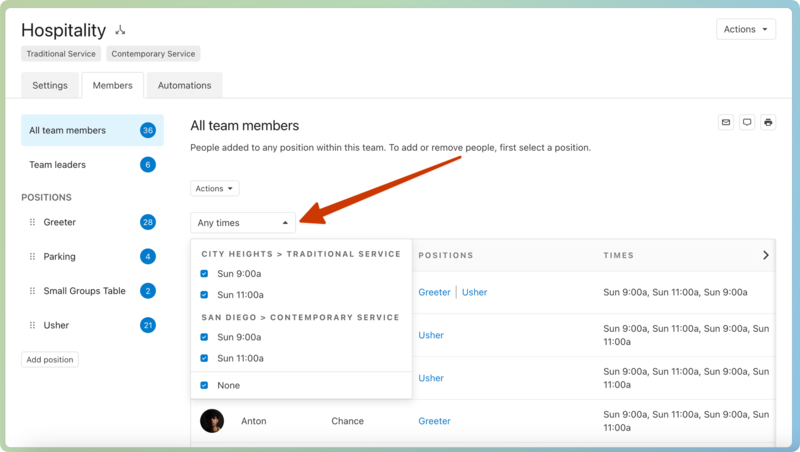
Identify member assignments. From the Members tab of your split team, you can filter team members by their preferred time using the dropdown above the member list.
Find backups. If all team members are unavailable for one time, you can choose someone who normally prefers a different time.
Set your service type's time preferences
Before you create and schedule split teams, set up time preferences on the service type's settings page. These time preferences apply to every split team assigned to this service type, so they should match your actual service times, not report times or rehearsal times.
Time preferences are necessary for split teams because:
Split team members use time preferences to tell their leaders which service time they prefer.
Time preferences determine which service times appear as options when adding needed positions on a scheduling template.
If you occasionally have an extra service time, such as on Easter, do not add it as a time preference. You'll still be able to schedule team members for that additional time in your special service plan without adding it as one of your regular time preferences.
Create a split team
You can create a new split team from scratch, convert an existing team into a split team, or merge two or more teams into a split team.
Create a split team from scratch
You can turn on the split team setting when creating a new team from scratch. Follow along with the Create or edit a team article and make sure to check the split team box during setup.
Convert an existing team into a split team
You can convert an existing team into a split team if you want to keep the same members but need to schedule different people for each service time.
Select the People page from the top navigation in Services.
Select the Teams tab to view a list of teams in your organization.
Use the dropdown in the top left to filter the list by My Teams (teams where you're a leader or member), All Teams, Archived Teams, or specific service types.
Select a team name to open that team's member list. You can also search for a specific team using the search bar at the top.
Select the Settings tab to open the team settings page.
Check the box under the Split Team section.
Merge existing teams into a split team
If you previously created separate teams for each service time, you can merge those teams into one split team. For example, if you have a 9 a.m. Greeters team and an 11 a.m. Greeters team, you can merge them into one split team with 9 a.m. and 11 a.m. time preferences.
Make sure your service type's time preferences are correct, then follow the steps in the Merge duplicate teams article.
Warning
Merging teams cannot be undone. The old teams will be deleted and can only be recovered for up to 30 days after the merge.
The old teams' scheduling history will be tied to the newly merged team and cannot be reverted, even if you restore the old teams.
Assign time preferences to your team
Split team members can choose whether they'd prefer to be scheduled for a specific service time or all service times. Ask team members to set their own time preferences, or set preferences for your team members as a team leader.
Ask team members to set time preferences
You can email your team members to ask them to set their scheduling preferences.
Select the People page from the top navigation in Services.
Select the Teams tab to view a list of teams in your organization.
Use the dropdown in the top left to filter the list by My Teams (teams where you're a leader or member), All Teams, Archived Teams, or specific service types.
Select a team name to open that team's member list. You can also search for a specific team using the search bar at the top.
Select the ⚙️ settings icon in the top right.
Choose Email from the dropdown.
Send an email asking your team members to set their scheduling preferences. You can include links to articles that explain how they can set scheduling preferences from their profile on a web browser, iOS app, or Android app.
Set time preferences for your team members
If you know your team members' preferred times, you can set those preferences for them on the team's Members tab. Check out the assign time preferences section of the Team leader tools article to learn more
Schedule a split team
Now that your split team is set up, you can start scheduling! If you haven't scheduled this team before, you can add needed positions to a plan or a template. You can also reassign previously scheduled people to new times if you converted an existing team into a split team.
Add a split team to a plan
Select the Plans page from the top navigation in Services.
If you have multiple folders, select the folder that contains the service type you're working with.
Select a plan from the service type for which you're scheduling.
Select the Teams tab.
Select Team actions in the top right.
Choose Needed Positions from the dropdown. Split team positions will appear for each service time on this plan.
Use the ➕ plus and ➖ minus icons to set how many positions you need for each service time.
Select Done.
Add a split team to a template
If you use templates to schedule your teams, you can create needed positions for your split teams on existing templates.
Select the Plans page in the top navigation.
If you have multiple folders, go to the folder that contains the service type you're working with.
Select the ⚙️ settings icon in the top right of the service type you're working with.
Choose Templates from the dropdown to view a list of templates connected to that service type.
Select a template from the list.
Select the Teams tab.
Select Team actions in the top right.
Choose Needed Positions from the dropdown. Split team positions will appear for each time preference listed in this service type's settings.
Select the ➕ plus and ➖ minus icons to set how many positions you need for each service time.
Select Done.
(Optional) If you have specific team members you want to schedule every time you import the template, select the corresponding needed position and choose that team member from the list to add them to the template.
Reassign previously scheduled people to split team times
If you converted an existing team into a split team, previously scheduled team members may be assigned to multiple times in a plan, so you'll need to assign them to only one time.
To reassign a previously scheduled person to new times:
Select the Plans page from the top navigation in Services.
If you have multiple folders, select the folder that contains the service type you're working with.
Select a plan from the service type for which you're scheduling.
Select the Teams tab.
Select a team member's name.
In the popup, uncheck the boxes next to any service times that no longer apply to this team member.
Select Save.
Warning
If you remove a person from the only time they were assigned to on a split team, they are completely removed from the plan.