Add or edit an arrangement
Arrangements are like different versions of a song, each with its own files. When you add a song to a plan, you select one of its arrangements, and the files for that arrangement and its corresponding key appear in the plan. Common uses for arrangements include:
Different recorded versions of a song.
A separate condensed version of a song you play as a closing.
A version for a different ministry that formats its charts differently. Even if it’s technically the same version, creating a separate arrangement allows you to keep files organized and separated.
After adding a song, you can add a new arrangement or edit the default arrangement.
Important
You must have song editor permissions in Services to add and edit arrangements.
Want to watch a video before you get started? No problem! This four-minute video covers arrangements, keys, and song files.
Add a new arrangement
You can add a new arrangement to a song from the Songs page or from a plan.
Add an arrangement from the Songs page
Now you can add keys to the arrangement!
Add an arrangement from a plan
You can also add a new arrangement to a scheduled song item within a plan.
Edit the arrangement
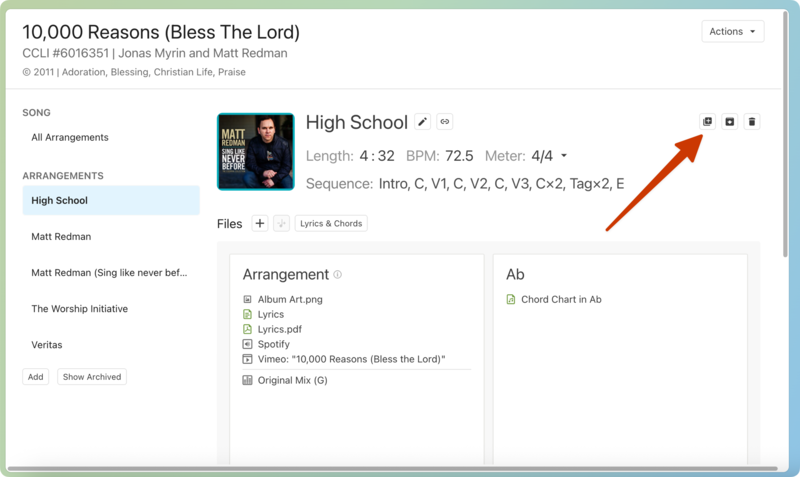
Open a song's arrangement page to manage the arrangement information and edit the song details, files, tags, and notes.
Select the Songs page from the top navigation in Services.
Select a song title from the list to open that song page, or search for a song.
Select an arrangement title from the left sidebar to open the arrangement page.

Select the ✏️ edit icon next to the arrangement's name to edit it.
Select the 🔗 Manage popular recording button to select a different popular recording or unlink this arrangement from a recording.
Edit the song length, BPM, meter, or sequence fields.
Select the ➕ plus button in the Files section to add files to the arrangement.
Select the music note button in the Files section to transpose audio files.
Select the Lyrics & Chords button to open the built-in Lyrics & Chords editor.
View and manage individual files in the Arrangement and key sections. Files in the Arrangement section are available anytime the song is scheduled to a plan, while files in the key sections will only be available if that key is selected for a particular plan.
At the bottom of the page, you can view the plan dates where this arrangement has been scheduled, assign tags to filter this arrangement, and add arrangement notes.
Duplicate an arrangement
If you need to create a similar arrangement, you can duplicate an existing one on the web version of Services!
Important
You can only duplicate an arrangement on the web version of Services.
Select the Songs page from the top navigation in Services.
Select a song title from the list to open that song page, or search for a song.
Select an arrangement title from the left sidebar to open the arrangement page.
Select the Duplicate arrangement button in the top right.
Select Yes, duplicate in the popup to copy all details, tags, keys, and files to the new arrangement.