Song and arrangement tags
Song tags allow you to filter your songs to help you find songs that meet your own customized criteria, like songs that are a certain speed or that you only use in a specific ministry.
Want to watch a video before you get started? No problem! This seven-minute video covers how to use song filters and tags.
Types of song tags
The Songs page allows you assign to two different types of tags:
Songs tags: These are tags that apply to the song in general, regardless of arrangement, such as a Christmas song.
Arrangement tags: These are tags that can be different for each arrangement of a song, like speed. One arrangement can be tagged as Fast, and another arrangement of the same song could be tagged as Slow.
Create song and arrangement tags
Select the Songs page in the top navigation.
Select Actions in the top right.
Choose Edit Tags from the dropdown.
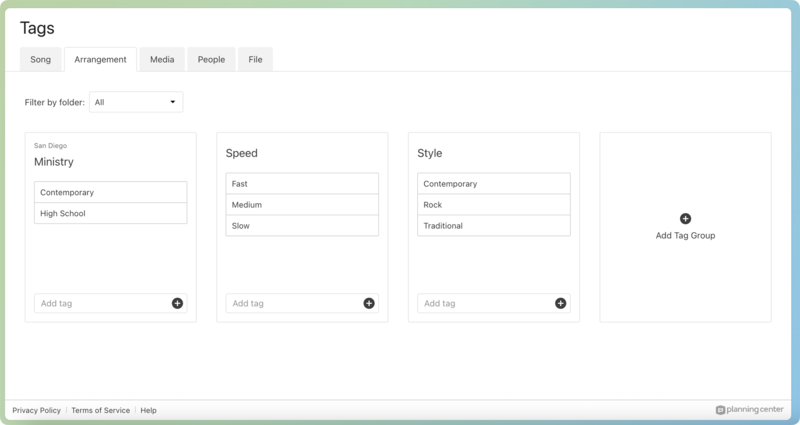
Choose the Song or Arrangements tab to create, edit, and organize tags and tag groups.
Assign tags
To assign tags to a song or its arrangements, go to a specific song page, find the Tag section, and select Add.
Add song tags from the top of the All Arrangements tab.
Add arrangement tags to the bottom of a specific arrangement tab.
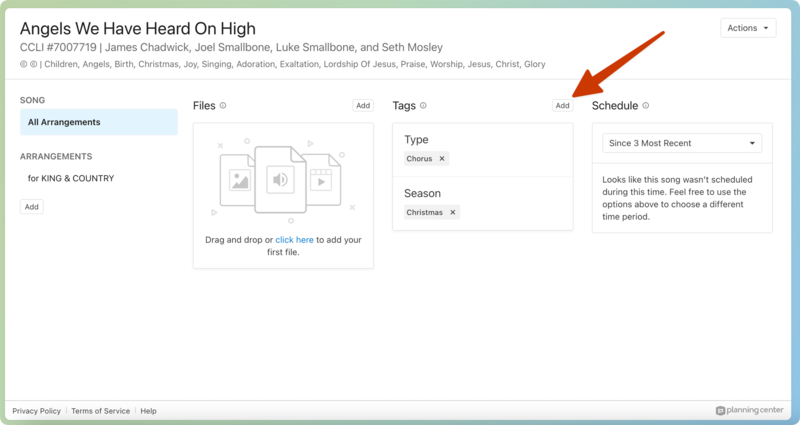
To add a tag, type the name of a tag and select it, or select a tag group to see its tags.
To remove a tag, select the X next to the tag name.
Important
If you don't see tags you're expecting to see, you might be trying to add a Song tag to an Arrangement. Remember, you'll only see tags that match the tab you're on.
Filter using tags
You can apply tag filters when searching on the Songs page.
Select the Songs page in the top navigation.
Select Filter in the top left to open the filter menu.
Select the Tags tab.
Choose whether to filter by Tag or Tag Group.
Use the dropdowns to filter the song list by any combination of tags or tag groups.
Bulk edit tags
You can add or remove tags from more than one song at a time using bulk editing.
Select the Songs page in the top navigation.
Select the ✏️ edit icon.
Choose Bulk Edit Songs or Bulk Edit Arrangements from the dropdown. If you choose Bulk Edit Songs, a checkbox appears next to each song title. If you choose Bulk Edit Arrangements, the songs are expanded, and each arrangement has a checkbox next to it.
Check the songs or arrangements that you want to include in the bulk edit.
Select the Bulk Edit button at the top of the list.
Search for a tag from the Add Tags or Remove Tags fields, or select a field to reveal the available tag groups.
Select the tag groups and tags that you want to add or remove.
Select Update x Songs to update the songs or arrangements that you've selected.
Common tag examples
Here are some examples of how you can use tags:
Add a Seasons Tag Group with Tags for Christmas, Easter, and maybe Patriotic, and then select None to exclude seasonal songs from your filter the rest of the year.
Add a new Tag Group called Library (or Ministry), with tags for multiple song libraries to easily switch between them.
If different worship leaders have their own songs, add a Leader Tag Group to easily switch between leaders.