Transpose audio files
This article will explain how to transpose audio files so your musicians can rehearse them in the right key.
Important
The transposer and media player in Services work with MP3, M4A, and AAC file types. If your audio is in a different format, convert it before you add it to your song in Services. CloudConvert is an excellent online conversion software that's free and easy to use.
Want to watch a video before you get started? No problem! This four-minute video covers how to transpose audio and use the Lyrics & Chords editor.
To transpose audio files in an existing song:
Select the Songs page in the top navigation.
Search for a song using the Add text filter bar.
Select the song title from the list.
Select an arrangement from the left sidebar.
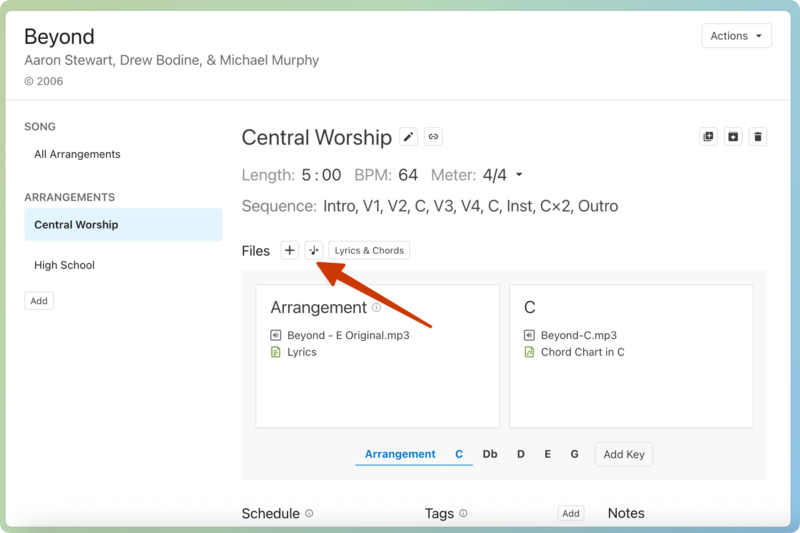
Select the music note icon in the Files section of the arrangement.
Use the Transpose Audio popup to choose how to transpose your file:
Use the dropdown to select which file to transpose. Any transposable audio files (mp3, m4a, aac) attached anywhere on the current arrangement will be options.
Select the play button next to the selected file if you need to determine its original key.
From/To: Choose the original key of the selected file, and then select which keys you'd like your file in. If you choose a key that does not yet exist on your arrangement, it will be created.
Name: If you want the file name of all your transposed files to be different than your original, edit the base file name.
Results: See which files will be created based on the To key and Name you've specified.
Select Up or Down next to a file to choose which direction it will be transposed to. The closest direction, which normally provides the best results, is chosen automatically.
Select Transpose, and your files will go into the queue to transpose.
As your files transpose, you'll see progress at the top of the arrangement tab. When they finish, they'll show up in your file lists.
Important
The further you move away from the original key, the more distorted the transposed file will sound. The speed never changes, and the instruments sound mostly the same, but the vocals will start to sound more like chipmunks or monsters the farther you transpose.