MultiTracks integrations
Your musicians need chord charts, lyrics, and audio files to practice so they can be prepared to serve your church well. MultiTracks provides these files for many popular songs through RehearsalPack, RehearsalMix, and ChartPro. Integrate these tools with your Services song library to make them available to your musicians!
You can enable just a part of the MultiTrack ecosystem or all of it. Check out the table to decide what your team needs.
RehearsalPack | RehearsalMix | Chart Pro | |
|---|---|---|---|
Original audio in transposable keys | ✓ | ✓ | |
Chord Charts | ✓ | ✓ | |
Lyrics | ✓ | ✓ | |
Individual audio stems in all transposable keys | ✓ |
Enable the integration
To enable the integration, your People and Plans permission level and Songs permission level both need to be set to administrator.
Select the Songs page from the top navigation in Services.
Select the Actions button in the top right.
Choose Song File Integrations from the dropdown.
Select the Set up button below your subscription type in the MultiTracks column. Imported files from all MultiTracks subscriptions do not count against your Services file storage.
RehearsalPack provides chord charts, lyrics, and original audio (not individual “stems”) in all 12 keys for your songs. That way, your church doesn't need to juggle multiple subscriptions and sources to prepare your worship teams.
RehearsalMix provides different audio mixes (or “stems”) for each part or instrument on the original recording of most popular worship songs. A paid RehearsalMix account is required and allows you to link to audio mixes included with your RehearsalMix account. You can also import your playlist into their Playback software for use during rehearsals and services.
Chart Pro provides chord charts and slides you can customize for your team. You can import PDF charts from this subscription into your Services song library.
Follow the steps on the MultiTracks website to complete the process.
Go back to Planning Center Services and refresh the page.
If you’d like to see the steps above in action, check out the video below.
Important
To disconnect an existing MultiTracks integration, you must contact Planning Center support by selecting the ? in the toolbar. Disconnecting the integration will remove all previously added MultiTracks files from your account.
View licensed users
Only licensed users can access RehearsalMix or ChartPro files in Services. Manage who has a “seat” in your MultiTracks subscription by logging in to MultiTracks.com and opening the People tab on your admin page. No seats are necessary for the RehearsalPack subscription.
Follow the steps below to review which of your team members are licensed to use specific files (RehearsalMix or ChartPro):
Select the Songs page from the top navigation in Services.
Select the Actions button in the top right.
Choose Song File Integrations from the dropdown.
Scroll down to the bottom of the MultiTracks.com column.
Select the Licensed users link at the bottom of the column.
Add files to a song
Select the Songs page from the top navigation in Services.
Choose the song where you'd like to add files.
Choose an existing arrangement from the left sidebar or select Add to create a new one.
Select the ➕ plus button in the Files section.
Select the Integrations button in the popup.
Select the MultiTracks tab.
Select the recording that you want to link to this arrangement. You can:
Search for a popular recording in the text field.
Select the album art next to a search result to preview the recording.
Select the ➕ plus button next to a recording to link that recording to the arrangement.
Check the boxes next to the files you'd like to import.
Select Submit.
Link different files from MultiTracks
You can choose to link an arrangement to a different MultiTracks recording:
Select the Songs page from the top navigation in Services.
Choose the song you'd like to edit.
Choose an arrangement from the left sidebar.
Select the link button next to the arrangement title
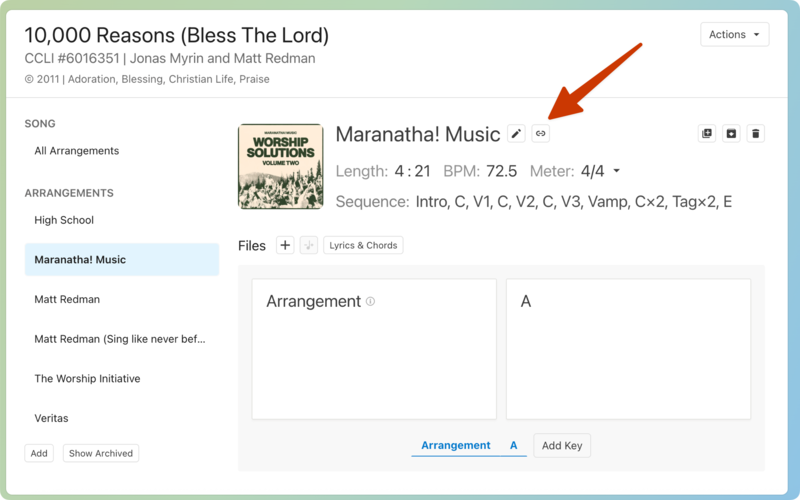
Select Change Recording in the popup.
Search for a different popular recording from which you'd like to link files.
Select the popular recording you'd like to link.
Send instructions to your team
RehearsalMix is a new way of practicing songs, so it's helpful to prepare your team for the new files they'll see. Email your team to help them understand the new files. Here are some helpful things to explain:
What are MultiTracks files?
Where can your team members find these files?
What will these files be called (e.g., Drums Mix, Bass Mix, Alto Mix etc.)?
Troubleshooting
Issue | Solution |
|---|---|
RehearsalPack doesn't have files for chosen key(s) | In Multitracks, if the Charts and Multitracks tabs show files in the key(s), relink the integration. |
Error when files were linked | |
Missing Files | If the key is available on RehearsalMix, relink the integration. |
Team members can't access files | In the People tab of your MultiTracks account, ensure that your team members have a seat in your subscription and their Planning Center/MultiTracks accounts have been linked. |
Cannot manage user seats | MultiTracks requires the organization administrator permission level to do this. If you are a Services administrator, you may encounter errors. |
Relink the integration
If you see a MultiTracks error banner at the top of the Songs page or you're having trouble with your files, you may need to relink the integration.
Select the Songs page from the top navigation in Services.
Select the Actions button in the top right.
Choose Song File Integrations from the dropdown.
Select Relink under the MultiTracks column.
Enter your MultiTracks credentials into the MultiTracks popup.
Ensure your church is listed as “Connected.”
Go back to Planning Center Services and refresh the page.
Important
It can take time for the connection to reset, so try the integration again 15 minutes after relinking. If you continue to run into issues, contact Planning Center Support by selecting the ? in the toolbar.