Create, upload, or link to files
Your team members may need access to music, stage layouts, media images, or other service elements. You can create some of these files in Services, or if you already have them, you can upload or link to them.
Important
Consult the article on copyright concerns before attaching music without a license.
Create files
There are three types of files that you can create in Services:
Lyrics & Chord charts can be created from scratch or you can customize files that you obtain from SongSelect or PraiseCharts.
Text documents can be used for sermon notes, announcements, or liturgy, and you can later edit them in Planning Center.
Stage layouts show where you want people to stand when they're on stage. You can use a pre-made template or create your own.
These files are shared in Services in PDF format, but the original files can be edited at any time.
Next steps: After uploading, linking, or creating the files, you can add them to a plan.
Upload files
You can upload a file to a plan attachment, song, or media item.
When you select the Add File button (or the ➕ plus button on a song or media page), you can select browse to find a file from your device.
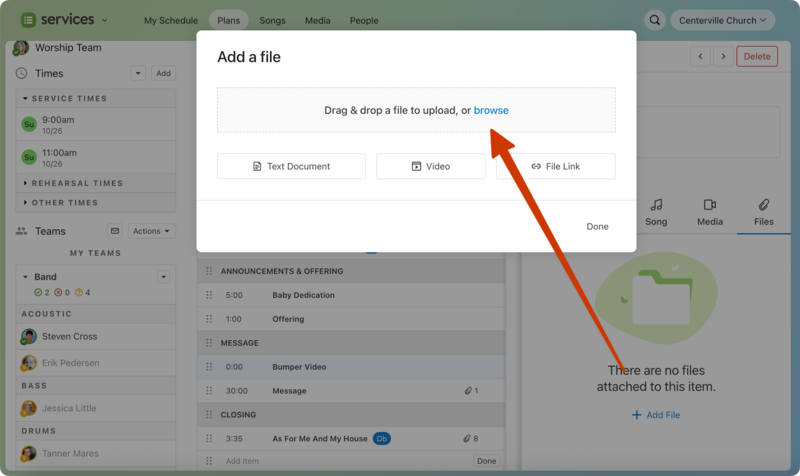
Use the image sizing guide to upload the right size and file type.
For songs files, choose to attach them to the arrangement (which makes them available for all keys) or to a specific key.
If you are using file tags to hide files for certain people, set the type here.
Add more files by dropping them in this window or selecting browse.
Tip
On the Media page, if you don't need to share the large full resolution file from Planning Center, but just want to get an online preview of it after the thumbnail preview is generated, you can delete the original file to save file space.
Link to files
You can link to a URL, YouTube, or Vimeo file by selecting File Link in the Add a file popup.
Link to a URL
If you already have your files somewhere else on the web, you can link to those files without having to upload them, which saves on your file storage.
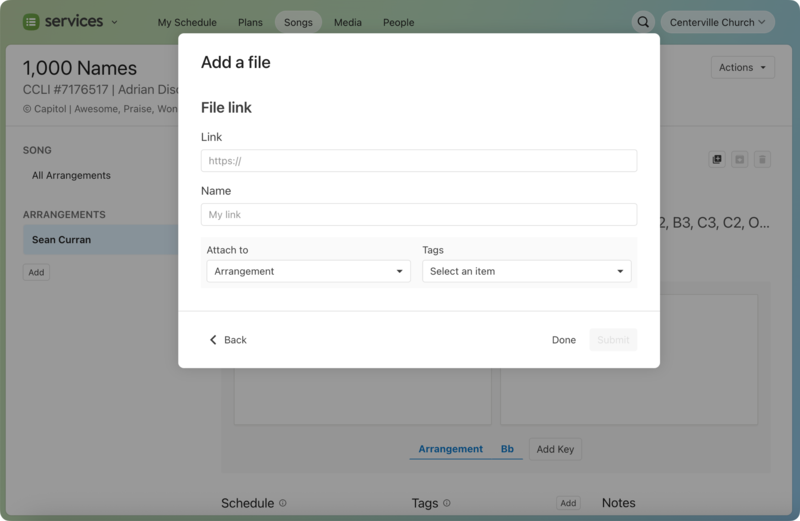
Paste the address for the file in the Link field, and the Name will automatically populate.
The Name is how the file will appear to everyone who views this song, so if you need to change it, you can edit it by selecting the box.
For songs files, choose to attach them to the arrangement (which makes them available for all keys) or to a specific key.
If you are using file tags to hide files for certain people, set the type here.
Select Submit once you're finished.
Link to a YouTube or Vimeo file
If there's a YouTube or Vimeo video you'd like your users to access, you can add it as an attachment. The search bar allows you to search YouTube or Vimeo. Pasting a link won't work, but if you know the exact link of the video, you can use the Link tab.
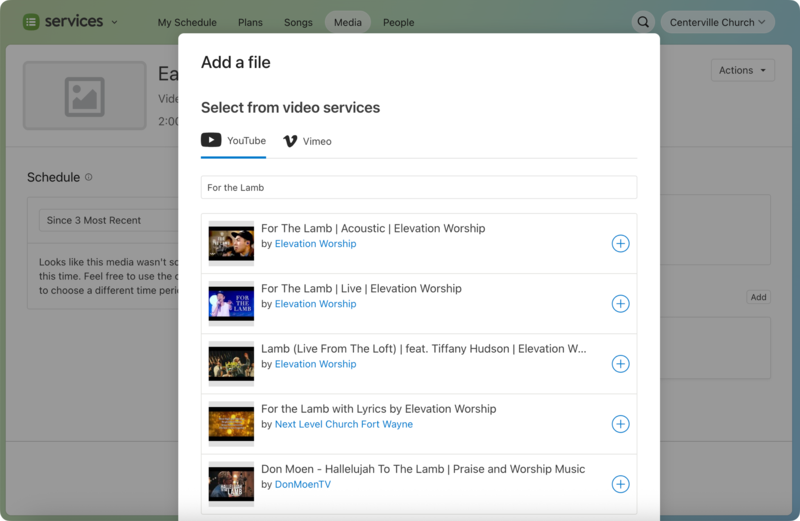
Use the search bar to narrow the results that are shown to you.
Select the ➕ plus icon to select that video.
Once you select the ➕ plus icon, you will be redirected to the previous page.
Important
YouTube and Vimeo links will also show up in your public plans, so when a YouTube video is in a plan, anyone who views that plan will be able to watch the video you've linked as well.