Discounts
Discounts let you reduce the cost of your event for attendees. Use early bird discounts, group discounts, or discount codes.
Want to watch a video before you get started? No problem! This video covers discounts and scholarships.
To create a discount:
Select the Signups page from the top navigation in Registrations.
Select the signup you're working on from the list.
Select the Configuration tab.
Select Discounts on the left.
Select New discount.
Enter a name for the discount. The name is only shown in Registrations and on registrations where the discount is applied.
Define the amount of money discounted from the price based on a percentage or a flat rate.
Choose the type of discount you want to create and set the expiration date, if applicable.
In the Options box, check the Apply discounts to add-ons box to apply the discount to add-ons.
Check the Discount expires box to set a date for the discount to expire.
Use the Available to: dropdown to choose which selection types can use the discount.
Select Save to activate the discount.
Discount settings
Discount settings are mutually exclusive. You cannot create a code discount that is also a group discount, but you can create one of each and allow people to apply both discounts when they register.
Important
Discounts will be added to the whole registration. If you want a discount only to be applied to one person, they must register individually. They can be given to specific selections, though, so if only one person in a registration has a discounted selection, the discount will only be applied to that person.
Code
A popular way to give a discount is by providing a code. Enter the code you'd like to use, and when attendees use that code, they will receive the discount.
Tip
Add codes to your marketing materials for people to use when registering.
Only one code can be applied to an attendee. If two codes are entered, and an attendee qualifies for both, the system will give the greater of the two discounts.
Group
Help out a large family or group of people registering at one time by giving them a group discount. Specify the size the group has to be to get the discount, and then determine if all attendees will get the discount or if only the registrations after the minimum amount will receive the discount.
Early bird
Give discounts for early registrations. The early bird price will be listed on the event, even if it's free, with the original cost crossed out next to it until the expiration date.
Add an early bird discount before people start registering. The discount will not be applied to people who registered before it was added.
No discount will allow you to set a maximum amount a person can be charged. The max amount should be the price associated with the selection.
Tip
Check out some discount ideas!
Apply a discount
Group and early bird discounts are applied automatically at the time of registration. Code discounts can be added manually to the attendee's registration.
Select the Signups page from the top navigation in Registrations.
Choose the signup from the list.
Select the Registrations tab.
Choose the name of the attendee who should receive the discount.
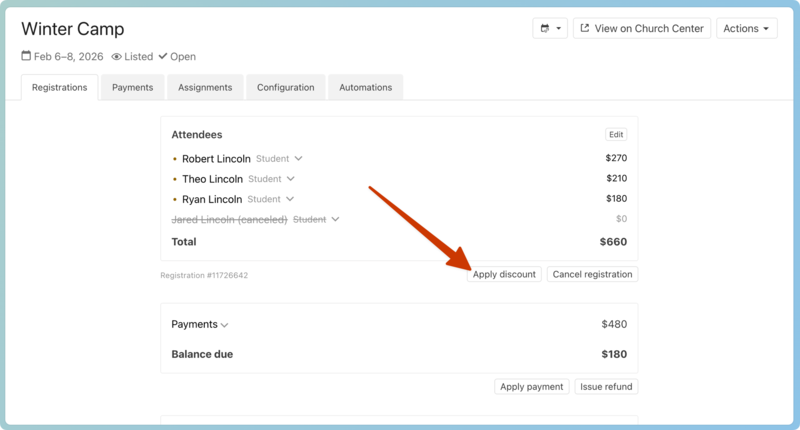
Select Apply discount under the Attendees section of the registration details.
Select the discount to apply from the dropdown.
Select Apply to add it to the registration.
Remove a discount
You can't remove group discounts or early bird discounts after they are applied to a registration. Follow the steps below to remove a code discount.
Select the Signups page from the top navigation in Registrations.
Choose the signup from the list.
Select the Registrations tab.
Choose the name of the attendee who should receive the discount.
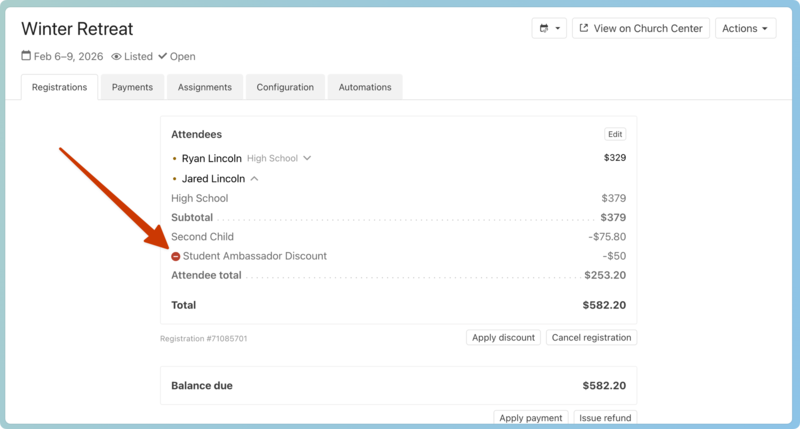
Select the attendee's name in the Attendees section of the registration details to expand their cost breakdown.
Select the ⊖ minus icon to the left of the discount to remove it.