Collecting information with signups
You can use signups to gather all kinds of information from people. There are several ways to gather this information depending on your needs.
If there is no set capacity, registrants have 48 hours to complete their registration. If the signup has one or more selection types with a capacity set, registrants have 15 minutes to complete each section of their registration.
The 15-minute timer applies to the Selections, Attendees, Additional attendee information, and Registration questions sections on Church Center and resets as attendees move to each new section.
Keep the timer in mind as you decide what information to gather, as registrants must complete all attendee questions and add-ons for all attendees within the 15-minute window.
Need to collect more in-depth information? Use a form!
Profile information
Profile information is saved to a person's Planning Center profile and determines whether someone fits any age, grade, or gender requirements for selections and assignments.
You can gather profile information using selections or a form, depending on the information you need.
Selection types
Collect as much personal information as possible through your selection types first.
All the available options in the Personal information to collect section in each selection's settings, except for the Emergency Contact field, are connected to each attendee's profile in People. Answers in these fields will instantly update the attendee's profile information.
Tip
To view a full history of changes made to a person's profile through the selections in a signup, go to the activity tab in their People profile.
People forms
Update other profile information not collected through selections by adding Profile Fields to a form and attaching the form to your signup. This can include any custom profile fields you've created in People.
Tip
Profile information gathered with signups can be used to create lists in People.
Event preferences
You may need information from attendees that is specific to your event and doesn't need to be saved to profiles. You can use attendee questions, registration questions, selections, forms, and add-ons to collect information like T-shirt sizes, childcare preferences, financial aid needs, chosen activities, and more.
Want to watch a video that walks through different ways to collect information? No problem! This five-minute video will walk you through the available options.
Group preferences
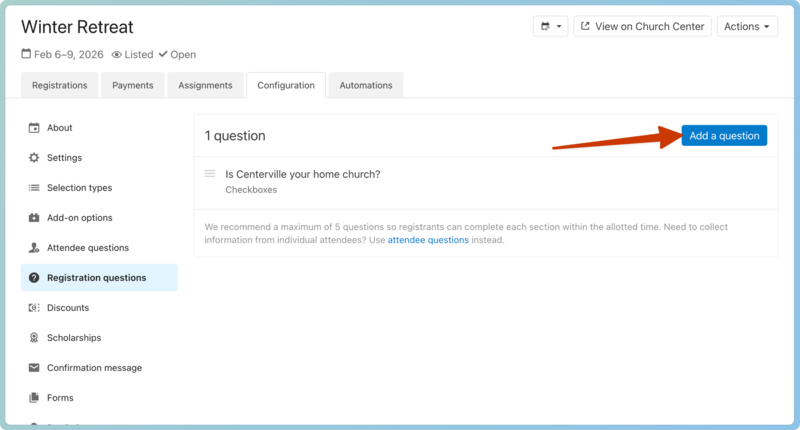
You can use up to five registration questions to gather group preferences. These questions are asked once to the registration contact and apply to the overall registration, not individual attendees.
Individual preferences
To gather preferences for each attendee, use selections, attendee questions, forms, and add-ons.
Tip
Answers provided through attendee questions, attendee info form, and add-ons can be used to filter attendees.
Selection types
Selection types will be the first preference you gather from each attendee, so use them to help you organize and find attendees easily later on. Use selection names to have people choose things like:
a class or service to attend
the age group they belong to
meal preferences or a dish to bring
volunteer positions
a specific room or table to reserve
Attendee questions
Attendee questions are the most direct and versatile way to gather individual preferences and attendee-specific information. You can make these questions required or optional and determine whether they are asked of everyone or only those with certain selections.
Add-ons
Use add-ons when you need to set a capacity limit or a cost for the available options. Check out the Common uses for add-ons article for ideas to get started!
Attendee information form
Adding questions to the attendee information form allows you to collect additional information from each attendee outside of the 15-minute time limit. Similar to the attendee questions, you can make questions on the attendee info form required or optional, and questions can be hidden or shown based on the attendee's selection.
External forms
People forms allow you to add conditional questions based on previous answers given, and workflow fields add attendees to different workflows based on their answers. When you need attendees to upload a file or image with their registration, use a People form.
Important
Information gathered in a People form is saved in Planning Center but can only be seen on the form submission in People, not in the signup. You can view submissions in a form's Submissions tab or a person's People profile under the Forms tab.
External linked or PDF forms are great for gathering signatures and other information you don't need to track within the signup. No information gathered in an external form is saved in Planning Center.