Edit attendee information
There may be times when someone enters the wrong information when registering or when changes are needed. When this happens, an administrator or manager can update the person's registration.
Registration contacts and attendees can edit their registration details from the confirmation page on Church Center.
Warning
If you've registered the wrong person, do not update their name from the personal information section. That will change their name in their People profile and is reflected across all Planning Center products.
Edit attendees
If a person registers with the wrong selection type or needs to add more people to their registration, you can correct the information in their registration details.
Select the Signups page in the top navigation.
Choose the signup from the list.
Select the Registrations tab.
Select the attendee's name from the attendee list.
Select Edit in the Attendees section of the registration.
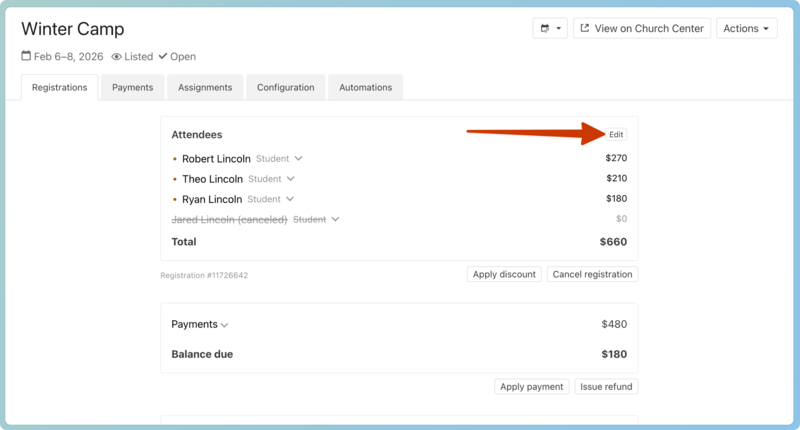
Change the attendee's selection using the dropdown next to their name or add an attendee to the registration using the dropdown below the existing attendees. You can create a new profile if the person doesn't already exist in People.
Select Save.
After you've saved the changes, email the registration contact to notify them of the changes made to the registration, or of any changes they need to make to their registration.
Add notes to a registration
Keep track of important information about a person's registration, such as special accommodations, in the Notes section.
Select the Signups page in the top navigation.
Choose the signup from the list.
Select the Registrations tab.
Select the attendee's name from the attendee list.
Scroll down to the bottom of the registrations and select Edit in the Notes section.
Select Add note and type the note into the text box.
Select Save.
Notes support rich-text editing and are visible only to administrators and managers. They are not visible to attendees.
Transfer registration
If someone wants to transfer their registration to someone else, or if the wrong person was registered, an administrator or manager can change the attendee. Registration contacts and attendees cannot transfer registrations themselves.
Tip
If you need to transfer payments made for the registration, check out the guide on transferring funds for complete instructions.
First, you will add the correct attendee, or the person to whom you are transferring the registration.
Select the Signups page in the top navigation.
Choose the signup from the list.
Select the Registrations tab.
Select the attendee's name from the attendee list.
Select Edit in the Attendees section of the registration.
Choose the new selection type from the dropdown, then enter the name of the new attendee.
Select the attendee's profile or create a new one.
Select Save.
Next, you will cancel the original attendee, or the person from whom you are transferring the registration.
Select the Signups tab in the top navigation.
Choose the signup from the list.
Select the Registrations tab.
Choose the attendee to cancel from the attendee list.
Scroll to the bottom of the original attendee's registration details and select Cancel attendee.
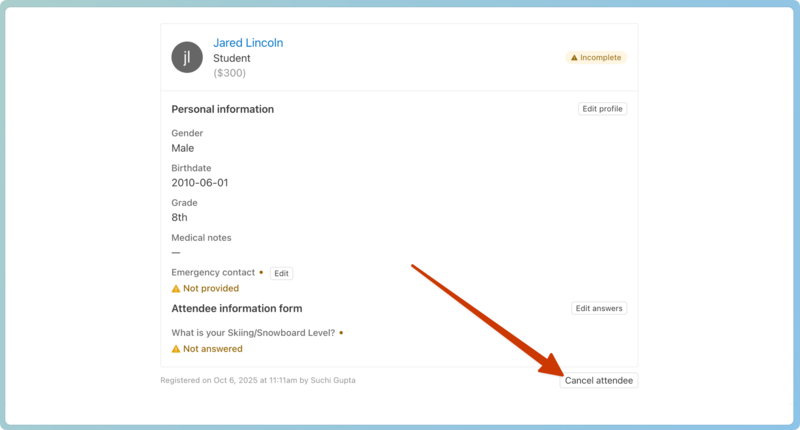
In the popup, select Yes, cancel it!
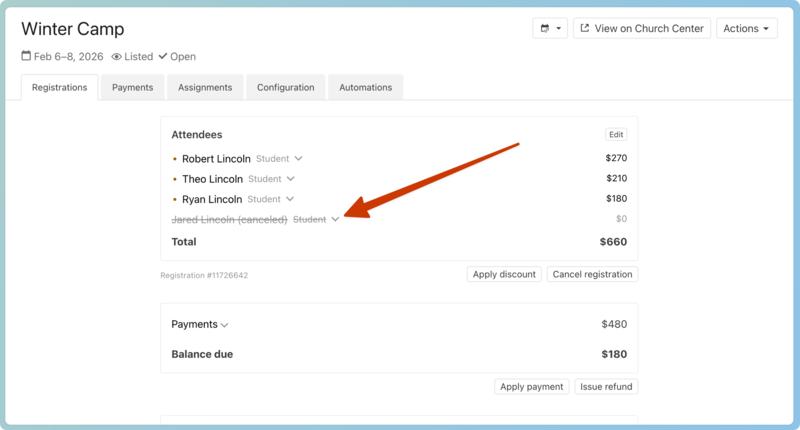
The new attendee, as well as the canceled one, will show in your attendee list to help you track the changes.
Change other registration details
Other registration details, such as personal information, answers to questions, and add-ons, can be changed at any time. To update this information, select Edit in the corresponding section, make necessary changes, and select Save.
Administrators and managers can update other parts of a registration by following the instructions in the following articles: