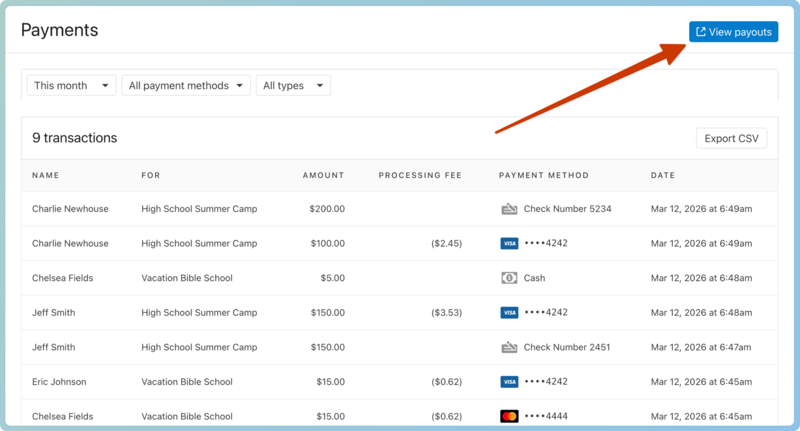
Review the Payments page
The Payments page shows payments received from all signups. From here, you can export a CSV file, view payout reports (if you have permission), and issue a refund or resend a receipt.
Filter payments
Use the available filters at the top of the table to view your payments by date, payment method, or type (payment or refund).
View transaction details
Select the Payments page in the top navigation.
Choose from the available filters to filter the payments table by date, payment method, or type (payment or refund).
Select a transaction to view more information about it, including the method, amount, date, and any additional details or notes added.
Select the registration number to view the registration for which the payment was received.
Issue a refund
Refunds can be issued from the Payments page directly. For more information about refunds, check out the Refund payments article.
Select the Payments page in the top navigation.
Choose from the available filters to filter the payments table by date, payment method, or type (payment or refund).
Select a transaction to view the payment details.
Select Issue refund to open the refund popup.
Select the payment method that should receive the refund. For refunds you issue personally, select cash or check. Choose Other if you are transferring funds to another attendee.
Enter the amount of the refund.
Add a note, such as where the refund was issued, who the funds are transferring to, or the reason for a cancellation.
Select Submit.
Resend a receipt
You can resend a receipt to an attendee from the Payments page.
Select the Payments page in the top navigation.
Choose from the available filters to filter the payments table by date, payment method, or type (payment or refund).
Select a transaction to view the payment details.
Select Resend receipt.
Choose an attendee from the dropdown. The receipt will be sent automatically.
Export a CSV of payment information
To export a group of transactions, filter them, then select Export CSV. The CSV file will begin to download; however, it may take a few minutes, depending on the amount of information in the file.
View payout reports in Account settings
Organization administrators and billing managers can see a breakdown of processing fees in each deposit you receive by selecting View payouts in the top right. You can learn how to track the payments you receive in the View and reconcile payouts article.