Filter events
Use filters to narrow your events by specific categories. After applying filters, you can share them or run a report that only includes the filtered events.
Important
Any filters you select are saved to your browser, so they'll be automatically applied the next time you open the Events page.
Filter events
Select the Events page from the top navigation in Calendar.
Select Filter in the top left to expand the filter menu.
Select a tag category to expand/collapse it:
Calendars: If you have multiple calendars in your organization, choose which calendars' events to include in your view. Select ⚙️ Manage to go to the calendars settings page.
Important
You can only filter calendars you have access to. However, since event owners/managers/approvers can access any event they own/manage/approve, they'll see a Limited filter for any calendars where they have access to only those events.
Tags: Filter events by tags. Search for a tag and select it from the list to add it as a filter. Select the X next to a tag filter to remove it from your view.
Rooms/Resources: Filter events that have requested specific rooms or resources. Search for a room, resource, or folder and select it from the list to apply the filter.
Check the Show events missing a [room or resource] box to show events that have no requested rooms/resources or that have pending rooms/resources. If you check this box while a specific room/resource filter is applied, you'll see events for which that room or resource is still pending.
My events: Choose to view events where you're listed as an event owner, manager, or approver. Choose Subscriber to view events where you've subscribed to the Activity feed.
Feeds: Choose whether to include Groups or Registrations feed events or pending event requests in your view.
Important
Groups and Registration feed filters only appear if you've already set up a feed for either product.
Select the arrow next to Groups to expand the list of group types. Use the checkboxes to choose which group type(s) to include in your view.
Hover over the Groups or Registrations icons and deselect the checkbox that appears to exclude those feeds from your view.
Select the arrow next to Event Requests to choose which event request forms to include in your view. By default, these filters are enabled for event owners and approvers. They are disabled by default for everyone else.
More filters: Filter the calendar by event type (regular events vs. blockouts), room or resource booking status, event request status (pending, approved, or rejected events), event owners, Church Center visibility, or connections to other Planning Center products.
Tip
Check out the Customize the calendar view article to learn how approval statuses are color-coded in the month view.
Filter logic
Filters work differently depending on whether you're selecting multiple tags from the same tag group or different tag groups. Understanding filter logic helps you apply advanced filters more effectively.
Same Tag Group = OR. When you select tag filters from the same tag group, you can imagine that those options are joined with the word 'OR.' This pulls up events that include any combination of the selected tags from that tag group.
Different Tag Groups = AND. When you select tag filters from different tag groups, you can imagine the word 'AND' between them. This will only pull up events that include all of the tags you've selected.
Show events without a tag
Add tags to the filter bar to find events that have not been assigned tags from that group.
Select the Events page from the top navigation in Calendar.
Select Filter in the top left to expand the filter menu.
Select Tags to expand the tag filter section.
Search for a tag and select it to apply the filter.
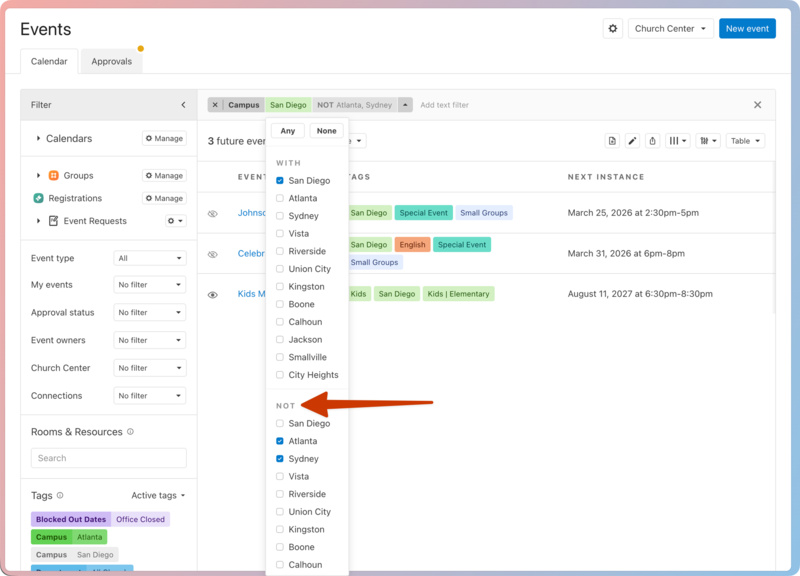
Select the arrow next to the tag filter in the top filter bar.
Check the boxes next to the tags in the NOT section of the dropdown.
Find events missing required tags
If you have a required tag group and want to see how many of your events are missing a tag from it, use the table view to find them.
Select the Events page from the top navigation in Calendar.
If you're currently in month view, switch to table view:
Select View settings in the top right of the calendar.
Choose Table from the dropdown.
Select Filter in the top left to expand the filter menu.
Select Tags to expand the tag filter section.
Search for a tag and select it to apply the filter.
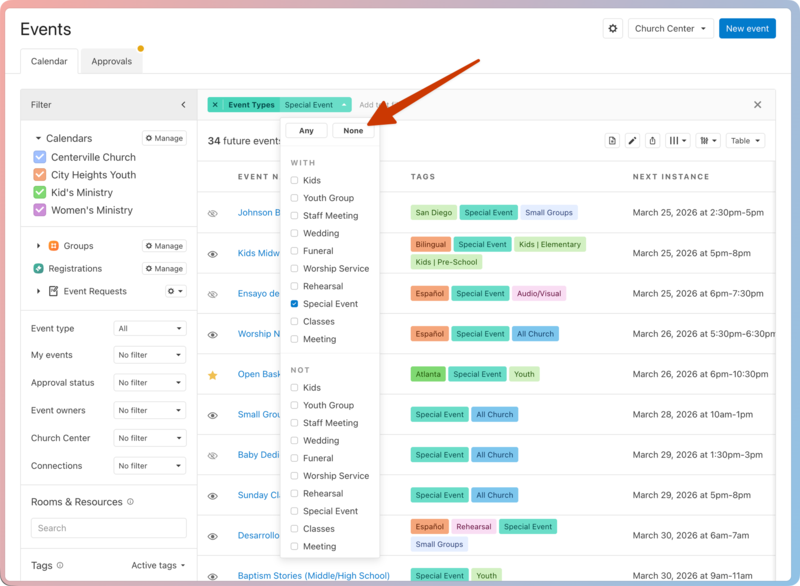
Select the arrow next to the tag in the top filter bar.
Select None from the dropdown that appears.
From here, you can use bulk editing to apply the missing tags to these events!