Add rooms
Rooms refer to any space where your church can host events. Add rooms so your event creators can reserve them and prevent double bookings!
If you have room editor permissions, follow the steps below to create and manage rooms for your account.
Create a new room
Select the Rooms page from the top navigation in Calendar.
Select New in the top right.
Choose Room from the dropdown.
Enter a name for the new room.
Select a parent folder for the room.
Select the check boxes to assign approval groups and shared setups to this room.
Select Create. This takes you to the room's settings page.
Update room settings
To open a room's settings page:
Select the Rooms page from the top navigation in Calendar.
If you have multiple folders, select the folder containing the room you'd like to update.
Select the name of the room you'd like to update.
You can edit the room's description, setups, approval groups, and questions on this page. Check the calendar to find dates for which this room has been requested or blocked out!
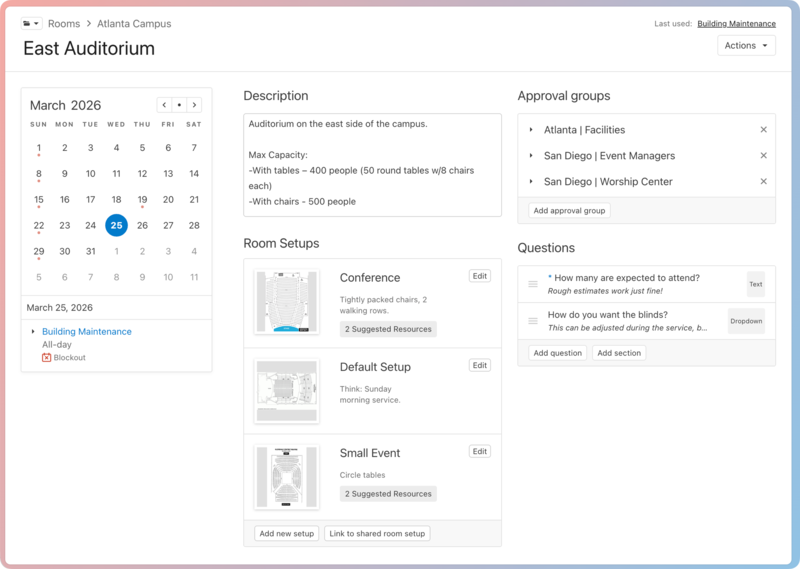
On the room's settings page, you can:
Select the 📁 folder icon in the top left to move the room to a different folder.
Select the Actions button in the top right to take the following actions:
Edit the room name.
Share a calendar feed that outlines when this room is being used.
Run a report for the room.
Duplicate the room.
Create a blockout for this room.
Delete the room.
Select a dotted date on the calendar to see the events for which this room has been requested or blocked out.
Important
If the event belongs to a calendar you don't have access to, you'll see Booked by [name of event owner] instead of the actual event name. You won't be able to view the event's details, but you can select the link and request access to that calendar on the Access required page.
Description: Add a description to give more context about the room. The description is only visible on this page and not on any event pages.
Room Setups: Add room setups or link to a shared room setup (convenient for classrooms of the same size).
Approval groups: Expand the Approval groups sections to see who is listed in each approval group. You can remove an approval group by selecting the X next to it, or add additional groups by selecting Add approval group.
Questions: Ask any necessary questions for requesting the room. This helps the approval process by allowing you to gather additional details about the room reservation upfront. You can add multiple standalone questions or group them up by section.
Warning
If you no longer use a room and need to delete it, run a year report first to ensure the room isn't reserved in the next year. When a room is deleted, it is deleted from all events, any room setups specifically created for that room will be deleted, and pending approval requests for the room will no longer be displayed in notifications.
Review room reservations
Use the calendar on the Rooms page to review scheduling information for multiple rooms at once!
Select the Rooms page from the top navigation in Calendar.
If you have room folders, select the folder you'd like to review.
Select a dotted date on the calendar. Events that have requested or blocked out rooms from this folder will be displayed below the calendar.
Important
If the event belongs to a calendar you don't have access to, you'll see Booked by [name of event owner] instead of the actual event name. You won't be able to view the event's details, but you can select the link and request access to that calendar on the Access required page.
Select the arrow next to an event's name to expand that event and review the requested rooms.
Duplicate a room
If you have a room that shares similar details or questions with another room, duplicate it!
Select the Rooms page from the top navigation in Calendar.
If you have multiple folders, select the folder containing the room you'd like to duplicate.
Select the room you'd like to duplicate.
On the room's settings page, select the Actions button.
Choose Duplicate from the dropdown.
Enter a name for the new room.
Select a parent folder from the dropdown.
Select the check boxes to assign approval groups to the new room.
Select Create.