Use the matrix to schedule
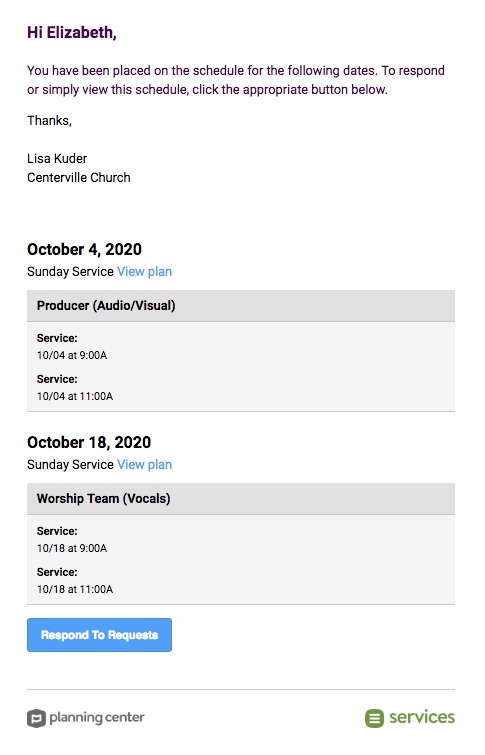
You can schedule many plans across multiple service types at a time and consolidate multiple scheduling requests into one email per person. Load the plans you need to schedule, add people to positions, and send one email with details about all the plans.
Want to watch a video before you get started? No problem! This eight-minute video will show you the concepts in this article in action.
Schedule teams
Load the matrix with the plans you want to schedule, and then select the dropdown arrow next to a team's name to expand the positions.
In the team section, there are a couple of different ways you can schedule people in the matrix.
Drag and drop the name of the person you wish to schedule to another plan. They will be added to the position, and a notification will be prepared for them.
If you have needed positions, select [Number] Needed to schedule a person from the team list. Finalize by selecting the add button.
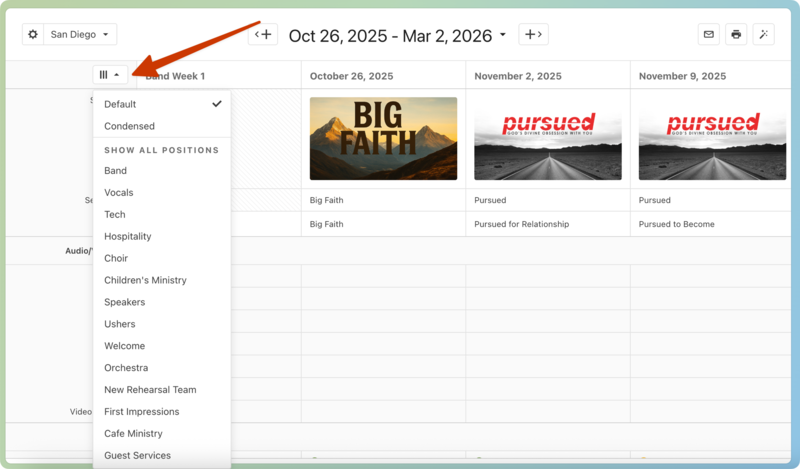
If you want to quickly see all your positions, even those without any needed positions, select the layout menu button in the top left and choose a team from the dropdown.
Important
To add more needed positions to a plan, hover over the team name in the header and select the arrow that appears. Choose Needed Positions from the dropdown, then adjust your positions and select Save.
Send emails
Select the ✉️ email icon in the top right of a matrix to send one email with all the scheduled times.
A scheduled person can respond to each individual date by selecting View plan, or they will be taken to Services if they select Respond to Requests in the email.