Create a volunteer pipeline in People
You can use Planning Center People forms and workflows to collect volunteer sign-ups and add people to teams in Services.
Important
You must have People access to create forms and workflows. Contact your organization administrator if you need permission to access People.
Want to watch a video before you get started? No problem! This nine-minute on video will show you the concepts in this article in action.
1. Set up a workflow
You can set up a workflow that moves a volunteer through the screening and training process, then adds them to a team in Services as the final step.
For example, if you want to set up an audition process for a worship team member before adding them to the team, you can set up a workflow with these steps:
Email the person with their audition dates.
Hold the audition.
Send a follow-up email with audition results.
Add the person to the worship team.
After creating the workflow, you can always add people to the workflow manually, but it's usually more convenient to have them fill out a form.
2. Create and share a form
You can either create a form specifically for people to sign up for your worship team, or you can include a question field in a general volunteer form or a contact card form that asks if people are interested in serving in a certain area or ministry.
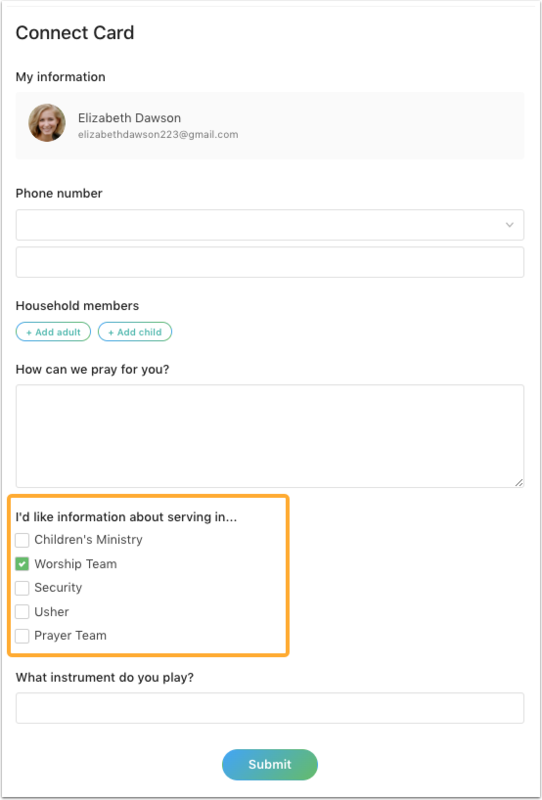
Once you've finished setting up your form, you can share it by sending the URL or embedding it on your church website!
3. Assign volunteer to the team
When a person fills out the form to show interest in joining the worship team, they are automatically added to the workflow.
When the person gets to the final step in the workflow, you can add them to the team using the Perform action tab:
Set the Application dropdown to Services.
Set the Action dropdown to Add to Team.
Set the desired options in the Service Type, Team, and Position dropdowns.
Select Perform action.
You can now schedule this team member to a plan!