Large household tips
Households are designed for grouping members of a family, so they can be easily checked in, registered for events, or scheduled together.
Only place people in a household who live in the same house. If you think you want to combine people who live in multiple houses into the same household, use either a roster station in Check-Ins or create a group in Groups instead.
Households are limited to 20 people.
Select the People page from the top navigation.
Select the person's name from the list.
Select Manage at the top of the Household section of the person's profile.
In the popup, select the household to remove.
Scroll to the bottom of the popup and select Remove household.
Select Yes, delete it.
The household will be removed from each person's profile.
Use a roster station
If, when checking in, you receive a "time out" error, it's likely because the person you're checking in is in a large household.
Instead of using a household to check in groups of people, we recommend using a roster station to check in people who could be grouped together, since roster stations list everyone who has attended an event in the last 1-6 sessions, depending on your settings.
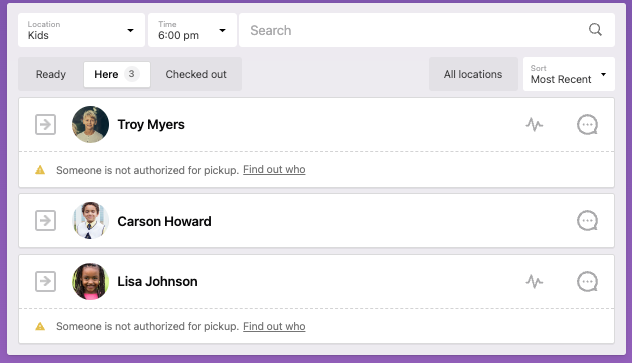
If the group you're checking in is large, you could create a new event or location just for that group, so only those in that group populate that event or location.
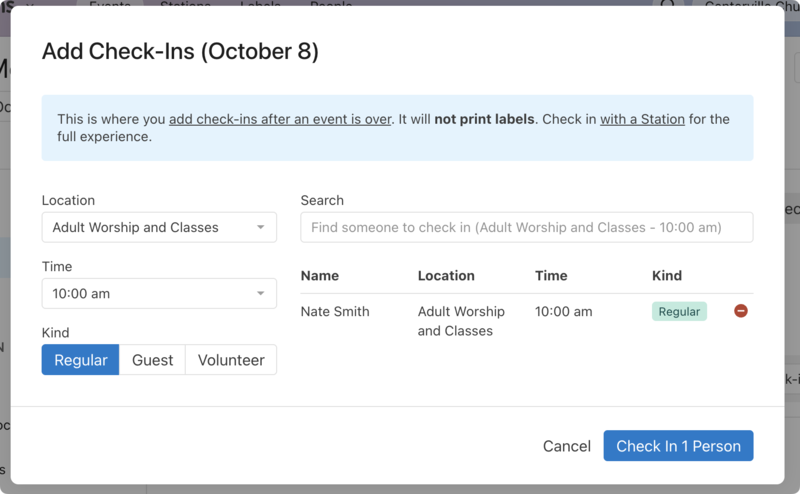
If using a roster Station doesn't seem like it will work for your situation, you can use a web browser to add check-ins for the event. Choose the location and enter the names of those you're checking in. Labels will not print, but each person will be added to the event in the location you chose.
Create a group
If you want to group people so that they can communicate with each other, view resources you share with them, and gather for meetings, create a group.
With a group, you can create events and ask members to RSVP.