Households
Households let you keep track of families in your church. Just like in real life, people in Planning Center can belong to multiple households.
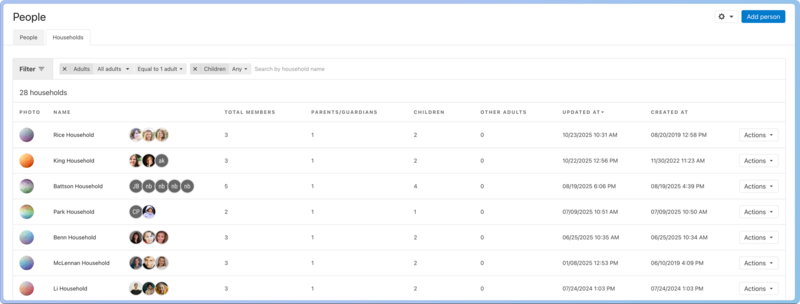
You can view all the households in your church by selecting the People page from the top navigation and then selecting the Households tab.
What do the different household roles mean?
Parents and guardians can edit everyone else's profiles in their household on Church Center.
Parents and guardians can register for signups on behalf of their household members.
Parents and guardians can check in children in their household.
Parents and guardians can manage their household members' schedules in Services if they've been granted permission.
Adult children, dependents, and relatives in the household who need the capabilities above can be set as other adults.
Children cannot add new profiles to their household in Church Center, but adults can.
A ⭐️ gold star icon next to a person's name indicates that they're the primary person for the household. This means they're the primary contact and their contact information is what displays for the household in common lists and reports for things like creating mailing labels.
Households in Planning Center are designed to track family units, such as couples and parents with young children, so you don't need to create a household for a single adult.
Add a person to an existing household
On a person's profile, select Manage in the Household section.
Select Add a household.
Use the search box to find the other person in the household.
Select Join household.
(Optional) Select the three-dot icon next to a person to set them as primary contact, or as a parent/guardian, child, or other adult in the household.
Select Save at the bottom of the popup.
When the Households toggle is enabled in your Church Center settings, congregants can add or remove household members directly from their profile in Church Center. Adults can add new profiles to their household, but children cannot. See Set up Church Center in People for details.
Create a new household
Tip
In addition to the method below, you can create households while importing a CSV file into People.
On a person's profile, select Manage in the Household section.
Select Add a household.
Use the search box to find another person to create the household with.
Select Create a new household with [person's name] and [person's name] as members.
(Optional) Select the three-dot icon next to a person to set them as primary contact, or as a parent/guardian, child, or other adult in the household.
Select Save at the bottom of the pop-up.
Remove a person from a household
If someone is no longer part of a household, you can remove them without deleting the entire household. When you remove a person from the household, they still exist in your database.
In the Household section of a person's profile, select the three-dots icon next to the household you want to remove them from.
Select Edit household from the dropdown.
Select the three-dots icon next to the person you want to remove from the household.
Select Remove from household.
Select Yes, remove person.
Select Save.
Delete a household
If a person has a duplicate household accidentally created by a form, signup, or administrator error, you can delete the extra household.
Tip
This process only deletes the duplicate household. No profiles or activity will be deleted!
On a person's profile, select the three-dots icon next to the household you want to delete.
Select Delete household from the dropdown.
Select Yes, delete it in the pop-up.
Manage households
On a person's profile page, you can view their households in the Household section on the right and manage them by selecting the Manage button.
You can add or remove the household photo that appears in the directory.
Select the three-dot icon next to a person's name to set them as the primary contact, a parent/guardian, a child, another adult in the household, or to remove them from the household. If you remove the person from the household, they still exist in your database.
If you select Manage other Households at the top of the popup, you can see other households the person belongs to or add them to another household.
If a person is added to a household via a form submission, they'll receive an email notification. They'll show as pending in that household until they confirm the information in the email.
Tip
If you notice a mistake in the data for multiple households (such as children being assigned as primary contacts), you can fix it by exporting your data as a CSV file, cleaning it up in your spreadsheet software, and then uploading the fixed CSV file.
Update phone and address info for a household
When you edit a household member's Phone Number or Addresses fields, select the Update home phone/address for all household members option to update it for everyone else in the household.
The field type must be set to Home to prompt you to update it for all household members.