Create a group
Create groups in Planning Center to facilitate communication and share resources between small group members. You can create groups to organize anyone at your church who doesn't need to be scheduled for services. Common examples of groups include:
Small groups
Bible studies
Care & recovery groups
Admin/staff groups
Tip
If you're not sure whether to create a group or a Services team, check out the Should I create a new team or a new group? section of the FAQs.
Whether you're starting fresh or expanding your small group ministry, you can create as many groups as you need! It's best to start by creating group types first, but you can also add existing groups to group types afterward.
Want to watch a video before you get started? No problem! This five-minute video will show you the steps in this article in action.
Create a new group
Follow the steps below to create a new group:
Select the Groups page from the top navigation in Groups.
(Optional) If you're creating several groups in the same group type, select Filter on the left side of the Groups page and choose a group type. This preselects it when creating a group, saving you a step each time.
Select New group in the top right corner.
In the New group popup, enter the group's name.
(Optional) If you've created group types, select one from the dropdown to apply that type's default settings. Unique Groups is the best option for miscellaneous groups that do not have the same leadership structure as other groups.
Select Create group in the bottom right corner.
Set up the group
Once your group is created, you're ready to add members, events, and resources and modify its settings!
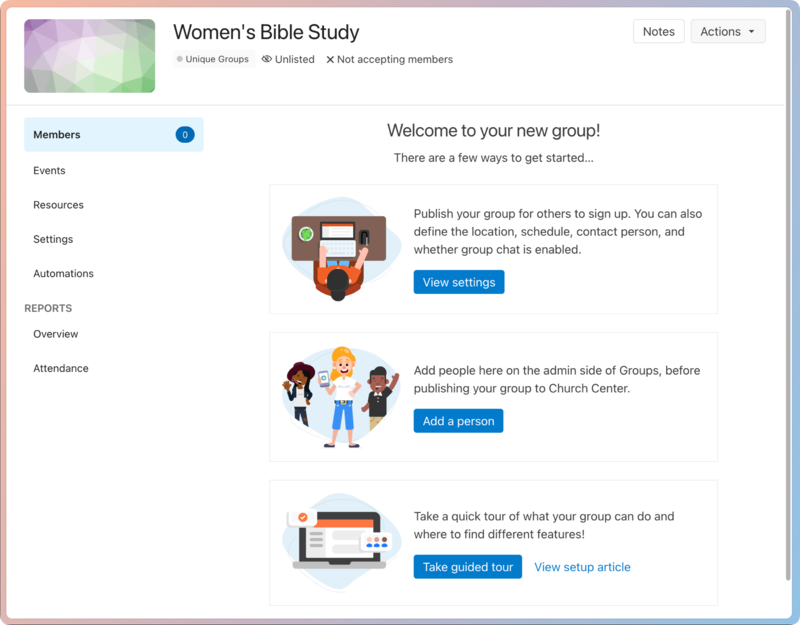 |
The tabs are organized to help you with different tasks:
Members: Add or remove members, make a member a group leader, email members, or download a PDF or CSV export.
Events: Create events with reminder emails so members can RSVP. As the event creator, you'll be the reply-to contact if someone responds to a reminder email for that event. When everything looks good, add events to your main church calendar for visibility.
Resources: Add resources to your group to share files with leaders and/or members, like meeting guides, instructional videos, forms, leader expectations, etc.
Settings: Change the logo, description, location, contact information, and more in the Settings tab. It may have inherited its settings if the group belongs to a group type.
Automations: Administrators can add automations to streamline tasks that would otherwise be done manually.
Overview: Reports allow you to see this group's stats and compare them to other groups in the group type.
Attendance: Dig into the data that's most important to you by customizing your view of the attendance report.
Add group leaders
Groups don't exist without leaders! Follow the steps below to add someone as a leader:
Select Groups from the top navigation in Groups.
Select the group where you'd like to add a leader.
From the Members tab, select Add member in the top right corner.
In the popup, select Add member.
Choose Add leader from the dropdown.
Search for a person's name.
If the person doesn't exist in your People database, type out their full name and select Create a new person: “[name]” and follow the steps in the popup to add them.
If the person does already exist, select their name, check the box to Notify [name] by email, and select Yes, add [name] in the bottom right corner of the popup.
Tip
Administrators and group type managers can select Edit next to a role to promote an existing member to a leader.
Duplicate a group
If you have recurring classes or seasonal groups, duplicate a group so you don't have to start from scratch! You can save time by reusing the structure of an existing group and making small tweaks along the way.
To duplicate your group:
Select Groups from the top navigation in Groups.
Select the group you'd like to duplicate.
On the specific group's page, select the Actions button.
Choose Duplicate group from the dropdown.
In the Duplicate group popup, rename the group.
(Optional) Select a new group type.
Select/deselect the settings you want to copy to the new group.
To finish, select Duplicate in the bottom right corner.
Next steps
That's not all! Once you've duplicated the group, take a moment to review settings and complete the final steps before making your group visible to others.
Confirm each person has the correct leader or member role and attendance-taking permissions.
Add new leaders or members.
Check the security setting to allow group leaders to access the entire church database, if needed.
Review outgoing automations and rebuild incoming ones.
Update the visibility on Church Center to Listed, if needed.