Check in a person
After you've created your event with all its times and locations, you can check people into that event! You can create as many stations as you'd like so that everyone attending can find a place to check in.
Tip
You can also set custom success messages to be displayed after a person checks in.
First time guests
A volunteer can check in first-time guests at a manned station. All new profiles created at a station will default to the "child" type, and you can change a profile to "adult" when needed.
Tip
The first adult created in a new household will become the household's primary contact.
If you want first-time guests to check in quicker, create a form where they can enter their information and then display the shareable code in a place where they can scan it.
Important
If the person only comes with grandparents on holidays or will not return, check them in without adding them to your database. Follow the steps in the Check in visitors article to add them as a visitor.
Enter their name in the station's search bar. If they have any information in the database, their name will appear in the search. If not, select Add Person to start a new profile.

If you choose a person from the search results, you can check in everyone from their household.
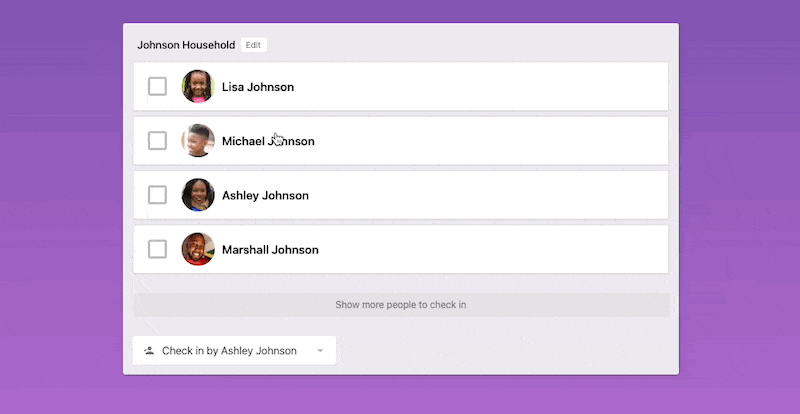
Check people in by tapping the boxes next to their names.
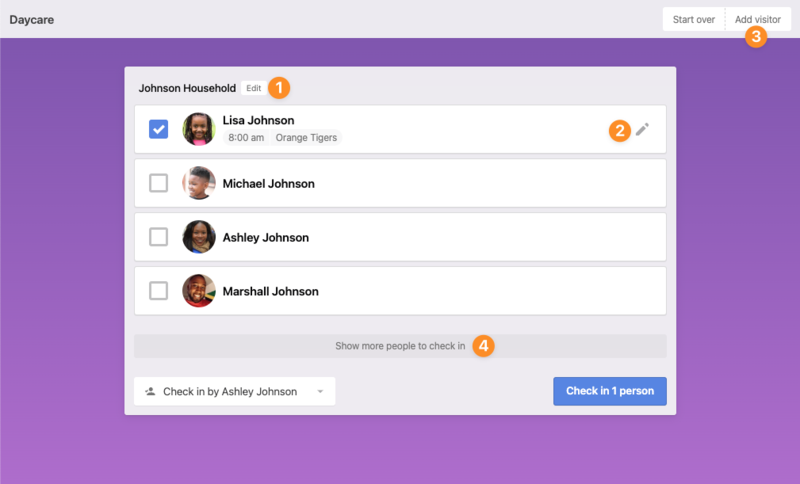
Tap Edit next to the household name to add a member to the household or change a person's information.
Tap the ✏️ edit icon to check the person into the right place with the correct status of Regular, Guest, or Volunteer. If the event has more than one time, choose each time they're attending.
If a person comes with the household but isn't part of the household, tap Add visitor to check them in as a visitor. A label will print for them, but they will not be added to the database.
Tap Show more people to check in to see other people you can select for check-in. This includes inactive people in the person's household and children from other households where the person is listed as a trusted person.
Important
Anyone with an inactive reason of deceased will not be displayed. If you check in someone who's inactive, their status in People changes to active.
Set their status as a Guest, make the selections, and select Done to return to the main screen and finish checking them in.
Regular attendees
People who attend your events regularly can either check themselves into the event or be checked in from a class list, which should be held by the teacher or a volunteer in the location.
Check in themselves
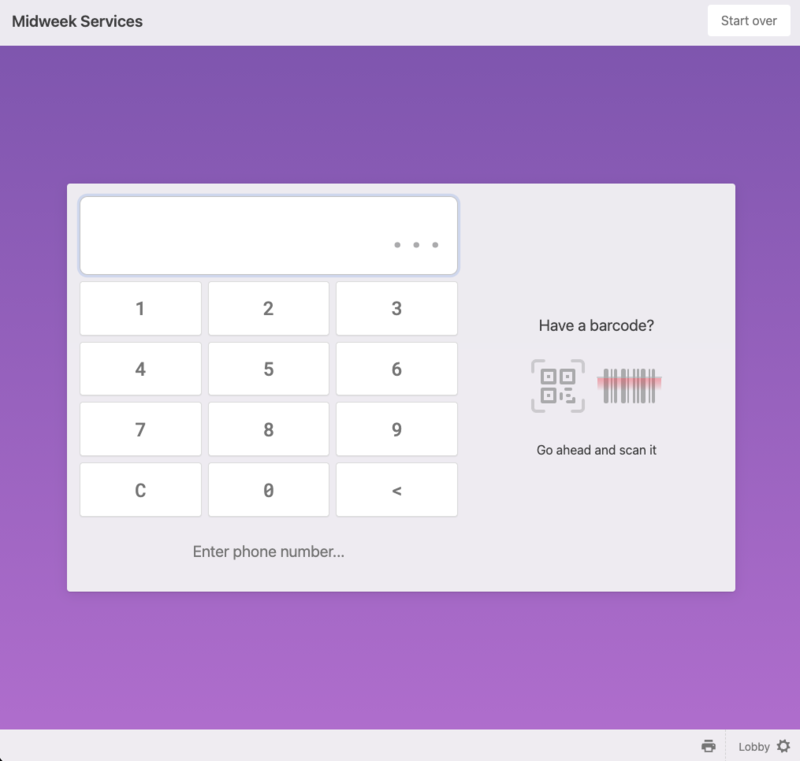
A regular attendee can check in quickly at a self station by entering a phone number or scanning a barcode, which will pull up their household.
Important
Let people know!
If this isn't the way your regular attendees typically check in, prep them for using these stations by following these steps:
Make a list of regular attendees.
Email them about new stations where you type a phone number or scan a barcode.
If you use the Church Center app, let them know the app will work as the code to scan.
If you don't use the Church Center app, send the list of people a mobile pass as well.
Be available for questions for a few weeks as they get used to checking themselves in.
Set your self station to show the keyboard, scanner, or both.
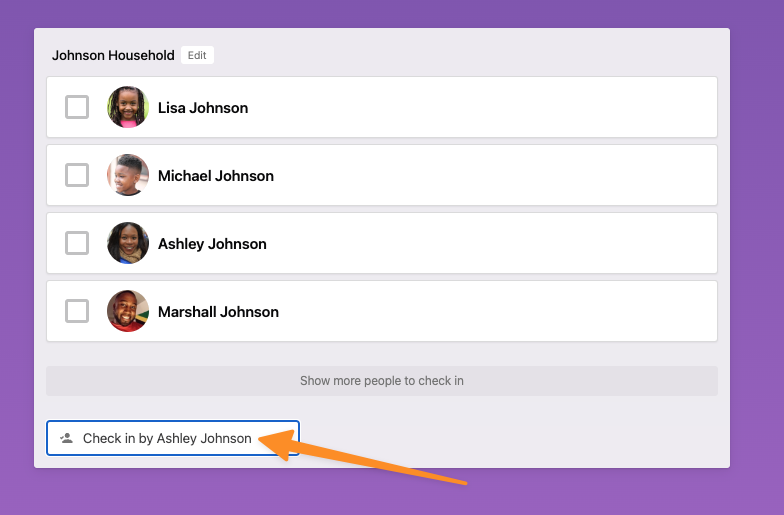
Select the checkboxes to check in the appropriate people, and choose their checked in by person. Select the pencil to change the location and location option and add additional check-in times.
Tip
If the person scans a Church Center app QR code, the pre-checked people will be automatically checked in, and labels will print, if applicable. Check out this video to see how it works!
Check in at location
A teacher can check in people as they arrive by checking them off at a roster station. As people arrive at the location, select the checkmark or the person's name to check them in.
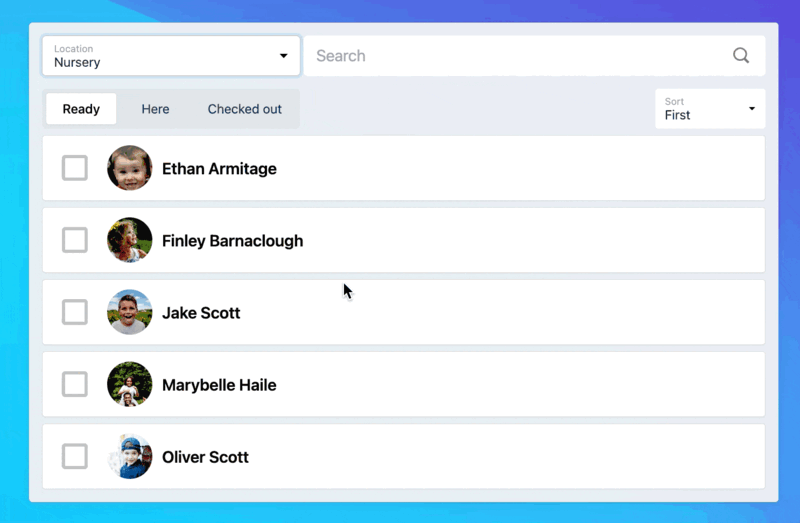
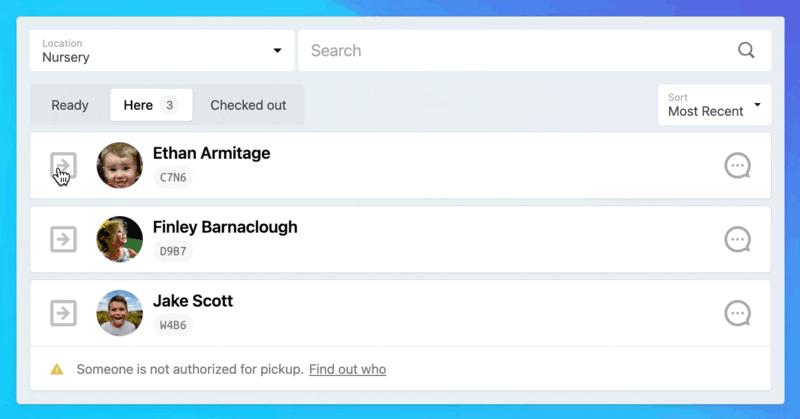
When the event ends, go to the Here tab to check people out of that location.
Volunteers
The first time someone volunteers, they must check in at a manned station to change their type to Volunteer unless you're using the Services integration.
Tip
Check out the article on checking in a volunteer to learn more!
After they check in at a manned station as a volunteer for the first time, they can check themselves in at a self station. Check-Ins automatically show their check-in type as Volunteer as long as one of the following applies:
Their last check-in to this event was as a Volunteer.
The Check-Ins and Services integration is enabled, and the volunteer is scheduled in the corresponding plan.